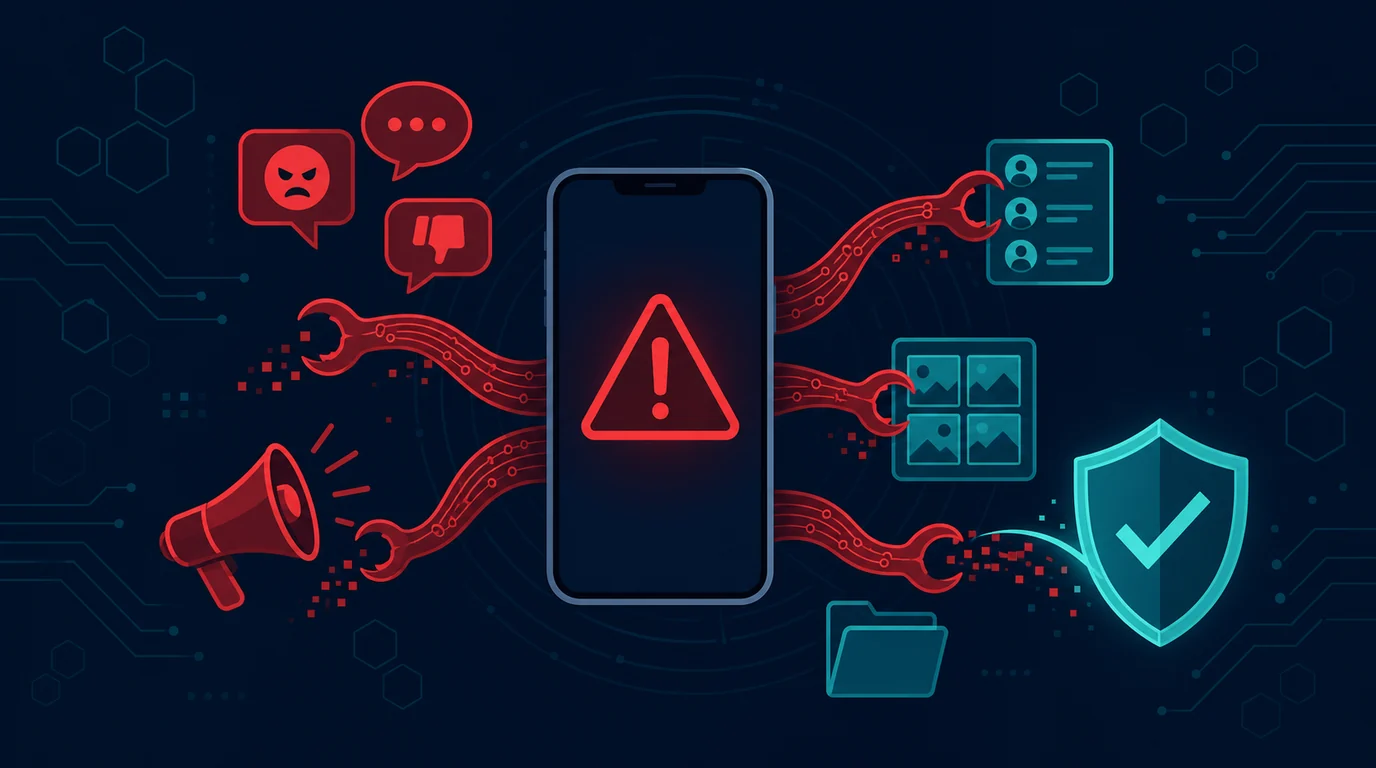
A search for a phone being tapped often yields a list of signs that make people panic: drained battery, strange noises, warm device, or changing signal. These symptoms have many common causes, such as heavy applications, a weak network, or an old device. A good examination does not depend on one secret code or one symptom.
More obvious risks usually come from malicious apps, excessive permissions, taken over accounts, devices that haven't been updated, or links that steal credentials. The purpose of the inspection is to look for actionable evidence: foreign applications, unknown account access, redirects you didn't set up, or suspicious transactions.
This article helps you check your phone with peace of mind. The guide does not promise perfect detection, does not replace professional forensics, and does not encourage the installation of apps from unknown sources. If you face a serious physical threat or surveillance, prioritize safety and trusted assistance.
Initial steps before checking
Battery drain, a warm phone, and fast data use have plenty of ordinary causes: system updates, weak signal, or genuinely heavy apps. A single symptom is not enough to conclude surveillance.
Note when symptoms started and which apps were installed around that time. That sequence separates a normal technical issue from a problem app.
How to check safely
1. Don't draw conclusions from one symptom
A hot or slow battery may occur due to updates, weak signal, or normal applications. Look for a combination of signs and changes that you can note before taking drastic action.
2. Check installed applications
Open the application list and look for names, icons, or installation times that you don't recognize. Also check for apps that are hidden or have common names. Remove it only after you understand its function or ask trusted help.
3. Review high-risk permissions
Check accessibility, camera, microphone, location, notifications, device administrator, and permissions to appear on top of other apps. Revoke permissions that do not suit the application's function.
4. Check account security from other devices
Check your primary email, Google or Apple account, social media, and financial services from devices you trust. View logged in devices, active sessions, recovery addresses, as well as unknown activity.
5. Update system and applications
Install important Android or iOS, browser and app updates. The update fixes a loophole that could be used for compromise. Avoid rooting or jailbreaking devices used for sensitive services.
6. Don't trust USSD codes as proof of wiretapping
Certain dial codes can indicate settings such as call diversion, but do not prove spyware or eavesdropping. Contact the operator via official channels if there is a diversion that you did not set up.
7. Secure access to finances and phone numbers
If there are strange transactions, unsolicited OTP codes, or sudden signal loss, contact your bank, digital wallet, and operator. Don't wait for the perpetrator to try more accounts.
8. Reset with a plan if necessary
If the malicious app cannot be removed or the device remains suspicious after checking, back up important data and perform a factory reset via the official menu. Afterwards, install the app from the official source and change the credentials of the clean device.
Example situations
Sinta thought her cellphone was being tapped because the battery was running out quickly. He did not immediately install the ad checking application. It looks at battery usage and finds video apps that are constantly running in the background. At the same time, it checks app permissions and email accounts. No foreign devices or dangerous permissions. After deleting the video app and updating the system, the problem was solved. Evidence-based checks prevent unnecessary actions.
Mistakes to avoid
Do not install antivirus or cleaner apps from the pop-up ads that claim to have found a virus. Many of those apps are adware themselves. Do not grant accessibility permission to apps with unclear purpose either, since it allows screen reading and code capture. A factory reset is the last step rather than the first, and only helps once a backup is finished.
Short checklist
- I open the official site or application myself.
- I store necessary evidence without releasing sensitive data.
- I do not share PINs, passwords, OTPs or recovery codes.
- I check important accounts from trusted devices.
- I use more than one piece of evidence before making a decision.
- I contact the service provider through official channels if there is a financial or account risk.
- I updated the device and removed unnecessary access.
- I know when to ask for help from trusted people or parties.
Frequently asked questions
Can the dial code prove that the cellphone was tapped?
No. The code may display certain settings information, but cannot be the sole evidence of spyware or compromise. Check apps, permissions, accounts, and contact your carrier if there are any redirect changes that you didn't set.
Can iPhones also be subject to security issues?
Yes. The risks and mechanisms are different, but system updates, profile or device management checks, and account security remain important.
What are the signs that require a quick response?
Strange logins, unknown transactions, apps with broad permissions you didn't install, unsolicited OTPs, or number redirections you didn't set up require action through authorized channels.
When is it necessary to seek professional help?
Ask for help if a work device is involved, there is a serious threat, an application cannot be removed, or you need a more in-depth examination. Use a trusted service center or IT team.
Helpful follow-up checks
If symptoms persist after the basic checks, continue with these three.
- Accessibility and device-admin permissions. Adware and spyware rely on these two most. Revoke them from apps with unclear purpose.
- Data use per app. An app sending large amounts while you are not using it deserves suspicion and removal.
- The Google or Apple account on the phone. Review linked devices and third-party apps holding access, then revoke anything unfamiliar.
Sources and further reading
Editorial note: This article is educational in nature. Service procedures, device menus, and platform policies are subject to change. Use official channels for handling specific cases.