Every time you type a website address like "google. Com" in your browser, your device contacts a DNS (Domain Name System) server to translate the domain name into an IP address. This process happens behind the scenes, in milliseconds, and you almost never think about it. But DNS is an often-overlooked vulnerable point. If someone can control or manipulate the DNS responses your device receives, they can redirect you to fake sites without you noticing. A bank that looks authentic, an identical login page, but all on the attacker's server.
Threats to DNS
DNS spoofing (cache poisoning)
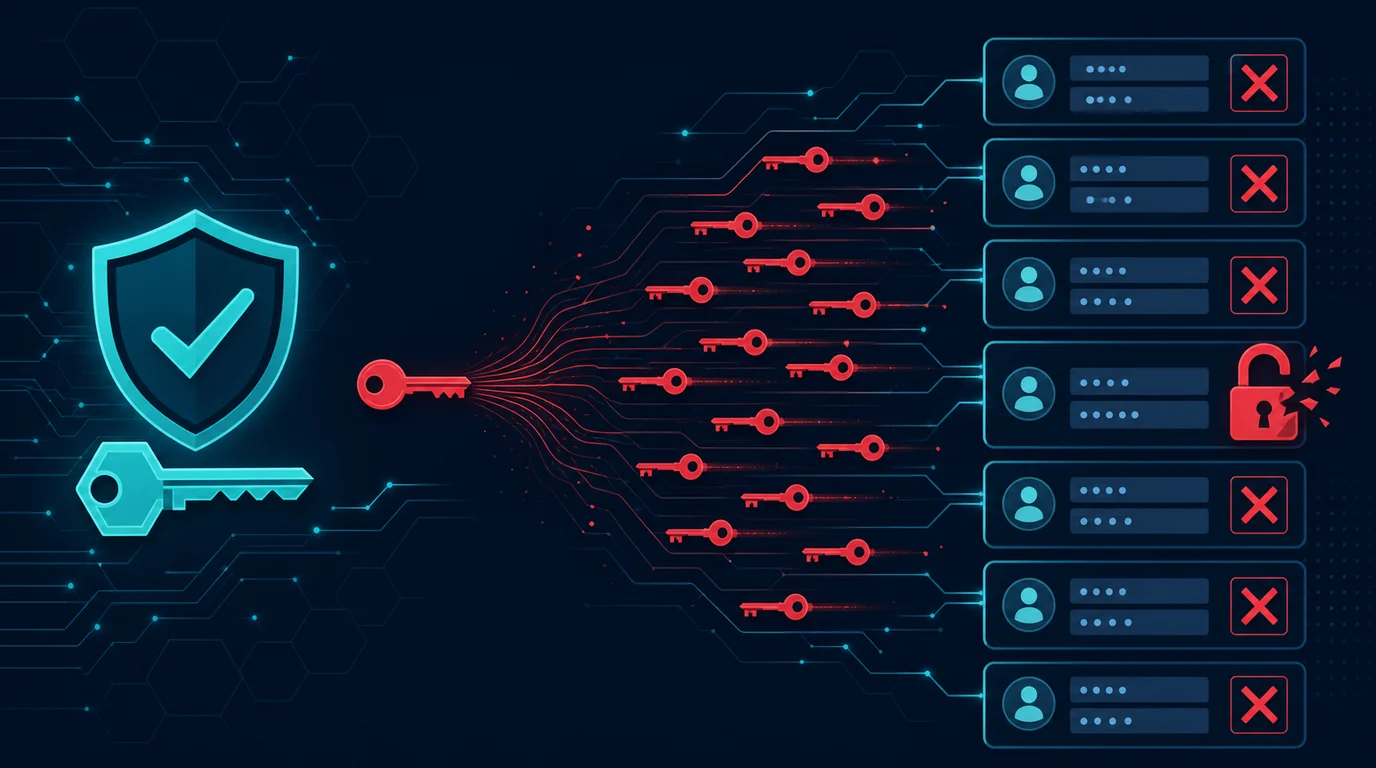
Attackers inject false data into a DNS resolver's cache, so requests for certain domains are directed to IP addresses controlled by the attacker. All users using that resolver are affected until the cache is cleared.
DNS hijacking
Attackers change DNS configuration on your router or device, directing all DNS requests to servers they control. This often happens through malware or through routers with unchanged default passwords.
Man-in-the-middle on DNS queries
Traditional DNS queries are sent in plaintext. Anyone on the network path between your device and the DNS resolver can read or modify queries and responses.
DNS-based tracking
ISPs and third-party DNS resolvers can log every domain you request, building your browsing profile even if you use HTTPS.
6 steps to secure your DNS
1. Use trusted DNS resolvers
Replace your ISP's default DNS with more secure and privacy-respecting resolvers:
- Cloudflare DNS: 1.1.1.1 (fast, does not sell data)
- Google Public DNS: 8.8.8.8 (reliable, but Google collects limited data)
- Quad9: 9.9.9.9 (automatically blocks malicious domains)
- OpenDNS: 208.67.222.222 (provides content filtering options)
Configure DNS on each device or on your router to protect your entire home network.
2. Enable DNS over HTTPS (DoH) or DNS over TLS (DoT)
DoH and DoT encrypt your DNS queries, preventing them from being read or modified on the network path. Modern browsers like Firefox and Chrome support DoH. Android 9+ supports DoT natively. In Firefox: Settings > Network Settings > Enable DNS over HTTPS. Choose a provider or enter a custom resolver URL. On Android: Settings > Network & Internet > Private DNS > Select "Private DNS provider hostname" and enter something like "dns. Google" or "1dot1dot1dot1. Cloudflare-dns. Com".
3. Secure your router's DNS
Your router may use the ISP's default DNS or DNS that malware can change. Ensure:
- Router admin password is changed from default
- Router DNS is pointed to trusted resolvers
- Router firmware is updated to close vulnerabilities that allow DNS changes by malware
4. Enable DNSSEC if available
DNSSEC (DNS Security Extensions) adds digital signatures to DNS responses, allowing resolvers to verify that responses are authentic and not manipulated. Many major domains have enabled DNSSEC. Resolvers like Cloudflare and Google support DNSSEC validation by default.
5. Monitor for unauthorized DNS changes
Some malware changes DNS configuration on your device without your knowledge. Periodically check DNS settings:
- On Windows: Network Settings > DNS server assignment
- On macOS: System Settings > Network > DNS
- On Android/iOS: WiFi settings > DNS
If DNS changes without your doing it, scan the device with antivirus and check the router.
6. Consider DNS filtering for family or business
DNS filtering blocks access to malicious or inappropriate domains before pages load:
- For families: CleanBrowsing Family Filter or OpenDNS FamilyShield blocks adult content
- For businesses: Cisco Umbrella or NextDNS provides malicious domain, phishing, and malware filtering
- For personal use: NextDNS allows custom configuration with optional logging
Example: DNS hijacking through a router
A user never changed the router admin password. Malware on one IoT device in their home network accessed the router admin panel and changed DNS to an attacker-controlled server. From then on, every time the user accessed banking sites, they were directed to identical-looking phishing pages. The user entered credentials without realizing the URL in the address bar looked correct but the responding server was not the actual bank server. Changing the router admin password and using DNS over HTTPS in the browser would have prevented this attack.
Common DNS mistakes
- Never checking DNS configuration. Most people do not know what DNS they use, let alone whether it is secure.
- Assuming HTTPS protects against DNS manipulation. HTTPS protects the connection after DNS resolves, but if DNS directs you to the wrong server from the start, SSL certificates can be faked or you can be directed to convincing-looking pages.
- Leaving ISP default DNS. ISP DNS can be slow, log all your queries, and not filter malicious domains.
Frequently asked questions
Does changing DNS speed up the internet?
It can. DNS resolvers like Cloudflare (1.1.1.1) are often faster than ISP default DNS, especially for international domain resolution.
Does DNS over HTTPS make me anonymous?
No. DoH hides DNS queries from your ISP, but the DoH resolver you choose can still see those queries. For higher anonymity, consider combining DoH with Tor or a VPN.
Is DNS filtering enough to protect children?
DNS filtering helps, but smart children can find bypass methods. Combine with device-level parental controls and open communication about online safety.
Sources and further reading
Editorial note: DNS configuration varies by device and network. This guide is general. Adapt it to your devices and network environment.