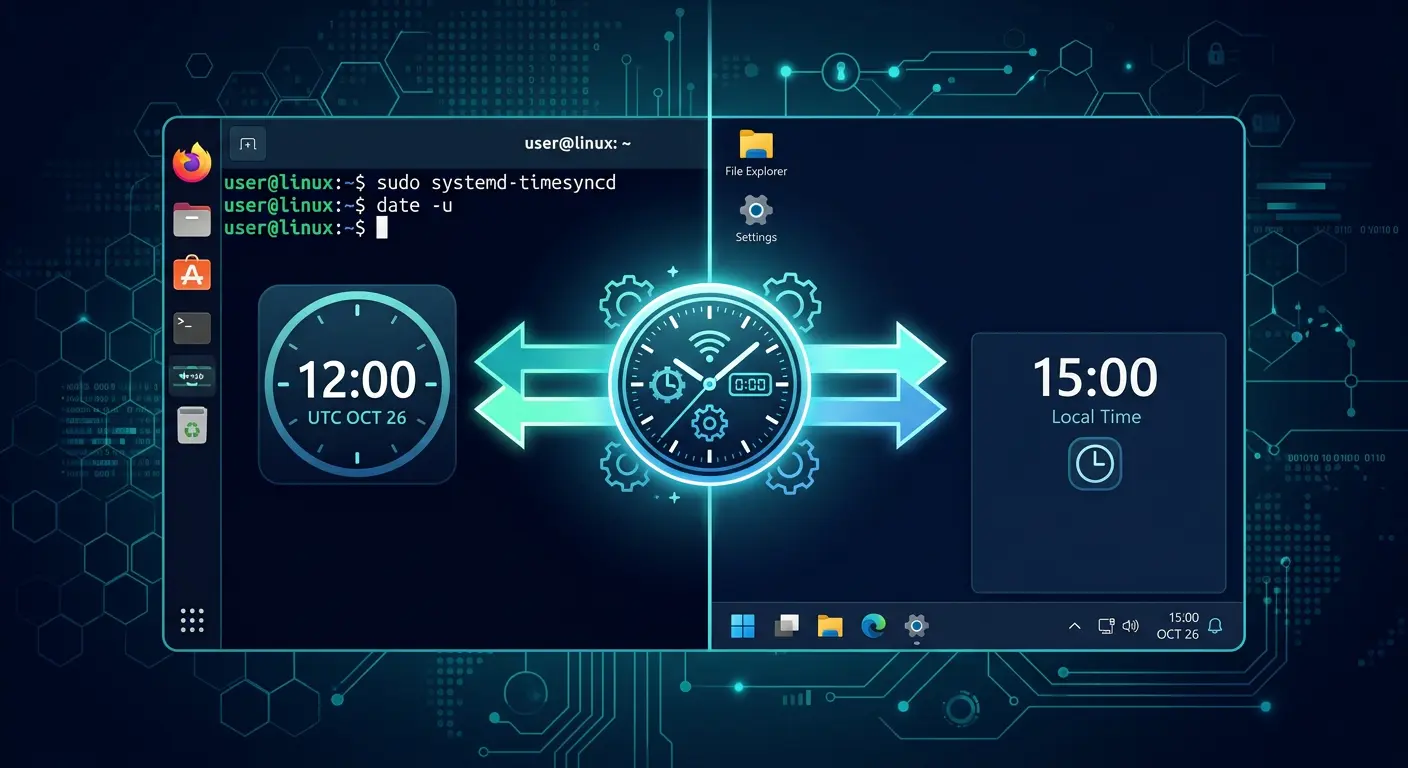
You boot into Windows 11 after using Kali Linux. The clock jumps back one hour. Or forward. Tomorrow, the opposite happens. This isn't hardware failure. It's a conflict between Linux and Windows time conventions.
Why the Clock Shifts
Linux and Windows handle the Real Time Clock (RTC) on your motherboard in opposite ways.
Linux treats RTC as UTC. At boot, Linux reads UTC from hardware, then adds your timezone offset for display. If you're in WIB (UTC+7), Linux shows RTC time + 7 hours.
Windows treats RTC as local time. Windows reads the RTC value as-is and displays it after applying timezone settings.
The problem appears when each OS writes time back to RTC. Linux writes UTC to hardware. Windows writes local time to hardware. Each time you switch OS, the new system reads what the previous OS wrote and interprets it under a different convention.
Result: the clock shifts by your timezone offset.
Method 1: Make Windows Use UTC (Recommended)
This fixes the problem from the Windows side. Linux keeps using UTC as usual, and Windows follows the same standard.
Steps for Windows 11
Open Registry Editor as administrator:
- Press
Win + R, typeregedit, press Enter. - Navigate to:
HKEY_LOCAL_MACHINE\SYSTEM\CurrentControlSet\Control\TimeZoneInformation - Right-click in the right panel, select New → DWORD (32-bit) Value.
- Name it
RealTimeIsUniversal. - Double-click it, set Value to 1.
- Close Registry Editor.
- Restart Windows.
After restart, sync the time:
- Open Settings → Time & Language → Date & Time.
- Turn off Set time automatically, then turn it back on.
- Windows will sync to NTP server and store UTC to RTC.
Verify
Boot into Linux, run:
timedatectl
Check Local time and RTC time lines. If configured correctly, RTC time contains UTC and Local time shows the correct local time.
Advantages
- Industry standard: UTC in RTC is the convention used by most OS besides Windows.
- No Linux configuration changes needed.
- NTP continues working on both OS.
Disadvantages
- Windows Update can remove this registry key. If the clock shifts again after an update, repeat the steps above.
- Some Windows applications that read RTC directly may show incorrect time for a short period.
Method 2: Make Linux Use Local Time
This changes Linux to follow Windows' convention. Choose this method if you can't or don't want to modify the Windows registry.
Steps for Kali Linux (systemd)
Run the following command:
timedatectl set-local-rtc 1 --adjust-system-clock
Verify:
timedatectl
Output will show RTC in local TZ: yes.
Steps for non-systemd distributions
Edit /etc/adjtime. Change the last line from UTC to LOCAL:
0.0 0 0.0
0
LOCAL
Advantages
- No Windows registry modification needed.
- Changes take effect after reboot.
Disadvantages
- NTP on Linux may overwrite local time to RTC, then Windows reads it as local time that's wrong. This shifts the problem to a different side.
- DST (Daylight Saving Time) can cause double offset in countries that use it. Indonesia doesn't use DST, so this risk is low for users here.
- Doesn't follow the UTC standard used by most Unix-like OS.
Recommendation
Use Method 1 (Windows uses UTC) for a cleaner solution. Reasons:
- UTC in RTC is the standard used by Linux, macOS, BSD, and most OS besides Windows.
- Doesn't change how Linux handles time.
- NTP works across both OS.
Use Method 2 (Linux uses local time) only if:
- You can't modify the Windows registry (e.g., office computer with restricted policies).
- You need a quick fix and don't mind the trade-offs mentioned above.
Still Having Issues? Check These
BIOS/UEFI Shows Wrong Time
Enter BIOS/UEFI and check the time there. If BIOS shows incorrect time, set it manually in BIOS, then boot into the OS where you applied Method 1 or 2.
NTP Not Syncing
On Linux:
sudo systemctl restart systemd-timesyncd
timedatectl show-timesync --all
On Windows (PowerShell as admin):
w32tm /resync /force
w32tm /query /status
Triple-Booting with Another OS
If you triple-boot (e.g., Windows + Kali + Ubuntu), make sure all Unix-like OS configure RTC the same way. Don't mix Method 1 and Method 2.
Security Implications
Incorrect time isn't just an inconvenience. Several security mechanisms depend on accurate time:
- TLS/SSL certificates. Browsers and systems check certificate validity based on system time. Wrong time can cause misleading certificate warnings.
- Security logs. If you analyze logs from both OS, unsynchronized timestamps complicate incident correlation.
- Authentication tokens. Kerberos and some authentication protocols are time-sensitive. An offset greater than 5 minutes can cause authentication failures.
- Security updates. Some package managers check timestamps before installing updates. Wrong time can block updates.
If you use dual-boot for security-related activities, such as forensics, penetration testing, or malware analysis, make sure time is synchronized across both OS before starting work.
Summary
The clock-shift problem in Linux-Windows dual-boot stems from different conventions for writing time to RTC. Linux uses UTC, Windows uses local time. Best solution: configure Windows to read and write UTC to RTC via registry edit. Alternative: configure Linux to use local time, with caveats worth considering.
Choose a method based on the control you have over the system. Verify the result after reboot. If the clock still shifts, check BIOS and NTP status.
Editorial note: This article assumes you're running Windows 11 and a systemd-based Linux distribution (including Kali Linux). Steps for other distributions may differ. Check your distribution's documentation for exact commands.
Sources
- Microsoft: Windows Time Service
- systemd: timedatectl(1) man page
- Arch Linux Wiki: System time
- Linux kernel: RTC subsystem
- RFC 5905: Network Time Protocol
Author's note: I compiled this guide from experience managing dual-boot Kali Linux and Windows 11 for cybersecurity research. I tested every step on my own devices before publishing.