Every time you type a domain, click a link, or load an image, your device asks a DNS resolver: "What is the IP address for this name?" That question travels in plain text. Your ISP sees it. The coffee shop WiFi sees it. The hotel network sees it. Any device on the path sees it. They log it. They sell it. They block it. They inject ads into it. They redirect it.
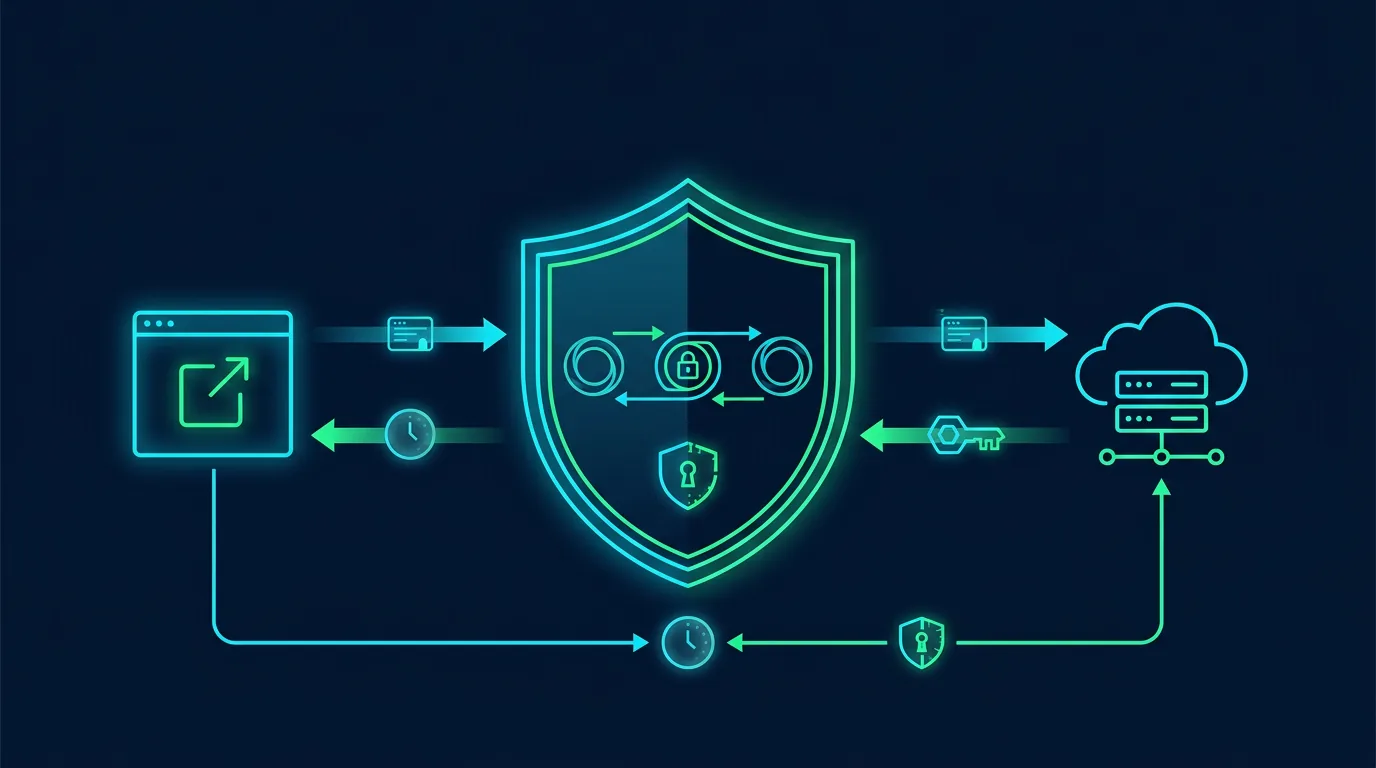
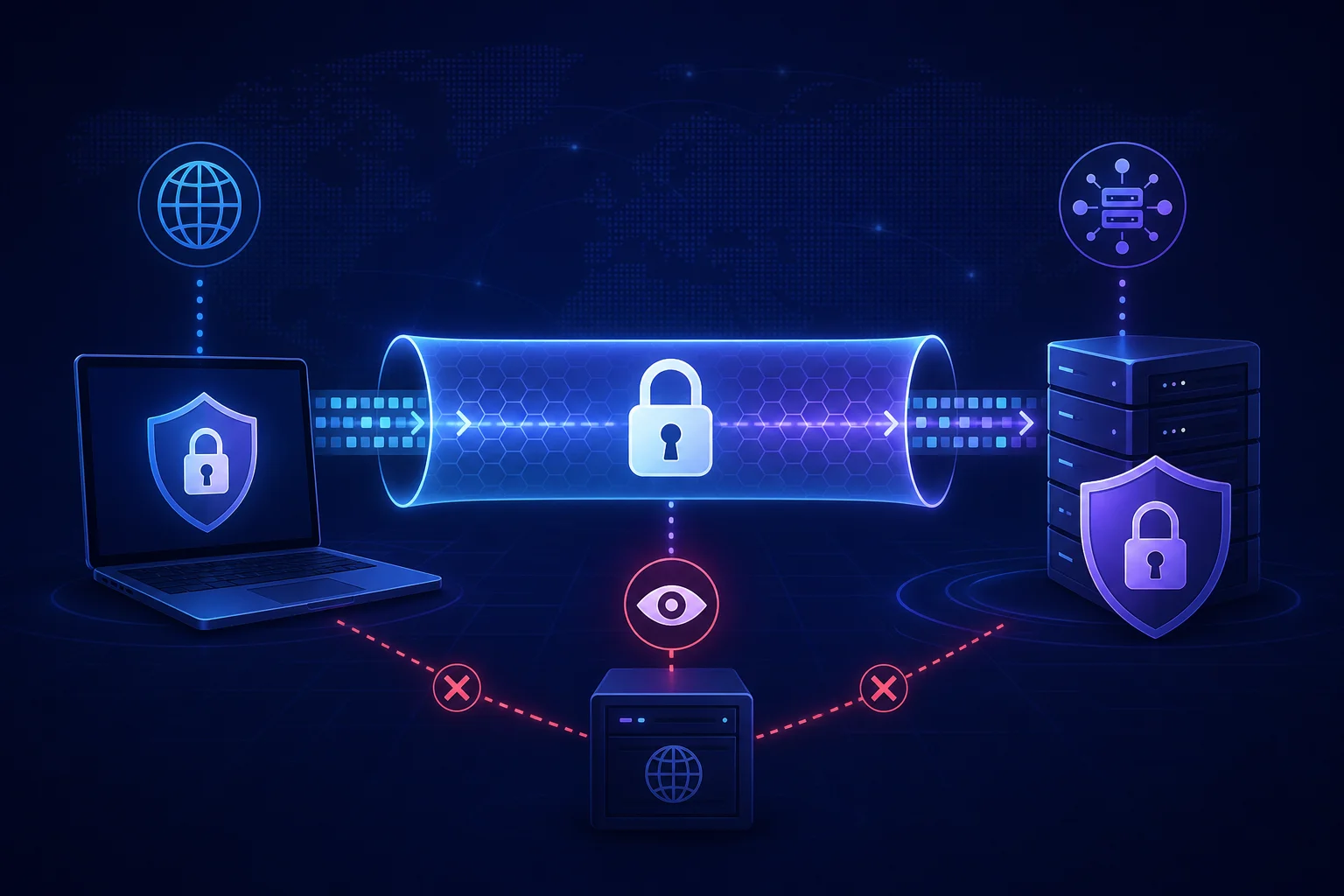
Encrypted DNS changes that. DNS over HTTPS (DoH) and DNS over TLS (DoT) wrap your queries in TLS, the same encryption that protects your banking session. The resolver still answers, but the network between you and the resolver sees only encrypted traffic to a known IP. They know you use encrypted DNS. They do not know which domains you ask for.
This is not theoretical. In 2017, the US Congress repealed FCC broadband privacy rules, explicitly allowing ISPs to sell browsing history. In 2021, a major US ISP was caught injecting ads into HTTP pages. In 2023, multiple countries mandated DNS-level blocking of "unauthorized" sites. Public WiFi operators routinely intercept DNS to enforce captive portals or filter content. Malware uses DNS for command-and-control. Encrypted DNS addresses all of these.
But it is not a magic shield. It shifts trust from your ISP to your DNS provider. It breaks some local network features. It can be blocked. It leaks in certain configurations. This guide covers the protocols, the providers, the setup on every platform, the tradeoffs, and the advanced configurations that make it work reliably.
The Problem: Plaintext DNS
DNS (Domain Name System) was designed in 1983. No encryption. No authentication. No integrity. A query goes out on UDP port 53. The answer comes back. Anyone on the path can read, modify, block, or redirect.
What the network sees:
- Every domain you resolve (example.com, tracker.adnetwork.com, cdn.malware.site)
- The timing and frequency (correlates to your activity)
- The client subnet (EDNS Client Subnet) revealing your approximate location
- The query type (A, AAAA, MX, TXT, HTTPS) revealing intent
What the network can do:
- Log and profile: Build a history of every site you visit. Sell to data brokers. Share with law enforcement without a warrant (in many jurisdictions).
- Block: Return NXDOMAIN or a block page for domains on a government or corporate list.
- Redirect: Return an IP for a captive portal, an ad injector, a phishing site, or a government warning page.
- Throttle: Slow down specific domains (streaming, gaming, VPN).
- Inject: Modify unencrypted HTTP responses (ads, tracking, malware).
DNSSEC validates the answer (cryptographic signature on the zone). It does not encrypt the query. The network still sees what you asked. DNSSEC + plaintext DNS is like sending a sealed letter in a transparent envelope.
The Solution: DoH and DoT
Both protocols encrypt DNS traffic inside TLS. Both use standard ports (443 for DoH, 853 for DoT). Both provide confidentiality and integrity. Both authenticate the resolver (certificate verification).
DNS over TLS (DoT)
Standardized in RFC 7858 (2016). DNS messages framed over a persistent TLS connection on port 853. The client initiates TCP, performs TLS handshake, verifies certificate, sends DNS queries as length-prefixed messages.
Characteristics:
- Dedicated port (853): easy to identify and block
- Lower latency after connection establishment (persistent connection)
- Native OS support in Android 9+, iOS 14+, Windows 11, Linux (systemd-resolved, stubby)
- Clear separation from HTTP traffic
DNS over HTTPS (DoH)
Standardized in RFC 8484 (2018). DNS messages encoded as HTTPS requests (GET or POST) to an HTTPS endpoint. Uses standard port 443. Indistinguishable from regular HTTPS traffic to a casual observer.
Characteristics:
- Port 443: hard to block without blocking HTTPS
- Higher latency per query (new connection or HTTP/2 multiplexing)
- Browser-native support (Firefox, Chrome, Edge, Brave, Safari)
- Can leverage HTTP/2, HTTP/3 (QUIC) for performance
- Supports JSON wire format (application/dns-json) and binary (application/dns-message)
DoH vs DoT: Which to Choose?
Use DoT when: You configure at the OS or router level. You want native integration. You prefer dedicated port clarity. You use Android, iOS, Windows 11, or Linux with systemd-resolved/stubby.
Use DoH when: You configure in the browser. You need to bypass port blocking (captive portals, restrictive firewalls). You want HTTP/3 performance. You use a browser that supports it well (Firefox, Chrome, Edge, Brave).
Use both: Router/OS uses DoT for all system traffic. Browser uses DoH as backup/override. This is the belt-and-suspenders approach.
Provider Comparison: Who Do You Trust?
Encrypted DNS shifts trust from your ISP to your DNS provider. The provider sees every domain you resolve. They can log, block, redirect, or sell. Choose carefully.
Cloudflare (1.1.1.1 / 1.0.0.1)
DoH: https://cloudflare-dns.com/dns-query
DoT: 1dot1dot1dot1.cloudflare-dns.com (IP: 1.1.1.1, 1.0.0.1)
Pros: Fastest global anycast network. Strong privacy policy: no IP logs retained > 24h, no selling data, annual KPMG audit. DNSSEC validation. Malware/phishing blocking option (1.1.1.2 / 1.0.0.2). Family blocking option (1.1.1.3 / 1.0.0.3). WARP VPN integration. ECH (Encrypted Client Hello) support.
Cons: US company (subject to NSL/FISA). Centralized anycast (single entity controls resolution). Some networks block 1.1.1.1 due to legacy Cisco misuse.
Best for: General use, speed, trust in audit + policy.
Google Public DNS (8.8.8.8 / 8.8.4.4)
DoH: https://dns.google/dns-query
DoT: dns.google (IP: 8.8.8.8, 8.8.4.4)
Pros: Massive infrastructure. DNSSEC validation. ECH support. Reliable. No malware blocking (pure resolution). Detailed privacy page.
Cons: Google (ad company). Logs IP + query for 24-48h, then anonymized aggregates retained longer. Subject to US legal process. Tied to Google ecosystem incentives.
Best for: Reliability, compatibility, users already in Google ecosystem.
Quad9 (9.9.9.9 / 149.112.112.112)
DoH: https://dns.quad9.net/dns-query
DoT: dns.quad9.net (IP: 9.9.9.9, 149.112.112.112)
Pros: Swiss foundation (strong privacy laws). Non-profit. Threat intelligence blocking (malware, phishing, botnets) from 20+ feeds. No logging of IP or queries. DNSSEC validation. Anycast global. ECH support. Unblocked variant (9.9.9.10) without filtering.
Cons: Blocking can cause false positives (rare). Slower in some regions vs Cloudflare/Google. Swiss jurisdiction helps but not absolute.
Best for: Security-focused users, threat blocking, privacy jurisdiction.
NextDNS (Custom endpoints per configuration)
DoH: https://dns.nextdns.io/<config-id>
DoT: <config-id>.dns.nextdns.io
Pros: Fully configurable. Per-profile blocklists (ads, trackers, malware, porn, gambling, custom). Allow/deny lists. Analytics dashboard (what got blocked, when, by which device). Rewrites (local domain overrides). DNSSEC. ECH. Multiple profiles per account. CLI, apps, router configs. Log retention configurable (0 to 2 years). Swiss and US endpoints.
Cons: Free tier: 300k queries/month (enough for 1-2 people). Paid: $1.99/mo unlimited. Requires account. Configuration complexity. Centralized service (single point of trust).
Best for: Power users, families, ad/tracker blocking at DNS level, granular control, analytics.
Control D (Similar to NextDNS)
DoH/DoT: Per-profile endpoints.
Pros: Granular rules, geo-unblocking (streaming), multi-profile, analytics, rewrite, DNSSEC. Competitive pricing.
Cons: Newer, smaller network. Less audit history.
Mullvad DNS (Privacy-focused VPN provider)
DoH: https://doh.mullvad.net/dns-query
DoT: doh.mullvad.net (IP: 194.242.2.2, 2a07:e340::2)
Pros: No account. No logging. Swedish jurisdiction. Malware/ad/tracker blocking variants (base, adblock, base+adblock+malware). WireGuard VPN integration. Simple.
Cons: No customization. No analytics. Limited anycast (fewer POPs).
Best for: Mullvad VPN users, zero-config privacy.
Cisco Umbrella / OpenDNS
DoH: https://doh.opendns.com/dns-query
DoT: doh.opendns.com
Pros: Enterprise-grade threat intel. FamilyShield (porn blocking). Reliable.
Cons: Cisco (US corporate). Logging for security analytics. Less privacy-focused.
Self-Hosted (Unbound, Pi-hole, AdGuard Home, Technitium)
DoH/DoT: Your domain, your server.
Pros: Full control. No third-party logs. Custom blocklists. Local resolution (LAN hosts). DNSSEC validation. Can forward to multiple upstreams with DoT/DoH. Run on Raspberry Pi, VPS, home server.
Cons: You maintain it. Uptime = your responsibility. DDoS target. No anycast (single location). Certificate management. If VPS, provider sees traffic. If home, ISP sees encrypted traffic to your VPS (but not queries).
Best for: Technical users, homelab, maximum control, local domain resolution.
Provider Selection Framework
| Priority | Recommended |
|---|---|
| Speed + audit + simplicity | Cloudflare |
| Reliability + ecosystem | |
| Security blocking + Swiss privacy | Quad9 |
| Granular control + analytics + family | NextDNS |
| Zero config + VPN integration | Mullvad |
| Full control + local resolution | Self-hosted (Pi-hole/AdGuard) |
| Streaming geo-unblock | Control D |
You can mix. Router uses NextDNS (blocking + analytics). Phone uses Mullvad (privacy on mobile). Browser uses Cloudflare (speed). Laptop uses self-hosted (local LAN). The queries go to different providers. No single provider sees everything.
Setup by Platform
Router Level (Covers All Devices)
Best for: Whole-home protection, IoT, guests, devices you cannot configure.
Asus (Asuswrt-Merlin / Stock)
- Web UI → WAN → DNS Filter → Enable DNS over TLS
- Add:
1.1.1.1(Cloudflare) ordns.quad9.net(Quad9) or your NextDNS DoT hostname - Enable "Strict" mode (fail closed if DoT unavailable)
- Disable "Enable DNS Rebind Protection" if using local hostnames (or add exceptions)
OpenWrt
opkg update
opkg install stubby ca-bundle
# Edit /etc/stubby/stubby.yml
# Set upstream: Cloudflare, Quad9, or NextDNS DoT
# Enable dns_transport: GETDNS_TRANSPORT_TLS
# tls_authentication: GETDNS_AUTHENTICATION_REQUIRED
# tls_query_padding_blocksize: 128
/etc/init.d/stubby enable
/etc/init.d/stubby start
# Point dnsmasq to 127.0.0.1#53 (stubby listens on 53)
Ubiquiti UniFi (UDM/UDM-Pro/Cloud Gateway)
- Settings → Networks → WAN → DNS → Custom DNS
- Enable "Use DNS over TLS"
- Enter DoT hostname (e.g.,
dns.quad9.net) or IP with hostname verification - Note: UniFi DoT support is limited; consider EdgeRouter or external resolver
pfSense / OPNsense
- Services → Unbound DNS → Enable
- Unbound → Forwarding Mode → Enable
- Forwarders: Add DoT upstreams (Cloudflare, Quad9, NextDNS)
- TLS: Enable, verify certificate, hostname
- Outgoing Interface: WAN (or VPN interface)
- DHCP: Hand out router IP as DNS
GL.iNet / Flint / Beryl / Slate (Travel Routers)
- Admin UI → Network → DNS → Encrypted DNS
- Select provider or custom DoT/DoH
- Enable "Force Encrypted DNS"
- Great for hotel/coffee shop: plug in, all devices protected
Generic: Any Router Running AdGuard Home / Pi-hole
- Install AdGuard Home or Pi-hole on Raspberry Pi / VM / NAS
- Configure upstreams as DoT/DoH (both support multiple)
- Enable DNSSEC
- Point router DHCP to the Pi-hole/AdGuard IP
- Bonus: Ad/tracker blocking, local DNS, analytics
Windows 11
Native DoT (Settings)
- Settings → Network & Internet → Advanced Network Settings → Hardware Properties (your adapter)
- DNS Server Assignment → Edit → Manual → IPv4
- Preferred DNS:
1.1.1.1(or 9.9.9.9, 8.8.8.8) - Alternate DNS:
1.0.0.1 - DNS over HTTPS: "On (automatic template)" or "On (manual template)"
- Manual template:
https://cloudflare-dns.com/dns-query(or provider DoH) - Fallback to plaintext: Off (strict)
PowerShell (for automation)
Set-DnsClientServerAddress -InterfaceAlias "Wi-Fi" -ServerAddresses 1.1.1.1,1.0.0.1
Set-DnsClientGlobalSetting -DnsOverHttpsMode 2 -DnsOverHttpsTemplate "https://cloudflare-dns.com/dns-query"
Note: Windows 10 supports DoH only via manual registry or third-party tools (YogaDNS, Simple DNSCrypt). Windows 11 native is preferred.
macOS (14 Sonoma / 15 Sequoia)
Native DoT (via Configuration Profile)
macOS does not expose DoT/DoH in System Settings GUI. Use a .mobileconfig profile.
Create encrypted-dns.mobileconfig:
<?xml version="1.0" encoding="UTF-8"?>
<!DOCTYPE plist PUBLIC "-//Apple//DTD PLIST 1.0//EN" "http://www.apple.com/DTDs/PropertyList-1.0.dtd">
<plist version="1.0">
<dict>
  <key>PayloadContent</key>
  <array>
    <dict>
      <key>PayloadType</key>
      <string>com.apple.dnsSettings.managed</string>
      <key>PayloadVersion</key>
      <integer>1</integer>
      <key>PayloadIdentifier</key>
      <string>com.user.encrypted-dns</string>
      <key>PayloadUUID</key>
      <string>GENERATE-UUID-HERE</string>
      <key>PayloadDisplayName</key>
      <string>Encrypted DNS</string>
      <key>PayloadDescription</key>
      <string>DoT/DoH for all interfaces</string>
      <key>DNSSettings</key>
      <dict>
        <key>ServerAddresses</key>
        <array>
          <string>1.1.1.1</string>
          <string>1.0.0.1</string>
        </array>
        <key>DOH</key>
        <true/>
        <key>DOHServerURL</key>
        <string>https://cloudflare-dns.com/dns-query</string>
      </dict>
    </dict>
  </array>
  <key>PayloadType</key>
  <string>Configuration</string>
  <key>PayloadVersion</key>
  <integer>1</integer>
  <key>PayloadIdentifier</key>
  <string>com.user.encrypted-dns.config</string>
  <key>PayloadUUID</key>
  <string>GENERATE-ANOTHER-UUID</string>
  <key>PayloadDisplayName</key>
  <string>Encrypted DNS Profile</string>
</dict>
</plist>
Install: System Settings → General → Profiles → Download → Install.
Alternative: Third-party Apps
- AdGuard for Mac: System-wide DoT/DoH, filtering, easy UI.
- NextDNS App: Official, per-profile, analytics.
- Mullvad VPN App: Includes Mullvad DNS toggle.
- 1Password / Bitwarden: No DNS, but can use CLI tools.
iOS / iPadOS (17 / 18)
Native DoH/DoT (Settings)
- Settings → General → VPN & Device Management → DNS
- Not directly exposed. Use a Configuration Profile (same as macOS) or...
Easiest: NextDNS / AdGuard / 1.1.1.1 Apps
- 1.1.1.1 App (Cloudflare): Toggle WARP (VPN) or just DNS. Uses DoH. Free.
- NextDNS App: Install profile, select profile, done. Shows analytics.
- AdGuard: Install profile, enable protection, choose DNS server.
- Mullvad VPN App: Enable "Mullvad DNS" in settings.
Manual Profile (for custom provider)
Generate .mobileconfig via Apple's profiles tool or use a web generator (e.g., https://dns.nextdns.io/ → "Setup Guide" → "iOS Profile"). Install via Settings → General → VPN & Device Management.
Android (9+ / 10+ / 14 / 15)
Native Private DNS (DoT)
- Settings → Network & Internet → Private DNS
- Select "Private DNS provider hostname"
- Enter:
dns.quad9.netor1dot1dot1dot1.cloudflare-dns.comordns.nextdns.io(your config ID).dns.nextdns.io - Save.
Notes:
- Android 9+: DoT only. No native DoH.
- "Automatic" mode uses DoT if server supports it (Google DNS, Cloudflare).
- Some carriers/OEMs hide Private DNS. Use ADB:
settings put global private_dns_mode hostnameandsettings put global private_dns_specifier dns.quad9.net.
Apps for DoH / Advanced
- NextDNS App: DoH, profiles, analytics.
- RethinkDNS: Firewall + DNS (DoH/DoT), open source, no root.
- Personal DNS Filter: Open source, DoH/DoT, blocklists.
- Mullvad VPN App: Mullvad DNS.
- 1.1.1.1 App: Cloudflare DoH + WARP.
Linux (systemd-resolved / NetworkManager / stubby)
systemd-resolved (Ubuntu 20.04+, Fedora, Arch, Debian 11+)
- Edit
/etc/systemd/resolved.conf:
[Resolve]
DNS=1.1.1.1 1.0.0.1
DNSOverTLS=yes
# Or for DoH:
# DNSOverTLS=yes
# DOH=yes
# DOHPolicy=strict
# DOHTemplate=https://cloudflare-dns.com/dns-query
systemctl restart systemd-resolved- Verify:
resolvectl statusshows "TLS" or "HTTPS" under Current DNS Server.
NetworkManager (GUI/TUI)
nm-connection-editor→ IPv4 → DNS → Enter IPs- DNS over TLS: "Yes" (requires NM 1.32+)
- Or CLI:
nmcli con mod "Wired connection 1" ipv4.dns "1.1.1.1,1.0.0.1" ipv4.dns-over-tls yes
stubby (Standalone DoT)
# Install stubby
# Edit /etc/stubby/stubby.yml with upstreams
# systemctl enable --now stubby
# Point /etc/resolv.conf to 127.0.0.1 (or configure dnsmasq)
Pi-hole / AdGuard Home on Linux Same as router setup. Best for local network + blocking.
Browsers (DoH Override)
Browser DoH bypasses OS DNS. Useful when you cannot control OS (work laptop, locked device) or want different provider per browser.
Firefox
- Settings → General → Network Settings → Settings
- Enable DNS over HTTPS → Select provider (Cloudflare, NextDNS, Custom)
- Custom:
https://dns.nextdns.io/<config-id>orhttps://cloudflare-dns.com/dns-query about:config→network.trr.mode= 3 (strict, no fallback)
Chrome / Edge / Brave / Vivaldi / Opera
- Settings → Privacy & Security → Security → Use secure DNS
- Select "With" → Choose provider or Custom
- Custom: paste DoH URL
- Flags for strict:
chrome://flags/#dns-over-https→ "Strict"
Safari (macOS/iOS) Uses system DNS (DoT via profile). No separate browser DoH setting.
Tor Browser Uses Tor network for DNS. Do not enable DoH (breaks isolation).
Verification: Is It Working?
Web Tests
https://1.1.1.1/help(Cloudflare): shows protocol, TLS, DNSSEChttps://dnsleaktest.com/: run standard and extended testhttps://dns.nextdns.io/: shows your config, protocol, encryptionhttps://quad9.net/test/: Quad9 test pagehttps://www.dns-oarc.net/oarc/services/dnsentropy: entropy test
Command Line
# Check resolver
dig @1.1.1.1 example.com +tls
# Or with kdig (knot-dnsutils)
kdig @1.1.1.1 +tls example.com

# Check system resolver
resolvectl query example.com  # systemd
scutil --dns  # macOS
Get-DnsClientServerAddress  # PowerShell

# Check browser
# Visit chrome://net-internals/#dns (Chrome)
# Visit about:networking#dns (Firefox)
Wireshark Capture on port 53 (should be zero), 853 (DoT), 443 (DoH). Verify TLS handshake to resolver IP.
Advanced Configurations
Split Horizon (Local + Encrypted)
You want encrypted DNS for internet, but local resolution for home.arpa, local, lan, your Pi-hole, your NAS.
systemd-resolved:
[Resolve]
DNS=1.1.1.1
DNSOverTLS=yes
Domains=~home.arpa ~local ~lan
The ~ means "route these domains to local resolver (127.0.0.53), everything else to DoT upstream."
NextDNS / AdGuard Home / Pi-hole: Configure "Rewrites" or "Local DNS" for your LAN domains. Set as upstream for router. Router uses DoT to NextDNS. NextDNS resolves internet. Local domains resolved by Pi-hole.
Browser:
Firefox network.trr.excluded-domains = home.arpa, local, lan, your.local.domain
Multiple Profiles (Work / Personal / Kids)
NextDNS: Create profiles: "Adults" (ads/trackers blocked), "Kids" (ads + porn + gambling + social media blocked), "Work" (minimal blocking). Install different profiles on different devices. Router uses "Adults" profile. Kids' tablets use "Kids" profile.
AdGuard Home: Multiple users with different filter lists. Not as polished as NextDNS for per-device profiles.
Router VLANs: Separate VLANs for Kids, IoT, Guests, Main. Each VLAN DHCP points to different DNS (different NextDNS profile, or different provider).
VPN + Encrypted DNS
VPN Tunnel: Your VPN provider may push their own DNS. Encrypted DNS inside VPN tunnel = double encryption (VPN + DoT/DoH). Good.
Split Tunnel: Some traffic outside VPN. That traffic uses system DNS (encrypted if configured). Good.
VPN Provider DNS: Mullvad, IVPN, Proton, Windscribe offer encrypted DNS. Enable in app. If you trust VPN more than standalone DNS, use VPN DNS.
Self-Hosted VPN (WireGuard) + Pi-hole: VPS runs WireGuard + Pi-hole. Your devices connect to VPS. Pi-hole resolves via DoT to Quad9/Cloudflare. You control the whole chain.
Encrypted Client Hello (ECH)
ECH encrypts the SNI (Server Name Indication) in TLS handshake. Combined with DoH/DoT, the network sees only: encrypted DNS to resolver IP, then encrypted TLS to destination IP with encrypted SNI. They know you talk to Cloudflare/Google/Quad9 for DNS. They know you talk to some IP for HTTPS. They do not know the domain in either step.
Support: Cloudflare, Google, Quad9, NextDNS, Firefox (enabled by default), Chrome (behind flag), Safari (experimental). Requires DNS HTTPS RR (SVCB) records.
Enable in Firefox: about:config → network.dns.echconfig.enabled = true.
Captive Portal Handling
Encrypted DNS breaks captive portal detection (hotel, airport, coffee shop). The portal redirects DNS to its login page. DoT/DoH fails or times out. Browser cannot load the portal.
Solutions:
- Firefox:
network.captive-portal-service.enabled= true (uses plaintext DNS for detection) - Chrome: Automatic fallback (detects captive portal, disables DoH temporarily)
- Android: Private DNS "Automatic" mode falls back
- iOS: Captive portal detection uses plaintext DNS automatically
- Router: Disable encrypted DNS temporarily, or use travel router with toggle (GL.iNet has button)
- Manual: Disable Private DNS / DoH, authenticate, re-enable
Troubleshooting
"DNS not resolving"
- Check DoT/DoH hostname resolves (chicken-egg). Use IP + hostname verification.
- Firewall blocking 853 or 443 to resolver IP.
- Certificate validation failure (wrong hostname, expired cert, MITM).
- Provider down (rare). Have fallback.
"Slow resolution"
- DoH higher latency than DoT (new connection). Use HTTP/2/3.
- Resolver far from you. Choose provider with local POP.
- IPv6 issues. Disable IPv6 DNS if broken.
"Local hosts not resolving"
- Split horizon missing. Add local domain exceptions.
- Router DNS rebind protection blocking. Disable or add exception.
"Blocked by network"
- Port 853 blocked. Switch to DoH (443).
- DoH blocked (DPI). Use DoH on non-standard path, or use VPN/Proxy.
- SNI filtering. Use ECH or VPN.
"Android Private DNS not saving"
- Carrier/OEM restriction. Use ADB or third-party app (RethinkDNS).
The Tradeoffs You Accept
Trust shift: You trust Cloudflare/Google/Quad9/NextDNS more than your ISP. That is a choice. Audit their policies. Watch for changes.
Centralization: DoH/DoD concentrates DNS at few providers. This creates surveillance targets. Self-hosted mitigates but adds operational burden.
Breakage: Local resolution, captive portals, split-tunnel VPNs, some enterprise networks, parental control appliances, IoT devices with hardcoded DNS. Test your environment.
Blocking evasion: Encrypted DNS bypasses network-level blocks (parental controls, corporate policy, government censorship). This is a feature for you, a bug for them. Be aware of policy/legal implications.
False sense of security: Encrypted DNS hides queries. It does not hide destination IPs (SNI still visible without ECH). It does not hide traffic volume/timing. It does not encrypt the content (use HTTPS). It is one layer.
Migration Checklist
Week 1: Test
- Pick a provider (Cloudflare for speed, Quad9 for security, NextDNS for control).
- Enable DoH in Firefox. Browse for a week. Note breakage.
- Run dnsleaktest.com. Verify no ISP DNS.
Week 2: OS Level
- Enable Private DNS (DoT) on Android.
- Install 1.1.1.1 or NextDNS app on iOS.
- Configure Windows 11 native DoH/DoT.
- Create macOS/iOS profile for DoT.
Week 3: Router Level
- If router supports DoT: enable.
- If not: deploy Pi-hole/AdGuard Home on Raspberry Pi. Configure DoT upstreams.
- Point router DHCP to Pi-hole.
- Test all devices: phone, laptop, TV, IoT.
Week 4: Advanced
- Configure split horizon for local domains.
- Set up NextDNS profiles for family members.
- Enable ECH in Firefox.
- Document your config (provider, hostnames, IPs, fallback).
- Schedule quarterly review: check provider policies, test fallback, verify logs.
The Bottom Line
Your DNS queries are a map of your digital life. Plaintext DNS hands that map to every network you touch. Encrypted DNS puts the map in a sealed envelope addressed to a resolver you choose. The network sees the envelope. They do not see the map.
It takes thirty minutes to enable on your phone and laptop. It takes an hour to deploy on your router. It costs zero dollars (unless you choose NextDNS paid). The privacy gain is immediate and continuous.
Start with your browser. Then your phone. Then your router. Each step covers more devices. Each step reduces the number of entities that hold your browsing history.
You cannot encrypt the entire internet. But you can encrypt the question that starts every connection. Do it today.
Editorial note: Provider policies, endpoints, and features change. Verify current DoH/DoT URLs, hostnames, and privacy policies before configuring. Network environments vary; test thoroughly before relying on encrypted DNS for critical access. Some jurisdictions restrict encrypted DNS; understand local laws.