The password is a relic. It was invented in 1961 for MIT's Compatible Time-Sharing System so multiple users could share a mainframe. Sixty years later, we still use shared secrets to prove identity across a global network where billions of credentials have been stolen, reused, and sold. The industry knows this. FIDO Alliance, W3C, Apple, Google, Microsoft, and every major platform have spent a decade building the replacement: public key cryptography tied to a physical device or a secure enclave. The standards are FIDO2 and WebAuthn. The user-facing brands are YubiKey, passkeys, and platform authenticators. The goal is simple: eliminate the shared secret.
Yet adoption lags. Most people still use passwords with SMS codes or authenticator apps. Security keys sit in drawers. Passkeys confuse users who expect a password field. This article cuts through the jargon. It explains how the technology works, what hardware to buy, how to back up, how to migrate, and where the rough edges remain. If you secure accounts for yourself, your family, or your organization, this is the practical guide you need.
Why Passwords Fail
A password is a symmetric secret. You know it. The server knows it (or a hash of it). When you log in, you send it. The server verifies it. This model has three fatal flaws.
First, the secret travels. Even over TLS, it exists in memory on your device, in the browser, in the server logs (if misconfigured), in the password manager, in the database. Every copy is a target.
Second, the secret is reusable. If an attacker captures it once via phishing, keylogger, database breach, shoulder surfing, or reused credential stuffing they can use it anywhere you used it. Password reuse across sites turns one breach into a cascade.
Third, the secret is human-generated. Humans create patterns. "Summer2024!" "CompanyName123" "Password1". Attackers know the patterns. They build dictionaries. They try billions of guesses per second offline against stolen hashes. They win.
Multi-factor authentication (MFA) patches the first two flaws but not the third. SMS codes travel over SS7, vulnerable to interception. Authenticator app codes (TOTP) are symmetric secrets shared with the server if the server database leaks, the TOTP seeds leak. Push notifications (Duo, Microsoft Authenticator) suffer from MFA fatigue: users approve malicious requests out of habit or confusion. None of these stop a determined attacker who compromises the server or the user's device.
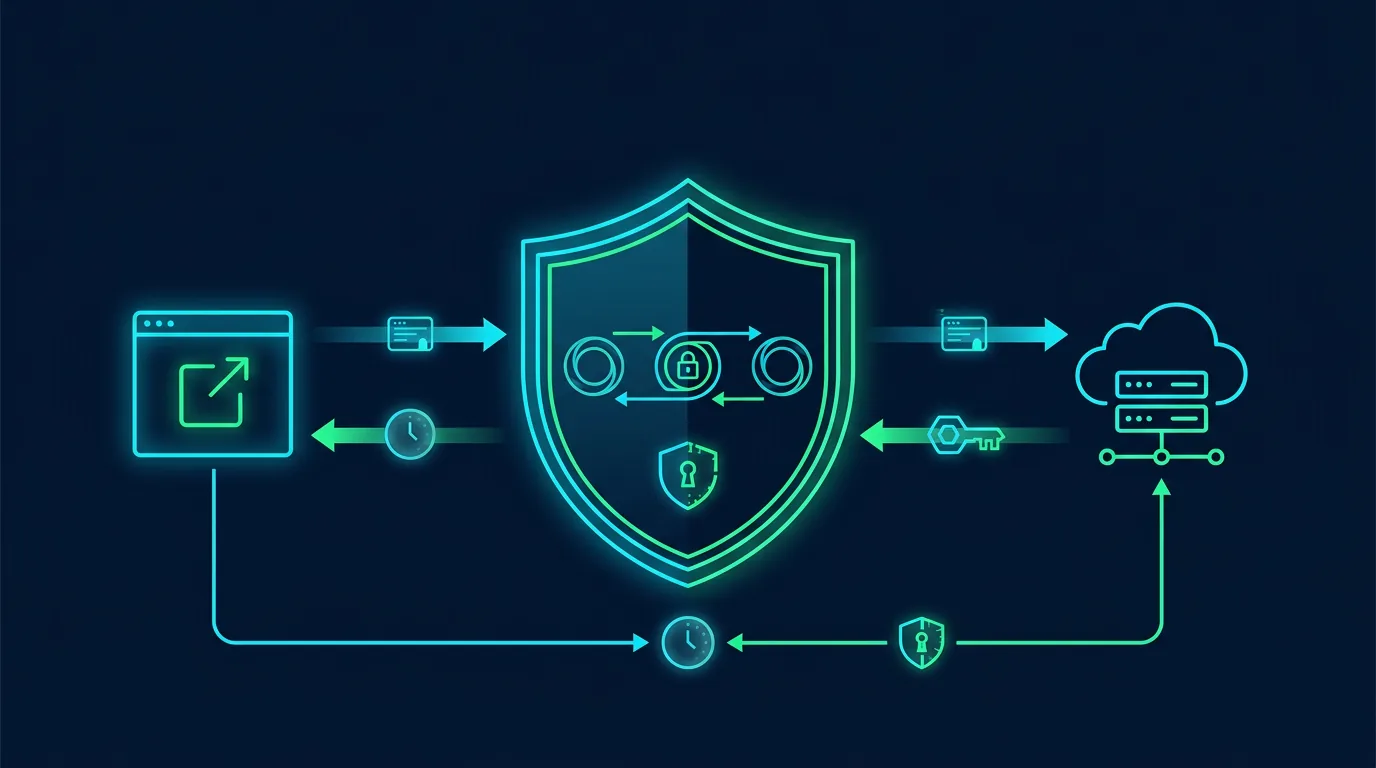
Public key authentication changes the model. You hold a private key. The server holds the corresponding public key. You never send the private key. You sign a challenge. The server verifies the signature. The private key never leaves your device (or secure enclave). It cannot be phished because the signature is bound to the origin (the website domain). It cannot be reused across sites because each site gets a unique key pair. It cannot be guessed because it is 256-bit entropy, not human memory.
FIDO2, WebAuthn, and CTAP: The Standards Stack
Three specifications work together.
WebAuthn (Web Authentication API) is the W3C standard that lets browsers talk to authenticators. JavaScript calls navigator.credentials.create() to register a new credential, and navigator.credentials.get() to authenticate. The browser mediates between the website (relying party) and the authenticator. WebAuthn runs in every modern browser: Chrome, Firefox, Safari, Edge.
CTAP (Client to Authenticator Protocol) is the FIDO Alliance standard for communication between the browser (or OS) and the authenticator. CTAP2 supports USB, NFC, Bluetooth, and internal authenticators (Windows Hello, Touch ID, Face ID, Android biometrics). CTAP1 (U2F) is the older standard for second-factor only; CTAP2 adds resident keys and user verification.
FIDO2 is the marketing term for WebAuthn + CTAP2 together. When a product says "FIDO2 certified," it means the authenticator speaks CTAP2 and works with WebAuthn in browsers.
The flow:
Registration: The website sends a challenge and its relying party ID (domain). The authenticator generates a new key pair scoped to that RP ID. It stores the private key (or a wrapped version). It returns the public key and a credential ID to the website. The website stores the public key.
Authentication: The website sends a challenge. The browser asks the authenticator to sign the challenge with the private key for that RP ID. The authenticator verifies user presence (touch) or user verification (PIN, biometric). It returns a signature. The website verifies the signature with the stored public key.
The critical property: the credential is origin-bound. A credential created for github.com will not work on githab.com or github.phisher.site. The browser enforces the RP ID match. Phishing is cryptographically impossible (assuming the authenticator and browser are not compromised).
Authenticator Types: Platform vs. Roaming
Platform authenticators are built into the device: Windows Hello (TPM), Apple Secure Enclave (Touch ID, Face ID), Android StrongBox/TEE, ChromeOS Titan C. They are convenient always with you, biometric unlock, sync via iCloud Keychain or Google Password Manager. They are tied to the device ecosystem. Lose the device, lose the credentials (unless synced).
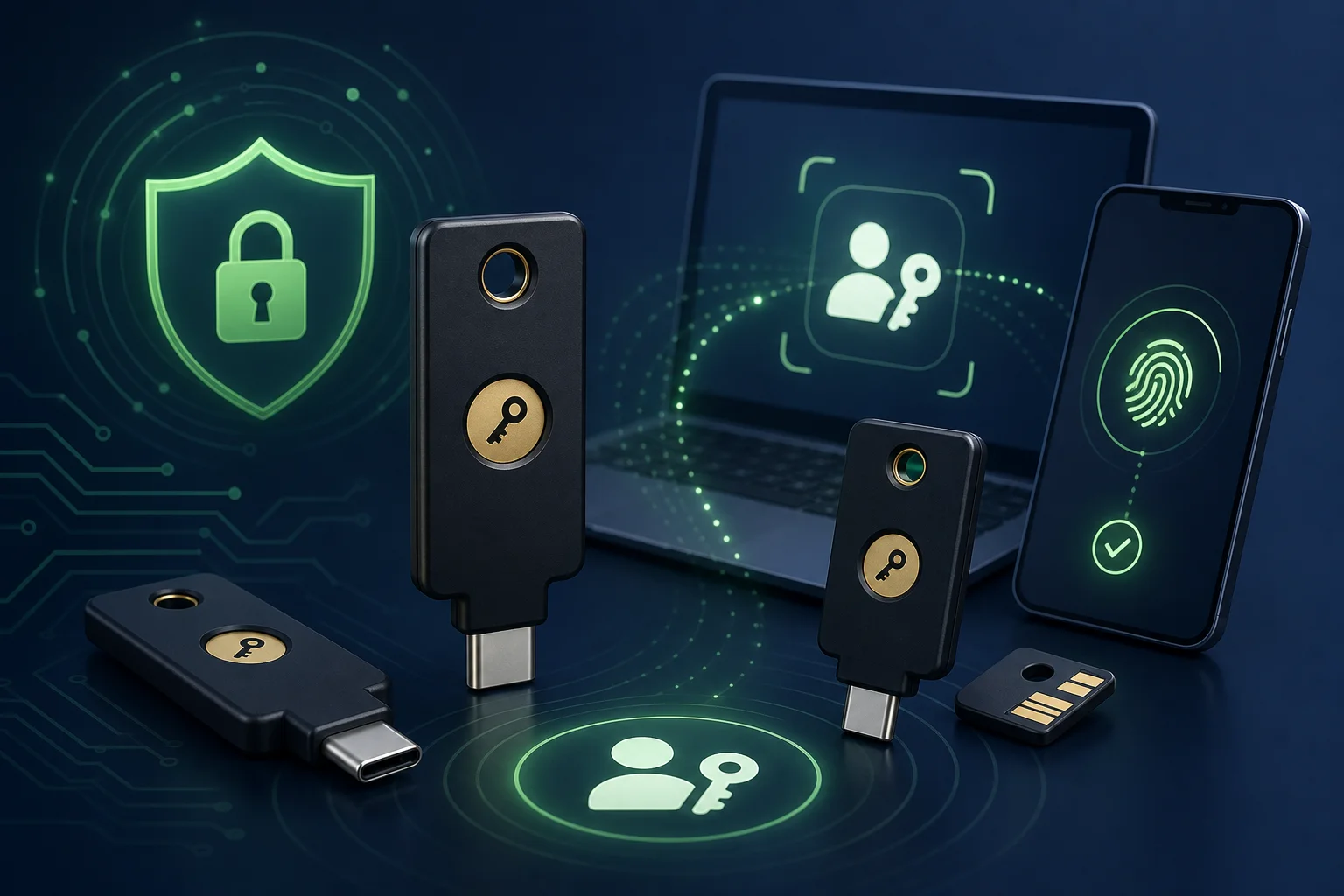
Roaming authenticators are separate hardware: YubiKey, Google Titan, Feitian, OnlyKey, Nitrokey, SoloKey, Trezor (with FIDO2 app), Ledger (with FIDO app). They work across devices via USB, NFC, or Bluetooth. They do not sync (traditionally). You must register each key on each account. They are the gold standard for high-value accounts.
Hybrid: Passkeys blur this line. A passkey is a WebAuthn credential that can be synced across devices via a password manager or platform keychain. Apple, Google, Microsoft, 1Password, Bitwarden, Dashlane, Proton Pass, and others now sync passkeys. The credential behaves like a platform authenticator but is portable across ecosystems (with varying friction).
Hardware Security Keys: What to Buy in 2026
YubiKey 5 Series (The Standard)
Yubico dominates the market. The 5 series supports FIDO2, U2F, OTP, PIV (smart card), OpenPGP, and OATH-TOTP. Models:
- 5C NFC: USB-C + NFC. Best for most people. Works with laptops, phones, tablets. $55.
- 5Ci: USB-C + Lightning. For iPhone/iPad users who need direct connection. $75.
- 5 NFC: USB-A + NFC. Legacy USB-A ports. $50.
- 5C: USB-C only. No NFC. $45.
- 5 Nano: Tiny USB-A or USB-C. Stays in port. $50.
- Bio Series: Fingerprint sensor. USB-C or USB-A. No PIN needed. $85.
The 5C NFC is the sweet spot. NFC works with phones (Android and iOS 13.3+). USB-C works with modern laptops. It fits in a wallet card holder or on a keyring.
YubiKey Security Key Series (Budget)
- Security Key C NFC: FIDO2/U2F only. No PIV, no PGP, no OTP. $29.
- Security Key C: USB-C only. $25.
Fine for pure WebAuthn. If you might need PIV (smart card login for Windows/macOS/Linux), PGP (Git commit signing), or OATH (TOTP codes on the key), spend the extra $25 for the 5 series.
Google Titan Security Key
- Titan USB-C + NFC: $35. FIDO2 only. Good build quality. Google supply chain.
- Titan Bluetooth + NFC + USB: $40. Bluetooth for older devices. Bulkier.
Google uses these internally. They are solid but less feature-rich than YubiKey 5.
Feitian
- ePass FIDO-NFC: USB-A + NFC. $30.
- K13: USB-C + NFC. $35.
- K9: USB-A + NFC + Bluetooth. $45.
Feitian manufactures for many brands. Good quality. Less brand recognition.
Open Source: Nitrokey, SoloKey, Trezor, OnlyKey
- Nitrokey 3: USB-C + NFC. Open source firmware. FIDO2, PIV, OpenPGP. $60.
- SoloKey V2: USB-C + NFC. Open source. FIDO2 only. $30.
- Trezor Model T / Safe 3 / Safe 5: Hardware wallets with FIDO2 app. USB-C. $50-160. If you already own a Trezor for crypto, you can use it as a security key.
- OnlyKey: USB-A. Keypad for PIN entry. Open source. FIDO2, TOTP, SSH agent. $55.
Open source matters for auditability. Nitrokey 3 is the most feature-complete open option.
Form Factor Decisions
USB-A vs USB-C: Match your devices. If you have both, carry a USB-C key with a USB-C to USB-A adapter, or get a dual-connector key (YubiKey 5C NFC works with adapter). USB-C is the future.
NFC: Essential for phone use. iPhone supports NFC FIDO2 since iOS 13.3. Android since Android 7. NFC lets you tap the key to the back of the phone. No cable. Buy NFC.
Fingerprint (Bio): Convenient. No PIN to remember. But: fingerprint sensor can fail with wet/dirty fingers. No backup biometric. If sensor dies, key is a brick (unless you enrolled a PIN too). YubiKey Bio supports PIN fallback. Good for shared family use where PIN sharing is awkward.
Bluetooth: Avoid unless you have legacy devices without USB/NFC. Bluetooth pairing is fragile. Battery dies. Extra attack surface. USB + NFC covers 99% of cases.
How Many Keys?
Minimum: Two. One primary, one backup. Register both on every critical account. Store backup in a separate physical location (safe, parents' house, safety deposit box).
Recommended: Three. Primary (daily carry), backup (home safe), disaster recovery (off-site). If you lose primary and backup in a house fire, the off-site key saves you.
For families: Each person needs their own keys. Do not share keys. Sharing breaks non-repudiation and creates single point of failure. Buy a 5-pack if budget allows. Yubico sells 5-packs at discount.
Passkeys: The Syncable Credential
Passkeys are WebAuthn credentials with two properties: discoverable (resident key) and synced (via platform or password manager).
How Passkeys Differ from Traditional WebAuthn
Traditional WebAuthn credential: the private key stays on the authenticator. The credential ID is stored on the server. To authenticate, you need the authenticator present. If you register a YubiKey on your laptop, you cannot use that credential on your phone unless you also register the YubiKey there (by plugging it in).
Passkey: the private key (or an encrypted wrapper) syncs to your other devices via iCloud Keychain, Google Password Manager, or a third-party password manager. You register once on your iPhone. The passkey appears on your Mac, iPad, and Apple TV. You authenticate with Face ID on any of them. No YubiKey required.
The Sync Ecosystems
Apple (iCloud Keychain): Passkeys sync across iPhone, iPad, Mac, Apple TV, Apple Watch. Requires iCloud Keychain enabled. End-to-end encrypted. Works seamlessly within Apple ecosystem. Does not sync to Windows or Android (though you can use a passkey on Apple device to sign in on nearby Windows/Android via QR code + Bluetooth proximity).
Google (Google Password Manager): Passkeys sync across Android, Chrome on Windows/macOS/Linux, ChromeOS. Requires Google account sync. End-to-end encrypted with device lock screen. Cross-platform via Chrome. Does not sync to iOS Safari (but QR code flow works).
Microsoft (Windows Hello / Microsoft Authenticator): Passkeys sync across Windows devices via TPM. Microsoft Authenticator app on iOS/Android can act as authenticator for Windows. Sync to non-Windows is limited.
1Password: Passkeys sync across all platforms where 1Password runs: Windows, macOS, Linux, iOS, Android, ChromeOS. Requires 1Password subscription. Best cross-platform sync today.
Bitwarden: Passkeys sync across all platforms. Free tier includes passkey sync. Self-hostable. Open source. Strong contender.
Proton Pass: Passkeys sync across platforms. Proton ecosystem. Newer but maturing fast.
Dashlane, NordPass, RoboForm, Keeper: All support passkey sync. Vary in cross-platform polish.
The Cross-Platform Problem
You create a passkey on iPhone (synced to iCloud). You want to sign in on Windows laptop. Options:
- QR code + Bluetooth: Windows shows QR. Scan with iPhone. Bluetooth confirms proximity. iPhone signs. Works but clunky.
- Password manager extension: 1Password/Bitwarden extension on Windows reads passkey from vault. Works if you use that password manager.
- Hardware key: Plug in YubiKey registered on that account. Works everywhere. No sync needed.
The industry is working on Passkey Portability (FIDO Alliance Credential Exchange Protocol) to let users export/import passkeys between ecosystems. Not ready for consumers as of 2026.
When to Use Passkeys vs Hardware Keys
Use passkeys for: Daily driver accounts (Google, Microsoft, GitHub, Amazon, social media, banking apps that support passkeys). Convenience wins. Sync across devices. Biometric unlock. Phishing resistant.
Use hardware keys for: Root accounts (email recovery, password manager master, domain registrar, crypto exchange, AWS root, GitHub organization owner). High-value targets. No sync. Physical possession required. Survives device loss, cloud compromise, ecosystem lockout.
Use both: Register a passkey AND a hardware key on critical accounts. Passkey for convenience. Hardware key for recovery and highest assurance.
Backup Strategies
Hardware Key Backup
Hardware keys do not sync. Backup means registering a second (or third) key on the same account.
Process: For each critical account, go to security settings. Register Key A. Register Key B. Register Key C. Label keys: "Daily", "Home Safe", "Off-site". Store accordingly.
Verification: Quarterly, test each key on each critical account. Sign in with Key B. Sign in with Key C. If a key fails, replace it.
Firmware updates: Yubico occasionally releases firmware updates (rare). Check yubico.com/support/firmware. Updating wipes credentials. You must re-register after update. Do not update all keys simultaneously. Update one, re-register, verify, then update the next.
Passkey Backup
Passkeys sync. The backup is the sync ecosystem itself.
Apple: iCloud Keychain. If you lose all Apple devices, you can recover via iCloud Keychain escrow (requires device passcode of a trusted device, or account recovery contact). Set up Account Recovery Contact in Settings > Your Name > Password & Security.
Google: Google Password Manager. Recovery via Google account recovery flow. Set up recovery phone and email.
1Password/Bitwarden/Proton: Your master password + 2FA (or recovery code/kit) unlocks the vault on a new device. Passkeys come with it. Protect the master password and recovery kit above all.
Export: Some password managers allow encrypted export of passkeys (Bitwarden CLI, 1Password CLI). Not human-readable. For institutional backup, not personal.
The Master Credential Problem
Your password manager master password (or passkey) protects all other passkeys. If you lose it, you lose everything.
Layered backup:
- Master password memorized.
- Written hint (not the password) in safe.
- Recovery code/kit printed in safe.
- Hardware key as 2FA on password manager account.
- Trusted emergency contact with emergency access (Bitwarden, 1Password, Proton).
Test the full recovery flow annually. Delete the app. Reinstall. Recover from recovery kit. Verify passkeys work.
Migration from Authenticator Apps (TOTP)
Most people use Google Authenticator, Microsoft Authenticator, Authy, or 1Password for TOTP codes. Migration to passkeys/hardware keys is gradual because not every site supports WebAuthn yet.
Step 1: Inventory
List every account with 2FA. Note which support passkeys/WebAuthn (check 2fa.directory or the site's security settings). Prioritize: email, password manager, banking, crypto, domains, GitHub, AWS, social media.
Step 2: Add Hardware Key/Passkey Where Supported
For each supported account: add a hardware key. Add a passkey. Keep TOTP as backup during transition. Test both new methods.
Step 3: Remove TOTP After Verification
Once you have successfully signed in with hardware key/passkey at least three times on different days, remove the TOTP. Fewer factors = simpler = more secure (if the remaining factors are stronger).
Step 4: For Sites Without WebAuthn
Keep TOTP. Move TOTP seeds to a password manager that supports TOTP (1Password, Bitwarden, Proton Pass, Ente Auth, Aegis). This gives you backup, sync, and export. Authy cloud backup is convenient but closed source and tied to phone number. Google Authenticator now syncs to Google account (since 2023) but export is limited.
Step 5: Harden the Password Manager
Your password manager now holds TOTP seeds AND passkeys. It is the crown jewel. Secure it with:
- Hardware key as 2FA (not TOTP)
- Strong master password (or passkey)
- Emergency access configured
- Recovery kit printed and stored physically
Advanced Use Cases
SSH with Hardware Keys
OpenSSH 8.2+ supports FIDO2 keys for SSH authentication. Generate a key on the YubiKey: ssh-keygen -t ecdsa-sk -O resident -O application=ssh:yourname. The private key never leaves the YubiKey. Use ssh-add -K to add the resident key to agent. Works with GitHub, GitLab, servers. No ~/.ssh/id_rsa file to steal.
GPG/PGP with Hardware Keys
YubiKey 5 series supports OpenPGP. Generate or import subkeys on the key. Use for Git commit signing, email encryption, package signing. gpg --card-edit > key-attr > set to ECC. Private keys never leave. gpg --export-ssh-key gives SSH key from PGP key.
PIV (Smart Card) for OS Login
Windows, macOS, Linux support PIV smart card login. YubiKey 5 acts as PIV token. Configure with yubico-piv-tool or YubiKey Manager. Requires PIN. Unlocks full disk encryption (BitLocker, FileVault, LUKS) and user session. High assurance. Complex setup. Worth it for high-risk users.
OATH-TOTP on Hardware Key
YubiKey 5 stores up to 32 TOTP secrets. Use Yubico Authenticator app (desktop/mobile) to generate codes by tapping key. Codes never touch the host CPU. Malware on laptop cannot steal TOTP seeds. Use for sites that only support TOTP.
Common Pitfalls and How to Avoid Them
Registering only one key. If you lose it, you are locked out. Always register at least two. Test both.
Forgetting the PIN. YubiKey locks after 8 failed PIN attempts (configurable). If you forget, the key resets (wipes all credentials). Write the PIN in your safe. Or use a memorable but non-obvious PIN.
Not testing recovery. You assume the backup key works. It doesn't (wrong account, not registered, firmware mismatch). Test quarterly.
Using passkeys as sole factor on critical accounts. Passkeys sync. If your iCloud/Google/1Password account is compromised, all passkeys are compromised. Add a hardware key as second factor on root accounts.
Sharing keys with family. Your spouse uses your YubiKey. You cannot distinguish who signed. If the relationship ends, you cannot revoke their access without re-registering everywhere. Each person gets their own keys.
Buying cheap clones. AliExpress "FIDO2 keys" for $5 often lack certification, have buggy firmware, or are pre-compromised. Buy from authorized distributors: Yubico.com, Amazon (sold by Yubico), Google Store, Feitian official, Nitrokey shop.
Ignoring firmware updates. Rare but critical. YubiKey 4 had a ROCA vulnerability (infineon library). Firmware 4.3.5 fixed it but required re-enrollment. Subscribe to vendor security announcements.
The Migration Checklist
This week:
- Buy two YubiKey 5C NFC (or Security Key C NFC if budget tight).
- Register both on: email (Google/Microsoft/Proton), password manager, GitHub, primary banking, crypto exchange, domain registrar.
- Add passkeys on same accounts via password manager (1Password/Bitwarden/Proton).
- Test sign-in with each key and each passkey on laptop and phone.
This month:
- Add hardware keys to: AWS root, GitHub org owner, Cloudflare, hosting provider, any admin panel.
- Move TOTP seeds from authenticator app to password manager.
- Configure SSH keys on YubiKey for GitHub and servers.
- Set up PIV for OS login if high-risk.
- Print recovery kits for password manager and store in safe.
This quarter:
- Test all backup keys on all critical accounts.
- Verify passkey sync works across your devices.
- Review 2fa.directory for new passkey support on your accounts. Migrate.
- Update firmware on one key, re-register, verify, then update the other.
- Teach family members to use their own keys.
The Endgame: No Passwords
The passwordless future is not a marketing slogan. It is a cryptographic inevitability. Shared secrets do not scale. They do not secure. They create liability for every party that stores them.
FIDO2 and passkeys replace the shared secret with a public key credential bound to an origin, protected by user verification, and (optionally) synced across devices. The technology works. The standards are stable. The hardware is affordable. The software support is broad.
The remaining barriers are habit, legacy systems, and ecosystem fragmentation. Habit changes one login at a time. Legacy systems fall as vendors adopt WebAuthn (Active Directory, RADIUS, VPN, and SSH all support it now). Fragmentation eases as passkey portability arrives.
You do not need to wait. You can go passwordless on your most important accounts today. Buy the keys. Register them. Feel the difference: no password to type, no code to copy, no push to approve. Touch the key. Done. That is the future. It is already here.
Editorial note: Product details, prices, and feature sets reflect July 2026 market. Verify current specifications before purchase. FIDO Alliance certification status can be checked at fidoalliance.org/certification. Passkey cross-platform sync behavior varies by password manager version; test your specific setup.