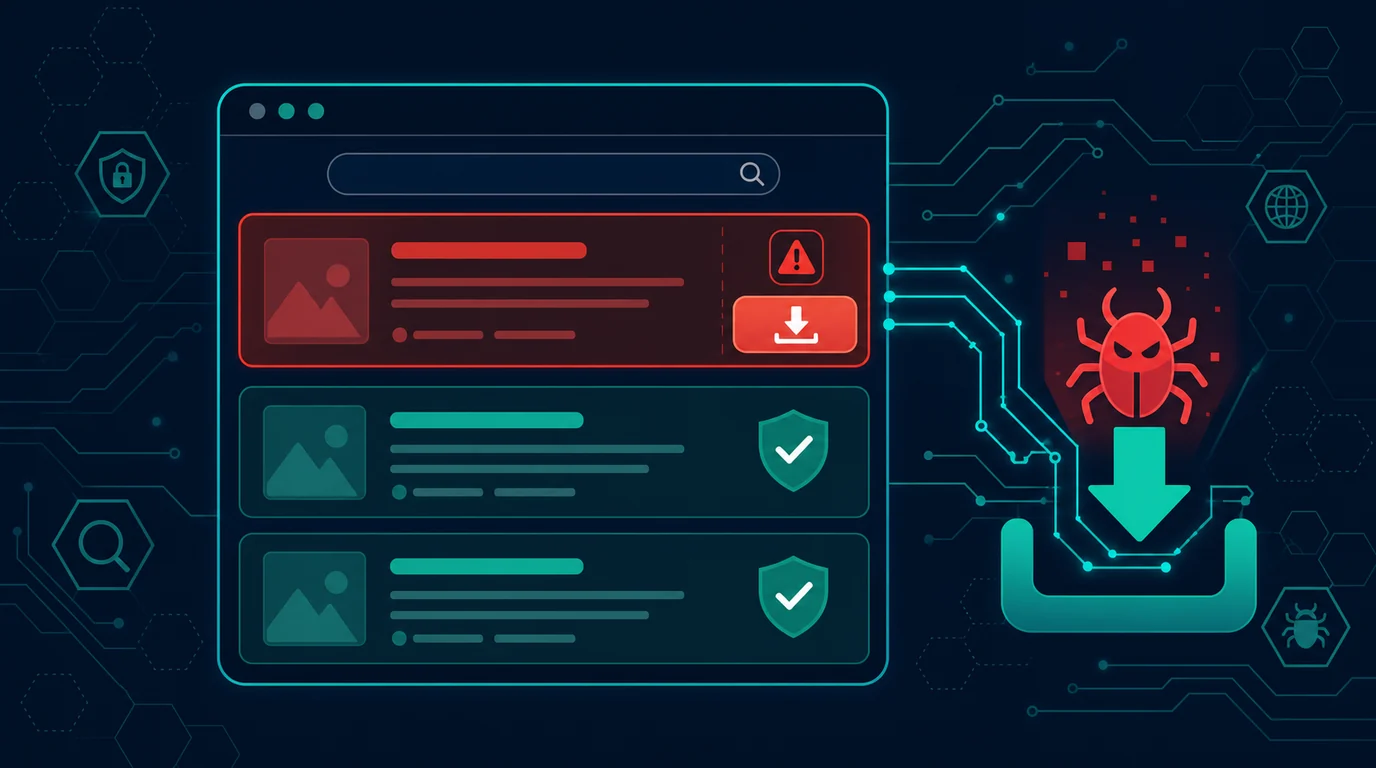
You need a PDF editor. You type the name into a search engine, click the top result, hit the big blue download button, and run the installer. The site looks right. The logo is right. The filename is right. Three days later your password manager is empty and someone is signing into your email from another country.
You did not open a suspicious attachment. You did not click a link from a stranger. You searched for legitimate software and clicked the first result, exactly the way everyone does every day.
Two techniques make this work. Malvertising means attackers buy paid ad slots on search engines and run ads that impersonate official sites. SEO poisoning means they build networks of pages to push fake sites into the top organic results. Both attack the same moment: the second you decide which result deserves a click.
Why search results became the target
You trust search engines in a way you never trust email. A message from an unknown sender puts you on guard. A search result feels neutral, as if the machine already filtered it for you. Attackers build their campaigns on that assumption.
Search ads sell through automated auctions. Anyone with a credit card and an advertiser account can bid on keywords like the name of a popular application. Ad review systems exist, but attackers work around them with cloaking: their server shows a clean page to reviewers and automated scanners, then shows the malicious page to visitors arriving from a specific region, device, or hour. The ad passes review, runs for a few hours, harvests victims, and disappears before anyone reports it.
SEO poisoning works more slowly and lasts longer. Attackers generate hundreds of pages targeting low-competition keywords: specific error messages, uncommon file formats, old version numbers, narrow technical questions. They compromise legitimate sites that nobody patched, plant hidden pages inside them, and borrow that domain's reputation. When you search for a fix at two in the morning, their page surfaces with an answer that looks like exactly what you needed.
The most frequently poisoned search categories are predictable. Free software downloads lead the list. Then come customer support numbers, login pages for popular services, error troubleshooting guides, document templates, hardware drivers, and file converters. Each shares a pattern: you search while you need something fast, with no intention of investigating who owns the site.
How fake pages convince you
Modern fake sites are not sloppy pages with spelling errors. Attackers clone the entire look of the real site, including layout, colors, fonts, and even the privacy policy and terms of service pages. HTTPS certificates are free and automated, so the padlock in the address bar no longer distinguishes anything.
Domain names are chosen to read as reasonable at a glance. Attackers add words like "app," "download," "official," "get," or "hq" around the brand name. They swap visually similar letters, use a different domain extension, or insert a hyphen. Your eye reads the brand name and stops there.
Download buttons often deliver the real installer with modifications. The application genuinely installs and runs normally, so nothing looks wrong. In the background, the same installer drops additional components: an infostealer that grabs browser session cookies, saved passwords, crypto wallets, and authentication tokens. Because the main application works, no symptom triggers your suspicion.
Another variant downloads nothing at all. The page displays instructions to copy a command and paste it into a terminal or the Run box, framed as a verification step or a quick fix. That command downloads and executes code from the attacker's server. This technique bypasses every browser download warning because you typed it yourself.
Six signs to check before you download
Check the ad marker in the results. Search engines label paid results with a small tag reading Ad or Sponsored. For software downloads, skip every labeled result and scroll to the first organic one.
Read the domain name from right to left. The part that matters is the last two words before the first slash. In download.official-apps.co/notepad, the actual owner is official-apps.co, not the publisher you searched for. Everything to the left is a subdomain the owner can set to anything.
Compare against the publisher's own page. Open a new tab, search for the publisher's company name rather than the product name, and navigate to the download page from that company's site. The difference in domains between the two tabs is your answer.
Watch file size and extension. Official installers have reasonably consistent sizes across versions. A file far smaller than you expect is usually a second-stage downloader. Extensions matter too: something that should be a .pdf or .zip but arrives as .exe, .msi, .scr, or .bat is a reason to stop.
Distrust urgency. Real pages do not run countdown timers, claim your license expires in five minutes, or block the close button. Time pressure exists to stop you from double-checking.
Never paste a command from a web page into a terminal or the Run box. No legitimate software publisher asks you to do that to install a normal application. This request means the page is malicious, with no exceptions.
Download habits that close the gap
Start from the source, not from search. Bookmark the download pages for software you use regularly. For a new application, search the publisher's company name first, land on their site, and navigate to the product page from there. This extra step takes ten seconds and breaks the entire attack chain.
Use your operating system's official app store where one exists. The Microsoft Store, Mac App Store, and Linux distribution repositories verify publishers and sign packages. Package managers like winget on Windows or Homebrew on macOS pull files from verified sources and skip the search engine entirely.
Install a reputable list-based ad blocker in your main browser. It removes the search ad slots where malvertising runs and stops redirect ads on compromised pages. Choose an extension from a well-known developer with open source code, since fake blocker extensions circulate widely too.
Turn on your browser's built-in reputation filter. Google Safe Browsing in Chrome and Firefox, and SmartScreen in Edge, block a portion of reported malicious domains. These filters miss campaigns that are only hours old, so treat them as a last safety net rather than your main defense.
Verify files before running them. Many publishers post a SHA-256 checksum next to the download link. On Windows run Get-FileHash filename.exe in PowerShell; on macOS and Linux run shasum -a 256 filename. Compare the result to the value on the official site. For anything you doubt, upload it to VirusTotal and check results across multiple antivirus engines at once.
Do not use an administrator account for daily work. Create a separate standard account for everyday activity and sign into the administrator account only when installing software. A malicious installer running without administrator rights is far more limited in what it can damage.
Protecting small teams and families
For work teams, write a list of approved software with official download sources and keep it somewhere everyone can reach. When someone needs a new application, they request it through one channel instead of searching the web themselves. The list saves time and cuts risk at once.
Restrict administrator rights on work devices. Most office work needs no software installation privileges. When an install is genuinely needed, one designated person handles it from a verified source.
For family devices, enable an ad blocker in every browser and set up a package manager if family members install applications on their own. Give children and parents one simple rule: applications come from the app store or from the person who manages devices at home, never from a download button in search results.
Train the one reflex that decides the outcome. Before running any installer, stop and ask which domain this file came from. If the answer is not immediately obvious, delete the file and start over from the publisher's site. This small habit prevents most search-driven infections.
If you already ran a fake installer
Disconnect that device from the internet first. Unplug the network cable or turn off Wi-Fi. Infostealers transmit harvested data to the attacker's server within minutes of running, so cutting the connection limits how much leaves.
Change passwords from a different, clean device, not the infected one. Start with your primary email, since that account holds recovery access to everything else. Move on to banking, digital wallets, social media, and cloud storage. Any new password you type on the infected device gets stolen too.
Revoke all active login sessions. Infostealers take session cookies, which keep an attacker signed into your accounts even after you change the password and enable 2FA. Every major service has a sign-out-everywhere option, usually under security settings. Run it for each important account.
Review 2FA and recovery methods on every account. Attackers commonly add their own phone number, backup email address, or authenticator app so they retain access after you clean the device. Remove anything you do not recognize, then regenerate your backup codes.
Reinstall the operating system if the data on that machine matters. Removing malware with an antivirus scanner is not always complete, because modern infostealer families install persistence in several places at once. A clean installation from official media is the only way to be sure the device is safe.
Watch your financial accounts for the next several weeks. Turn on transaction notifications, review statements regularly, and report unfamiliar charges to your bank immediately. Stolen data is often resold and used weeks after the initial infection.
The short version
Malvertising and SEO poisoning succeed because they attack your trust in search results, not your carelessness. Defending against them takes no technical skill, only one changed habit: stop downloading software from search results, and start downloading it from the publisher's site or an official app store.
Install an ad blocker, bookmark the applications you use regularly, run daily work in a non-administrator account, and read the domain name before you click download. Those four steps close nearly every path these campaigns rely on.