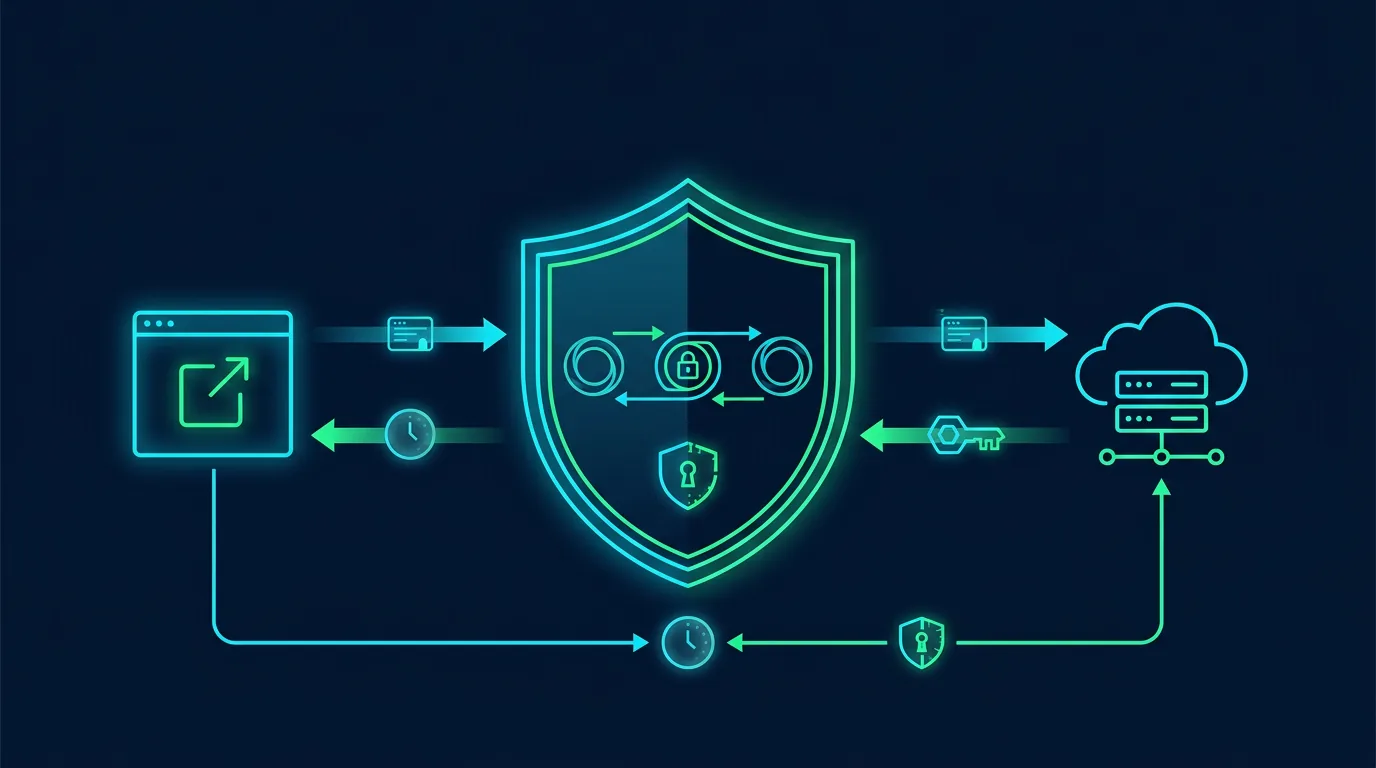
Many sites and apps offer "Sign in with Google," "Sign in with Microsoft" buttons or permission to connect calendars, cloud storage, and email. This mechanism makes it easier for users because there is no need to create a new password. Behind this convenience there are access permits that need to be checked carefully.
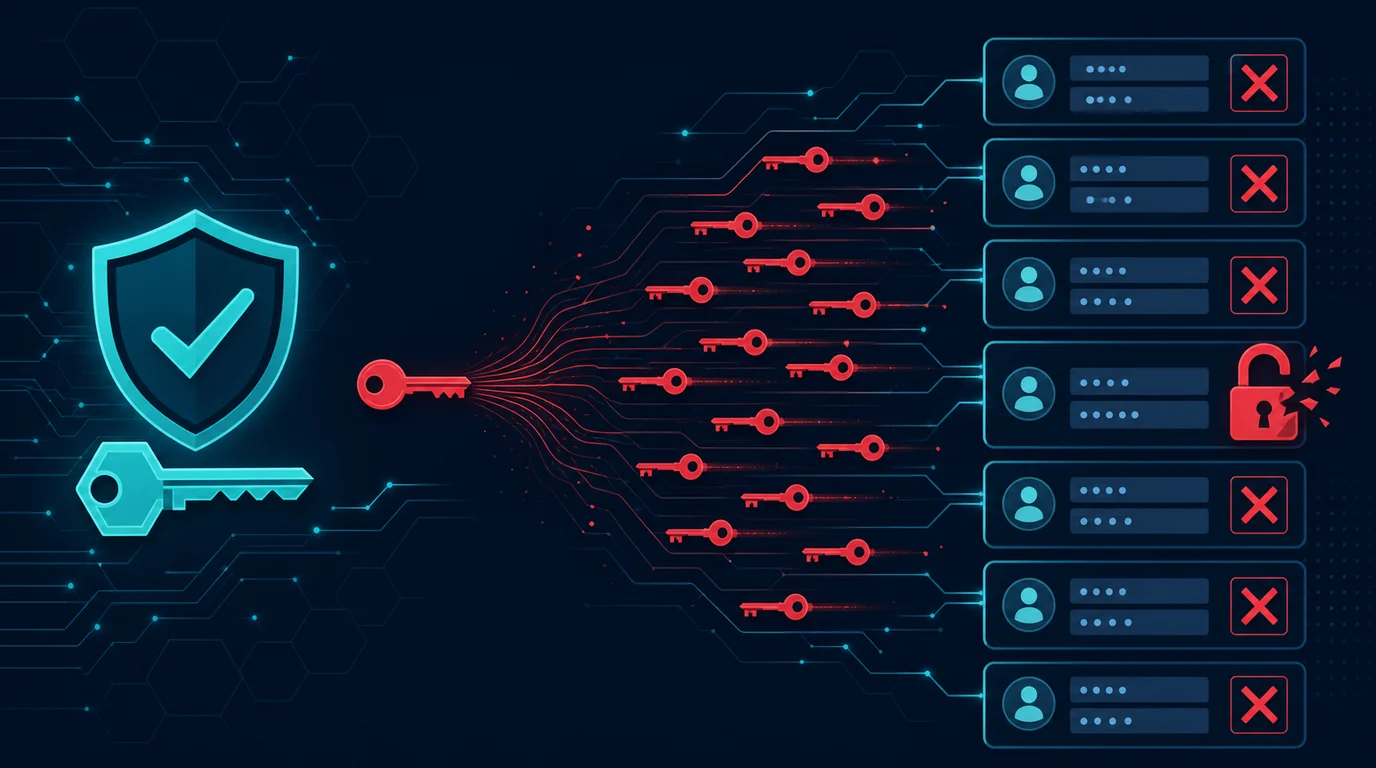
Consent phishing is a scam that tries to get you to consent to malicious or unnecessary third-party applications. Unlike fake login pages that steal passwords, consent phishing can use the account provider's genuine consent page. The attacker creates an app with a convincing name, then asks you to give it access to your email, files, contacts, or profile. If you agree, the app can obtain an access token within the scope of the permissions granted.
An official permissions page doesn't necessarily mean the app requesting it is worthy of trust. This article discusses how to recognize suspicious requests, limit integrations, and take action when you approve the wrong application.
Understand the relationship between accounts, apps, and permissions
When you choose to sign in with your primary account, your identity provider can ask for consent to share certain information with applications. Simple permissions might just be providing a name and email address. Other permissions can give you access to read files, send email, manage your calendar, or maintain access when you're not using the app.
Read each permission screen. Don't just look at big logos and agree buttons. Check the app name, publisher or developer, site address, data type, and permitted actions. If an application that is supposed to only organize images requests access to read all emails, the first question should arise: why is this permission necessary?
The principle is suitability. Schedule management applications may require calendar access. Document editing applications may need access to the folders you select. Requests that go beyond the primary function are a reason to stop and seek an explanation. Ease of entry should not trump permit checks.
See how an attacker makes a request look legitimate
The attacker may send an email saying you got a document, need to update your account, or need to open a report. The link takes you to a permissions page that uses the official domain. Because the page actually comes from an identity provider, users can feel safe and approve applications that are actually created or controlled by the attacker.
Application names can be made similar to well-known services, for example using the words "security", "document", "support", or "update". Logos can resemble other brands. Descriptions can be brief or vague. Don't agree based on name alone. Look for the developer's site, privacy policy, documentation, and reason for the access request. If you accidentally installed the app, close the page and check with the sender via another channel.
Time pressure remains a red flag. Messages like "approve in 10 minutes," "access will be disabled," or "document can only be opened now" encourage you to skip the check. Legitimate services may have time limits, but you can still open your own account and look for the same notifications in the notification center or official apps.
Limit access from the start
Use the right account for every need. Don't always use your primary email to try new services. If you need to test an unknown application, use a test account without critical data if organizational policy allows. For work accounts, follow the tools approved by your organization and ask for administrator permission when the integration requires company data.
Select the narrowest clearance available. Some applications offer limited access options or only when used. Choose specific folders rather than entire drives whenever possible. Choose read access over modify access if you only need to view the data. Avoid permissions that allow an app to maintain permanent access unless there is a clear business or monitoring reason.
Don't connect an app just for one task and then forget about it. Once the task is complete, revoke access. Digital accounts can collect dozens of old applications that are no longer used. Each additional integration becomes a pathway that needs to be trusted, updated, and monitored.
Review the apps you already have access to
Large account providers usually provide security pages or connected third-party applications. Schedule regular check-ups. Look for apps you don't recognize, apps you no longer use, or permissions that feel too broad. Note the app name before revoking access in case you need to track the effect.
Revoking access does not always delete data that was copied by the previous application. However, revocation stops the token from being used to request subsequent data. If a suspicious app has email, file, or calendar access, revoke it immediately and then check account activity: device logins, email forwarding filters, sent messages, shared files, and calendar changes.
For organizations, administrators can manage permitted apps, review user consent, and block risky apps. This policy needs to be accompanied by a way to request new tools. If there is no clear path, workers are likely to use personal accounts to complete work, and organizational data can spread out of control.
Secure email as an identity center
The main email is often the door to many services. Apps that can read or send email can view recovery links, invoices, conversations, and documents. Use a unique password or passkey, enable two-factor authentication, and check incoming devices. Don't approve apps that ask for full email permissions without a reason you can explain.
Check forwarding rules and filters on emails. Actors who gain access can create filters to forward certain messages or hide security notifications. Check your sent and archive folders if you suspect foreign access. Also check which apps have the right to send emails on your behalf.
Use a custom email address for registration that risks marketing or spam. Don't make your primary email address a test account for any productivity tools. This separation does not replace permission checks, but limits the impact when a service encounters problems.
Example situation: a shared document that requests email permissions
Maya receives an email claiming to be from a project partner. It says there is a revised document and a button to open the file. When clicked, the account login page appears and then asks Maya to approve an application called "Document Security Update". Requested permissions include reading, sending, and deleting emails.
Maya stops because regular documents do not require the ability to delete emails. He contacted project partners via familiar work chats. His colleague never sent the document. Maya closes the page and reports the phishing email. It doesn't enter a password and doesn't grant permission, so the app doesn't gain access.
If Maya has agreed, the steps are to remove the application from the security panel, change the password of the secure device, exit unknown sessions, and check filters and sent messages. Speed of action is important because the application token can remain active without the victim re-opening the message.
If you have already given consent
Open the account provider security panel of the app or site you typed yourself. Find the list of third-party apps, then revoke the suspicious app's access. Note the application name, permissions, and approval time if that information is available. Check login activity, devices, other apps, email rules, file sharing links, and calendars.
Change your password if you entered your credentials on a page you don't trust or if there are unfamiliar access signals. Enable or update two-factor authentication. Exit unknown session. For work accounts, contact your IT or security team immediately. Don't wait until an email goes missing or a message was sent in your name.
When the application gets access to the file, check the folders that may be read or shared. Change unnecessary public links and review collaborators. For applications connected to financial accounts or business systems, contact the service provider through official channels and follow their procedures.
Habits for teams and families
Teach the difference between a login page and a consent page. On the login page, you prove your identity to the account provider. On the consent page, you give other apps the ability to use part of your account. Both need to be checked, but consent pages are often considered safe simply because they look official.
Make a family rule: don't approve apps that come from message links without asking. For teams, use the approved application catalog and integration request path. Save a list of app owners, access reasons, and review dates. This small rule reduces legacy applications still holding tokens unnoticed.
Checklist before pressing Approve
- I deliberately used this application.
- I can verify the name, publisher and application site.
- The permissions requested correspond to the functions I require.
- I chose the narrowest access available.
- I don't give full email, drive, or calendar access just for small tasks.
- I use the right account, not always the primary email.
- I know how to revoke access when finished.
- I will open my own account if the link in the message feels urgent.
Frequently asked questions
Is logging in with Google or Microsoft always safe?
Login mechanisms can be secure, but you still need to trust the app that is receiving permission. Check the application and access scope before agreeing. Don't accept requests from links you don't expect.
Will revoking an app delete my account on that app?
Not always. Revoking typically stops the application's access to your identity provider account. If you want to delete your account on the application, follow the developer's deletion procedure after ensuring the site is legitimate.
Why do apps request access when I'm not using them?
Some apps request long-term tokens so they can sync data or run tasks in the background. Only grant this kind of access when you understand the benefits, risks, and how to stop it.
What should I do if a suspicious application appears in my account list?
Revoke access, note details, and check account activity. Change the password as well as check the session for signs of compromise. For work accounts, report to the responsible team so they can examine the wider impact.
Additional operational checks
Application name
In consent phishing prevention and third party app permissions, check the App name before the work goes any further. Make sure account owners, organization administrators, and application owners can explain why the access or action is required.
App publisher
App publishers need to have boundaries that users can understand. The risk arises when untrusted applications gain tokens and access to key accounts. If the answer is unclear, temporarily suspend use and seek assessment from the account owner, organization administrator, and application owner before any further data or actions are processed.
Developer site
Make developer Sites part of a routine inspection, not a job only done after an incident. In the context of consent phishing prevention and third-party app permissions, small changes to accounts, permissions, or workflows can change the level of risk.
Integration goals
When assessing integration Goals, focus on the likely impact, not just on whether the feature is available. account owners, organization administrators, and application owners need to ensure users understand the limits. Logged and checkable steps will help the team respond if an untrusted application gains tokens and access to key accounts or if there are questions from affected parties.
Field inspection details
Invitation domain
In preventing consent phishing and third-party application permissions, check the invitation Domain with a clear purpose. Make sure the account owner, organization administrator, and application owner can explain the reason for the access or action.
Application logo
The app logo needs to have borders that users can see. Request assessment from account owners, organization administrators, and application owners before additional data or actions are processed.
Permission description
Make permission descriptions part of routine work, not an action after a problem occurs. In consent phishing prevention and third-party app permissions, changing accounts, permissions, or flows can change the risk.
Privacy policy
When evaluating a privacy Policy, look at its impact on people and data, not just whether features are available. account owners, organization administrators, and application owners need to give users a way to ask questions and report. Checkable logs will help with response when untrusted applications gain tokens and access to key accounts.
Data retention
In preventing consent phishing and third-party app permissions, check Data retention with clear objectives.
Offline access
Offline access needs to have boundaries that users can see.
Access between accounts
Make Access between accounts part of routine work, not an action after a problem occurs.
Integration owner
When assessing integration Owners, look at the impact on people and data, not just whether features are available.
Registered domain
In preventing consent phishing and third party application permissions, check the List of domains with a clear purpose.
Approval date
The approval date needs to have a boundary that users can see.
Token activity
Make token Activities part of routine work, not actions after a problem occurs.
Former staff account
When assessing former staff Accounts, look at the impact on people and data, not just whether features are available.
Inactive application
In the prevention of consent phishing and third-party app permissions, check for inactive Apps with a clear purpose.
Supplier requests
Supplier requests need to have limits that users can see.
Sources and further reading
- CISA: Secure Our World
- Microsoft: Permissions and Consent in Microsoft Entra ID
- Google: Third-party Apps and Services
- OWASP: OAuth 2.0 Security Cheat Sheet
Editorial note: Third-party integrations can be useful, but the access they provide is a security decision. Check regularly and revoke access that is no longer needed.