Passwords feel heavy. You use 80 passwords, reuse in 10 services, and still get phished. Passkeys replace passwords with cryptographic keys phishing-resistant and not guessable.
This article guides you to migrate from passwords to passkeys gradually without locking yourself out.
What passkey is and why safer than password
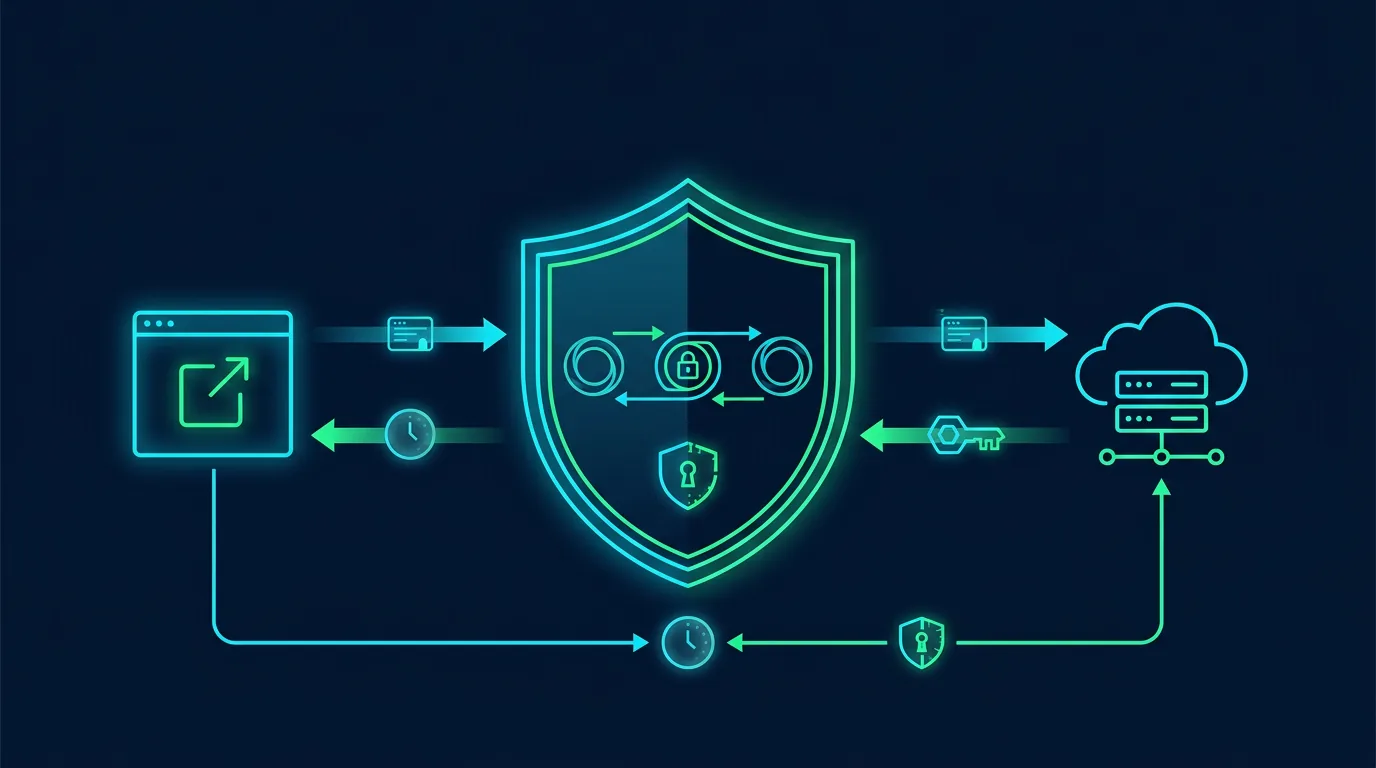
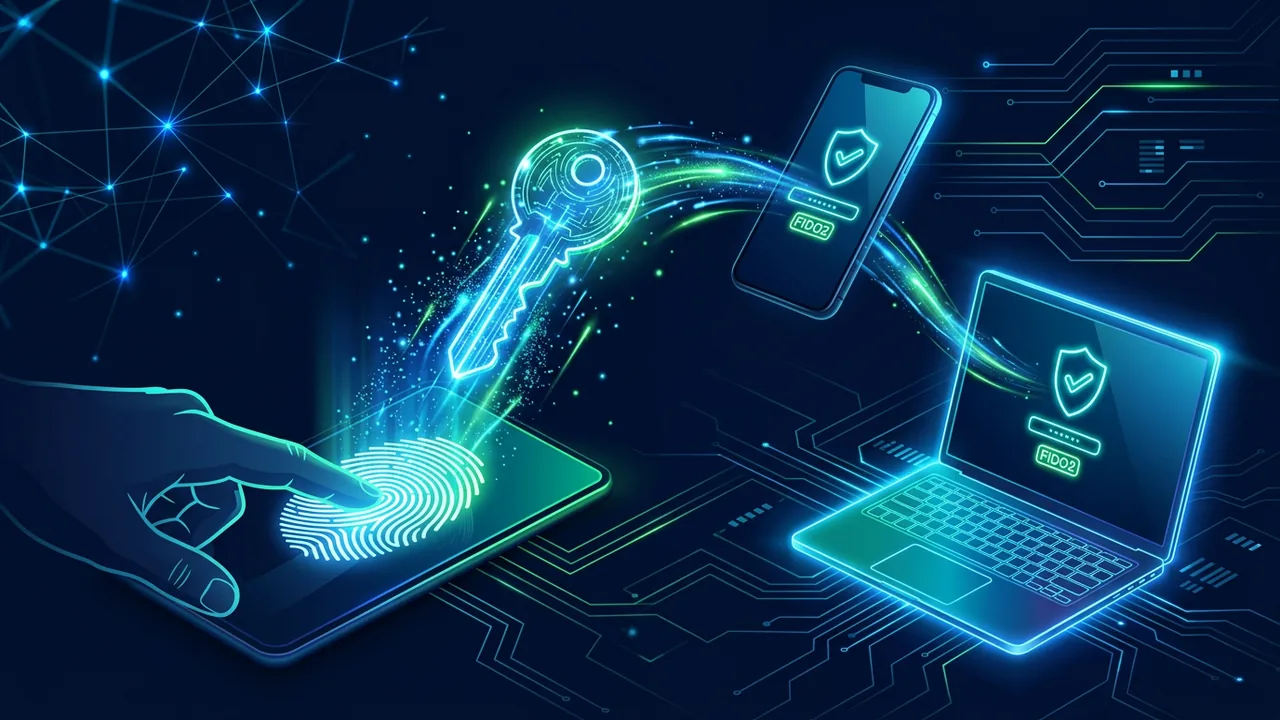
Passkey is credential based on FIDO2/WebAuthn standard. When you create passkey, your device creates key pair: private key securely stored in device (Secure Enclave / TPM), public key sent to server.
When login, server sends challenge. Your device signs challenge using private key after you verify with fingerprint or Face ID. Server checks signature using public key. No password sent.
Benefits:
Phishing-resistant. Passkey binds to real domain. Passkey for google.com cannot be used on fake g00gle.com. Browser refuses.
Cannot leak from server. Server only stores public key. If server breached, attacker cannot get your private key. No password hash to crack.
Nothing to remember. You do not type password. Just fingerprint or face. Private key syncs via iCloud Keychain, Google Password Manager, or 1Password.
Faster. Passkey login averages 2-3 seconds faster than typing password plus OTP per FIDO Alliance 2025. Success rate 93% versus 63% for passwords.
Passkey is not biometrics sent to server. Biometrics only unlocks locally on phone. Server does not receive your face photo.
Prerequisites before migration
- Phone and laptop updated to latest OS. Passkeys need iOS 16+, Android 9+, Windows 10 22H2+, macOS Ventura+.
- Updated browsers: Chrome 109+, Safari 16+, Edge 109+, Firefox 122+ support passkeys.
- Enable 2FA on main email and password manager before migration. If passkey sync via Google or iCloud, your Google/Apple account must be very secure.
- Install password manager supporting passkey sync if you use multi-platform: 1Password, Bitwarden, Proton Pass. If purely Apple, iCloud Keychain enough. If purely Google Android + Chrome, Google Password Manager enough.
- Note devices becoming primary authenticator and backup device.
Do not start migration when phone low battery or while traveling. You need calm 30 minutes.
How to create passkey in important accounts
Open myaccount.google.com > Security > Passkeys and security keys > Create a passkey.
- Choose Use screen lock or phone biometrics.
- Verify with fingerprint.
- Google creates passkey and stores in Google Password Manager or iCloud Keychain depending on device.
- Test logout and login again, choose Sign in with passkey.
After passkey active, Google still keeps password as fallback. Do not delete password before you sure passkey syncs on all devices.
Microsoft
Open account.microsoft.com > Security > Advanced security options > Add a new way to sign in > Passkey.
- Microsoft asks you to login first with password.
- Choose Face, fingerprint, PIN, or security key.
- Follow Windows Hello or iCloud Keychain prompt.
- Save passkey.
Microsoft already supports full passwordless. You can remove password after passkey stable 2 weeks, but keep recovery method like Authenticator app.
Apple ID
Open appleid.apple.com > Sign-In and Security > Passkeys.
Apple ID automatically uses passkey if you login on Apple devices with iOS 17+. You do not need manual creation. Apple syncs via iCloud Keychain.
Ensure iCloud Keychain active in Settings > Your Name > iCloud > Passwords and Keychain.
WhatsApp already supports passkey for login.
Open WhatsApp > Settings > Passkeys > Create Passkey. WhatsApp uses phone biometrics to create passkey. WhatsApp passkey eases phone switch without SMS OTP.
GitHub, eBay, PayPal
Open Settings > Password and authentication > Passkeys. Flow similar to Google. Create one by one. Prioritize accounts holding financial data first.
How to sync and backup passkeys so not lost when phone lost
This is most important part. Passkey without backup equals danger when phone lost.
Option 1: iCloud Keychain (Apple ecosystem)
Enable iCloud Keychain on all Apple devices with same Apple ID. Passkeys sync automatically encrypted end-to-end. Apple cannot read your passkeys.
Enable Recovery Contact and Legacy Contact for recovery if you forget Apple ID password.
Option 2: Google Password Manager (Android + Chrome)
Login Chrome on laptop and Android with same Google account. Passkeys stored in Google Password Manager and sync. Google encrypts with your account key.
Enable 2-Step Verification on Google account and store backup codes in safe place.
Option 3: Third party password manager 1Password / Bitwarden
Most flexible for multi-platform. Example 1Password: passkeys stored in encrypted vault and usable on Windows, Mac, Android, iOS.
Pros: you do not depend on Apple or Google. If you switch from Android to iPhone, passkeys stay in 1Password.
Setup flow 1Password: open 1Password > Watchtower > passkey support, then when creating passkey on site choose 1Password as storage, not iCloud or Google.
Pick one primary sync system and stay consistent. Do not store some in iCloud and some in Google because you will confuse recovery.
Gradual 30-day migration without lockout
Do not delete all passwords at once.
Week 1: Create passkeys in 3 critical accounts: Google, Microsoft, Apple ID. Test login on phone and laptop. Ensure sync works.
Week 2: Migrate 5 financial accounts: PayPal, banking already supporting passkey, Stripe, marketplace. Create passkeys, keep password as backup in password manager.
Week 3: Migrate 10 work and social accounts: GitHub, Notion, Canva, Instagram already supporting passkey. Keep 2FA still as backup if service supports passkey but still needs 2FA for recovery.
Week 4: Audit. Open password manager, see how many accounts already using passkey. Turn off password reuse notification if already passkey. Do not delete password directly, but change old password to random 30 chars and store in manager as backup. After 90 days stable, you can remove password for services 100% passwordless.
Note each migrated account in sheet: service name, passkey creation date, storage location (iCloud / Google / 1Password).
How to recover access if phone lost or broken
Worst scenario: main phone lost holding all passkeys.
If you use iCloud Keychain: buy or borrow Apple device, login Apple ID, enter old iCloud passcode, Keychain recovers after verification. Passkeys back.
If Google Password Manager: login Chrome laptop with same Google account, enter Google password and 2FA, passkeys sync.
If 1Password: install 1Password on new device, login with master password and secret key, all passkeys back.
If you do not use sync and only store passkey on device (device-bound passkey): you need recovery method you setup before, like hardware security key FIDO2 or recovery code.
Because of that, before phone lost, create at least one hardware security key YubiKey as backup. Keep YubiKey at home safe. Some services like Google and Microsoft allow registering YubiKey as backup passkey.
Passkeys and small business: policy for small team
If you manage online shop with 3 admins, how to use passkeys without sharing phone?
- Use team password manager like 1Password Business. Create shared vault for shop accounts. Passkeys stored in shared vault, all admins can use passkeys without knowing password.
- Do not share passkey via QR screenshot. One-time QR can be intercepted.
- When employee resigns, revoke vault access, not change password one by one. Faster.
- Educate employees difference between sync passkey and device-bound. Device-bound only usable on one device and not movable. For team, use sync passkey via password manager.
Cost 1Password Business about $8 per user per month. For 3 admins, $24 per month. Cheaper than account reset cost when employee forgets password.
Limitations of passkeys now
Passkeys not perfect.
- Not all services support passkeys. Banks in many countries still not support. For banks, keep strong password plus 2FA.
- Login on someone else device needs QR scan and Bluetooth. Process needs your phone nearby laptop. If phone dead, you cannot login on internet cafe.
- Some services still buggy. Example: passkey in Firefox sometimes not sync with iCloud. Solution: use Chrome or Safari to create passkey, then store in 1Password.
- User understanding still low. If you create passkey for parents, teach backup and recovery with simple language, not cryptographic terms.
Even so, industry direction clearly toward passwordless. Google 2024 said 400 million accounts already created passkey. Number rises each month.
Monthly passkey audit checklist
- How many accounts already using passkey? Target 80% important accounts within 90 days.
- Does passkey sync on at least 2 devices?
- Is backup security key registered on critical accounts?
- Is iCloud Keychain or Google Password Manager 2FA and recovery contact enabled?
- Any accounts still using password reuse and not migrated?
- Do employees or family know how to use passkey without your help?
Print checklist and place near workstation.
Sources and further reading
- FIDO Alliance: Passkeys
- Google: Create a passkey
- Microsoft: Passwordless
- Apple: Use passkeys
- CISA: Passkey and Strong Authentication
- 1Password: Passkeys
Editorial note: This guide is defensive and not affiliated with vendors. Passkeys help phishing resistance, but not replacement for education. If you manage customer data, still use least privilege principle and audit logs.
Frequently asked questions
Does passkey need internet?
To create passkey needs internet because it must register to server. To use passkey login needs internet too because server sends challenge. But local biometric verification does not need internet.
Can passkey be hacked?
Private key never leaves Secure Enclave and not sent to server. Main risk is phone compromised by malware or you approving login on phishing site using real-time proxy. That risk far lower than password reuse.
How if I switch from Android to iPhone?
If passkey stored in 1Password or Bitwarden, switching platform easy. If stored in Google Password Manager, you need manual export or recreate passkey on iPhone. For multi-platform, use third party password manager.
Is passkey free?
Yes. Passkey creation free on supporting services. Cost only if you use premium password manager for sync.
Must I delete password after creating passkey?
Not immediately. Keep password as backup 30-90 days until you sure sync and recovery works. After stable, you can remove password on services supporting full passwordless.
Can passkey be used in internet cafe?
Yes with QR login, but needs your phone nearby. Not recommended to login important accounts in internet cafe due to keylogger.
What difference between passkey and hardware FIDO2 security key?
Passkey is FIDO2 implementation that can sync (multi-device) or device-bound. Hardware security key like YubiKey is device-bound passkey in physical USB device. Both use same standard, but hardware key cannot sync and more resistant to phone theft.
Case study: passkey migration in online shop with 5 admins
Online shop in Jakarta with 5 admins handling 200 orders per day. Before migration, admins used same password Toko123! on shop Gmail, marketplace, accounting. One admin phished, all accounts compromised.
Owner decided migrate to passkeys via 1Password Business.
Steps:
- Owner created 1Password Business vault
TokoSaya HQand invited 5 admins. - Owner created passkey for shop Google Workspace account on main laptop and stored in shared vault.
- Each admin logged into shop Gmail using passkey from shared vault without knowing password.
- Owner created passkeys for marketplace and stored in same vault with access only CS admins.
- Owner enforced policy: no more sharing passwords via WhatsApp, all via 1Password.
After 2 months, no successful phishing attempts because no password to steal. When 2 admins resigned, owner revoked vault access within 2 minutes without changing passwords on 10 services.
Cost 1Password $40 per month for 5 users, cheaper than account recovery cost and lost orders when accounts hijacked.
90-day roadmap for small business
Week 1: Setup 1Password or Bitwarden, enable 2FA on Google and Microsoft, create first passkey.
Week 2-3: Migrate 10 financial and work accounts to passkey, test login on phone and laptop, setup backup YubiKey.
Week 4-6: Migrate social and marketplace accounts, train employees how to use passkey and how to recover if phone lost.
Week 7-12: Audit 80% important accounts already passkey, delete old reused passwords, document 1-page passkey SOP for new employees.
Roadmap makes gradual migration without disrupting operations.
Mistakes making migration fail
Creating passkey but no backup. Phone lost, passkey lost, account locked. Always setup sync and backup security key.
Storing passkey in 2 different places without note. When need recovery, confused where passkey stored. Note storage location in sheet.
Deleting password immediately after creating passkey. If sync not finished, you lock yourself. Keep backup password 90 days.
Forcing all employees to use passkey without training. Employees confused and revert to old password. 15-minute training with demo more effective.
Not revoking access of ex-employees. Ex-employees still have vault passkey access and can enter shop accounts. Revoke access on last working day.
Additional FAQ and advanced mitigation
Many ask whether solutions are free. Most are free, some need small fee. Firefox Relay free 5 aliases, SimpleLogin free 15, iCloud Hide My Email needs iCloud+ $0.99. For small business, €30 per year for custom domain worth time saved.
Does this hold against advanced attacks? No solution 100 percent. But alias, passkey, IoT isolation reduce 80 percent opportunistic attacks that become majority of small business incidents. Targeted APT attacks need deeper defense.
How if employees refuse new SOP? Education with real examples more effective than force. Show case of Bali cafe rating dropping because fake QR, or Jogja boarding house CCTV video leak. Real cases make people care.
Do you need expensive consultant? For small business with customer data under 10k, 1-page SOP plus monthly checklist enough. Consultant needed if you manage sensitive data like national ID, ID photo, or big financial data and need DPIA per PDP law.
How to measure success? Count simple metrics: spam per week, failed login attempts, number IoT devices updated. Note in sheet monthly. If numbers go down, SOP works.
One principle: security not one-time project, but monthly habit 10-30 minutes. Consistency more important than expensive tools.
Additional checklist: check whether password manager backup encrypted in cloud, check whether IoT device still has Telnet port 23 open, and check whether email alias still forwards correctly. Three checks take 5 minutes but prevent 3 main attack vectors: credential leak, botnet, and mail misdelivery.
For small business, make calendar reminder every Monday morning: check admin logs, check backup, check updates. Automatic calendar more effective than memory.
Customer education also part of responsibility. Put small poster at cashier: "We never ask OTP via WhatsApp, beware fake QR". Physical poster reminds customers and reduces fraud victims impersonating your shop.
Finally, simple 1-page documentation stored in shared Drive more useful than 20-page doc unread. Start with 1 page, then improve monthly based on incidents or simulations.