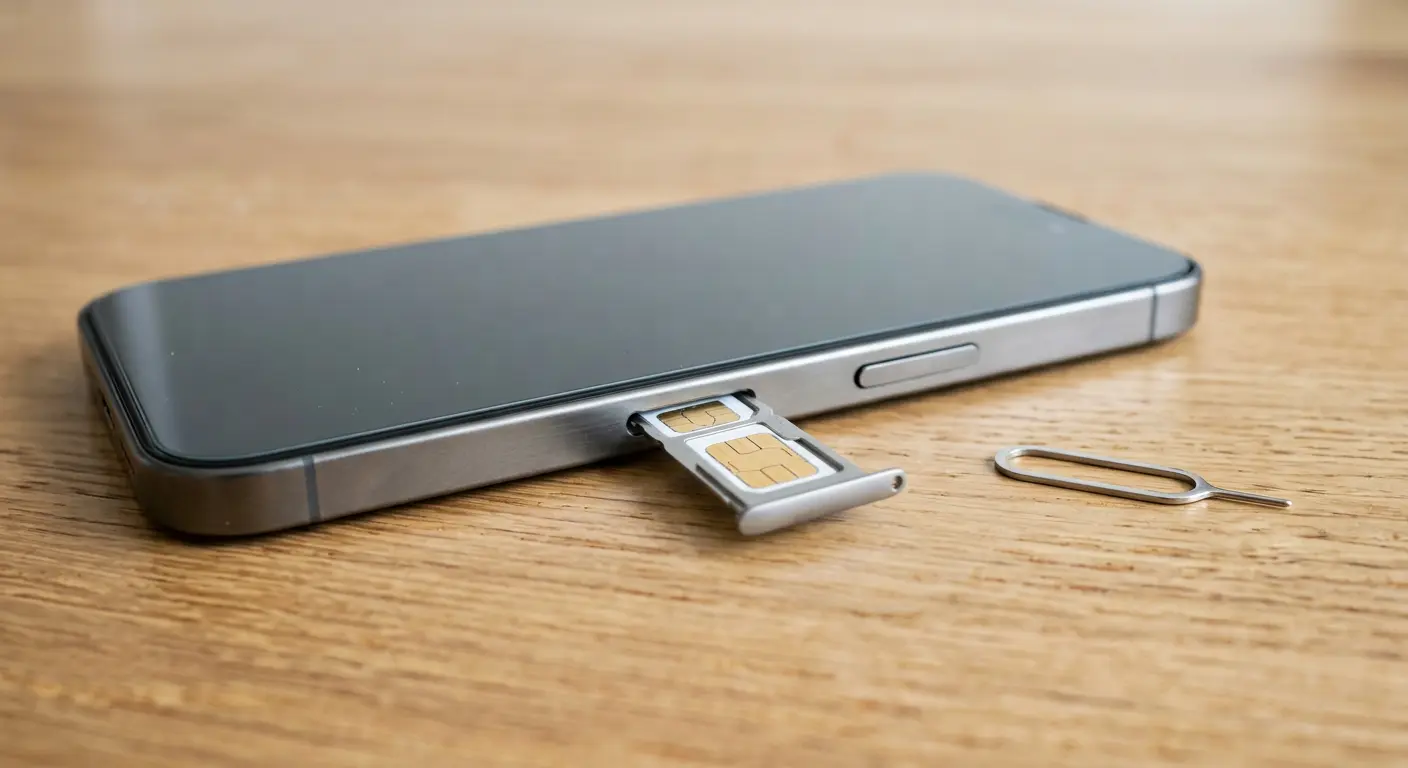
When you set up a new smartphone, you configure a lock screen. You register your fingerprint, scan your face, or enter a six-digit passcode. You assume your data and digital identity remain secure if someone steals your phone. This assumption is incorrect if you use a physical SIM card without a SIM PIN.
Your lock screen only secures the phone hardware. It does not secure the physical SIM card resting inside the plastic tray. If a thief steals your phone, they do not need to crack your passcode. They can use a paperclip or a SIM ejector tool to remove your SIM card in seconds. They insert your SIM card into their own unlocked phone. Now, they own your phone number. They can receive your SMS text messages, intercept your phone calls, and request One-Time Passwords (OTPs) to hijack your banking portals, email accounts, and social media.
This guide explains the mechanics of physical SIM interception and provides step-by-step instructions to enable a SIM PIN on Android and iOS. It also lists default carrier PINs and details how to recover from a locked state using a PUK code.
Technical Architecture of SIM Cards
To understand why a local PIN is effective, examine what a SIM card actually is. SIM stands for Subscriber Identity Module. It is not merely a memory chip that stores a phone number. It is a tiny, self-contained computer.
1. Hardware Specifications
Each physical SIM card contains:
- A Central Processing Unit (CPU): A small 8-bit, 16-bit, or 32-bit processor that runs simple software routines.
- Read-Only Memory (ROM): Stores the operating system of the SIM card (like JavaCard OS).
- Electrically Erasable Programmable Read-Only Memory (EEPROM): Holds your subscription credentials, telephone book contacts, and SMS storage.
- Random Access Memory (RAM): Temporary workspace for cryptographic calculations.
2. The Cryptographic Handshake
When your SIM card connects to a cell tower, it does not broadcast your phone number in plain text. Instead, it performs a cryptographic challenge-response handshake:
- The tower sends a random number challenge (RAND) to your phone.
- Your SIM card CPU retrieves a unique, secret signing key (called the Ki key) from its secure EEPROM storage.
- The SIM processor combines the Ki key and the RAND using an encryption algorithm (A3/A8) to calculate a signature (SRES).
- The phone transmits the SRES back to the tower. If the tower calculations match your SRES, it grants your number access to the network.
A SIM PIN places a password barrier directly in front of this CPU on the card itself. If the PIN is locked, the SIM processor refuses to execute the challenge-response algorithm, keeping the chip completely offline.
A Deep Dive into SIM Swapping vs. SIM Physical Theft
Many users confuse physical SIM theft with SIM swapping. While both target your phone number, their methods and defenses are entirely different.
1. SIM Swapping (The Virtual Attack)
In a SIM swap attack, the criminal does not touch your physical phone. Instead, they use social engineering, bribery, or identity theft to target your cellular carrier's support staff. They convince the carrier to transfer your active phone number profile to a new physical SIM card or eSIM in the attacker's possession.
- Defense: Set up a secondary verbal password, passcode, or PIN with your mobile carrier customer profile. Disable online SIM transfers if your carrier supports that option.
2. Physical SIM Theft (The Physical Attack)
In a physical SIM theft scenario, the criminal physically steals your phone or extracts your SIM card tray. No carrier interaction or social engineering is required. The card itself contains all credentials necessary to authenticate on any compatible cellular tower in the world.
- Defense: Enable a local SIM PIN directly on the microchip.
The Attack Vector: From Physical Theft to Identity Takeover
To understand the necessity of a SIM PIN, trace the actions of an attacker who acquires your unsecured physical SIM card.
[Stolen Phone] ──> [Eject SIM Card] ──> [Insert into Attacker's Phone] ──> [Receive SMS OTPs] ──> [Takeover Accounts]
1. Device Snatching and SIM Extraction
The thief targets your phone in a public area. Once they have the device, they ignore the encrypted operating system. They locate the SIM tray on the side of the chassis, insert a pin, and retrieve the small physical SIM card.
2. Number Activation on Guest Hardware
The attacker inserts your SIM card into a cheap, burner phone. Because the SIM card has no local lock, it connects to the cellular network immediately. The burner phone displays active signal bars and begins receiving incoming SMS messages and calls destined for your number.
3. Account Discovery and OTP Requests
The attacker opens web browsers on their own laptop or device. They go to major platforms, including Google, Microsoft, financial institutions, and WhatsApp. They enter your known email address or phone number and click "Forgot Password" or "Send Login Code via SMS".
4. Bypassing Two-Factor Authentication
The SMS OTP arrives on the burner phone. The attacker enters the code. The platform grants them access to your account. They change your recovery email, revoke your trusted devices, and lock you out. If they access your bank account, they transfer funds to untraceable profiles. If they access WhatsApp, they message your contacts asking for urgent financial assistance.
What is a SIM PIN?
A SIM PIN (Personal Identification Number) is a local security code stored directly on the microchip of your physical SIM card. It is separate from your phone's lock screen passcode or biometrics.
When you enable a SIM PIN:
- The microchip locks itself.
- Every time you reboot your phone, or insert the SIM card into a new device, the system prompts you to enter the SIM PIN.
- Cellular services (voice, SMS, and mobile data) remain completely disabled until you enter the correct code.
- If an attacker inserts your SIM card into their burner phone, the burner phone displays a "Locked SIM" prompt. It cannot connect to the carrier network, receive SMS messages, or intercept calls without the PIN.
Carrier Default SIM PINs (Indonesia Focus)
Every physical SIM card comes with a default PIN set by the telecommunications operator. To enable your SIM PIN, you must enter this default code first, then change it to a custom, secure code.
Warning: If you enter the incorrect default PIN three times, your SIM card will lock. You will need a PUK (PIN Unlock Key) code to restore access. Ensure you use the correct default PIN for your carrier.
Here are the standard default SIM PINs for major Indonesian network providers:
| Mobile Carrier | Default SIM PIN |
|---|---|
| Telkomsel | 1234 |
| Indosat Ooredoo Hutchison (IM3 / Tri) | 1234 |
| XL Axiata / Axis | 1234 |
| Smartfren | 1234 or 0000 |
If your carrier is not listed, or if the default code fails, contact your carrier's customer support hotline or visit an official branch before making a third attempt.
Step-by-Step Guide to Enable SIM PIN
Follow these instructions to secure your SIM card. Ensure you have your default carrier PIN ready before starting.
How to Enable SIM PIN on Apple iOS (iPhone)
- Open the Settings application on your iPhone.
- Scroll down and select Cellular (or Mobile Data depending on your region).
- Select SIM PIN.
- Toggle the switch next to SIM PIN to the On position.
- Enter your carrier's default SIM PIN when prompted. Tap Done.
- Select Change PIN to set your custom code.
- Enter the current (default) PIN once more.
- Enter your new custom 4-to-8 digit PIN. Do not use obvious sequences like
1111or your birth year. - Re-enter the new custom PIN to confirm. Tap Done.
How to Enable SIM PIN on Android Devices
Android interfaces vary by manufacturer. Use these guides for major Android brands:
Google Pixel / Stock Android
- Open Settings.
- Select Security & Privacy.
- Scroll down and tap More Security Settings.
- Select SIM card lock.
- Toggle Lock SIM card to the On position.
- Enter the default carrier PIN and tap OK.
- Tap Change SIM PIN.
- Enter the old (default) PIN, then enter and confirm your new custom PIN.
Samsung Galaxy (One UI)
- Open Settings.
- Select Security and Privacy.
- Scroll to the bottom and select Other security settings.
- Tap Set up SIM card lock.
- Toggle Lock SIM card to the On position.
- Enter your default carrier PIN and tap OK.
- Tap Change SIM card PIN.
- Enter your current default PIN, then input and confirm your new custom PIN.
Xiaomi / Redmi / POCO (MIUI / HyperOS)
- Open Settings.
- Select Fingerprints, Face Unlock & Screen Lock (or Safety & Emergency depending on version).
- Select Privacy.
- Under the SIM Card Lock section, select your carrier name.
- Toggle Lock SIM card to active.
- Enter the default carrier PIN and tap OK.
- Select Change SIM PIN and configure your custom code.
Understanding the PUK Code: Your Safety Net
If you enter an incorrect SIM PIN three times, your device displays a message: "SIM locked. Enter PUK code."
What is a PUK?
A PUK (PIN Unlock Key) is an 8-digit unique code assigned to your specific microchip during manufacturing. It is a master key that bypasses a locked SIM PIN. You cannot change the PUK code.
Where to Find Your PUK Code
Do not guess the PUK code. If you enter an incorrect PUK code 10 times, your physical SIM card becomes permanently disabled (bricked). The microchip burns out its circuits, and you must visit a carrier store to purchase a physical replacement card with a new number profile.
Find your PUK through these safe routes:
- The Plastic SIM Packaging: Look at the large plastic card your microchip was punched out of when you first purchased it. The PUK code is usually printed on the back under a scratch-off silver coating.
- Carrier Web Portal / Mobile Application: Log into your account profile on your carrier's official app (e.g., MyTelkomsel, MyIM3, myXL) using a computer or a secure device. The dashboard often lists your active SIM PUK details under device management.
- Customer Support Hotline: Call your carrier's call center from another phone. Provide your identity details, national ID number, and SIM card serial number (printed on the chip itself) to verify ownership. The agent will read your PUK code aloud.
Action Plan: Stolen Device Scenario
If someone steals your phone, execute this protocol immediately. Do not wait to see if the thief returns the device.
Phase 1: Contact Your Mobile Carrier (Within Minutes)
- Call your carrier's emergency line or visit the nearest branch.
- Request an immediate SIM suspension due to theft.
- Once suspended, the carrier deactivates your cellular profile. The SIM card can no longer connect to towers, even if the thief bypasses your SIM PIN.
Phase 2: Lock Your Phone Remotely
- Use a trusted computer or friend's device to access Apple Find My (icloud.com/find) or Google Find My Device (android.com/find).
- Mark your device as Lost. This locks the screen, displays a custom message on the monitor, and disables any stored payment cards.
- If you have no hope of recovering the device, select Erase Device to wipe your local database clean.
Phase 3: Monitor Account Activity
Log into your major email and financial accounts from a secure desktop. Check active sessions and revoke any authorizations requested during the hour of the theft.
Checklist: Physical SIM vs. eSIM Security
An eSIM (Embedded SIM) is a digital profile downloaded directly onto your phone's motherboard chip. It lacks a physical form factor.
| Security Property | Physical SIM Card | eSIM (Embedded SIM) |
|---|---|---|
| Physical Extraction Risk | High. Can be ejected with a paperclip in seconds. | None. There is no physical card to remove. |
| Device Portability | Easy. Plugs into any network-compatible terminal. | Hard. Requires account verification to move profiles. |
| Local Code Requirement | Needs a manually enabled SIM PIN to prevent misuse. | Protected by the host phone's operating system lock. |
| Thief Misuse Speed | Immediate if no SIM PIN is active. | Hard. Thief cannot transfer profile without unlocking phone. |
Action: If your smartphone supports eSIM technology, consider migrating from a physical SIM card to an eSIM. This transition eliminates the physical extraction threat entirely.
A Self-Audit for Mobile Number Security
Verify your mobile identity posture twice a year by running this check:
- Is the SIM PIN active? Restart your phone. If it boots directly to the home screen with cellular signal active without asking for a SIM PIN, your SIM is unsecured.
- Do you know your PUK code? Locate your original plastic card or log into your carrier app to save your PUK code in a secure notebook or home file. Do not save it in a plain text file on the phone itself.
- Is your phone number linked as recovery for your primary email? If yes, ensure you have secondary authentication methods (like an authenticator app) enabled. Avoid relying on SMS as your only factor of defense.
Frequently Asked Questions
Will enabling a SIM PIN delete my contacts or files?
No. Enabling a SIM PIN only adds a security verification layer to the network connection protocol. It does not modify, delete, or encrypt any data stored on your phone's internal storage or on the SIM memory itself.
Do I have to enter my SIM PIN every time I lock my phone screen?
No. You only enter the SIM PIN when the physical SIM card loses power and reconnects. This happens when you restart your phone, turn off Airplane Mode, or physical insert the SIM tray into a device. For everyday screen unlocks, you continue to use your standard fingerprint, face scan, or lock screen passcode.
What happens if I forget my custom SIM PIN?
If you forget your custom PIN, do not guess randomly. After three incorrect attempts, the SIM will lock and demand a PUK code. Retrieve your PUK code from your carrier packaging or hotline to reset your PIN.
Can a SIM PIN prevent eSIM hijacking?
No. An eSIM does not have a physical slot, so it cannot be extracted physically. eSIM security relies on your phone's screen lock and your carrier account credentials. Keep your carrier portal password secure to prevent unauthorized eSIM swaps.
Is SMS 2FA safe if I have a SIM PIN enabled?
Enabling a SIM PIN protects your SMS messages from physical card theft. However, SMS 2FA remains vulnerable to other network-level attacks, including SIM swapping (social engineering targeting the carrier) and SS7 interception. Always prefer authenticator apps (Google Authenticator, Bitwarden, Aegis) or hardware security keys over SMS 2FA where available.
Sources and References
- CISA: Telecommunications Resources and Mobile Security
- FCC: Protecting Your Mobile Device and Avoiding SIM Swapping
- Apple Support: Use a SIM PIN for your iPhone or iPad
- Google Android Help: Set up SIM card lock
Editorial Note: This article serves educational purposes. Step sequences, menus, and wording can change depending on your operating system version and cellular carrier firmware. Always use official manufacturer and telecom documentation to verify the exact path for your specific device model.