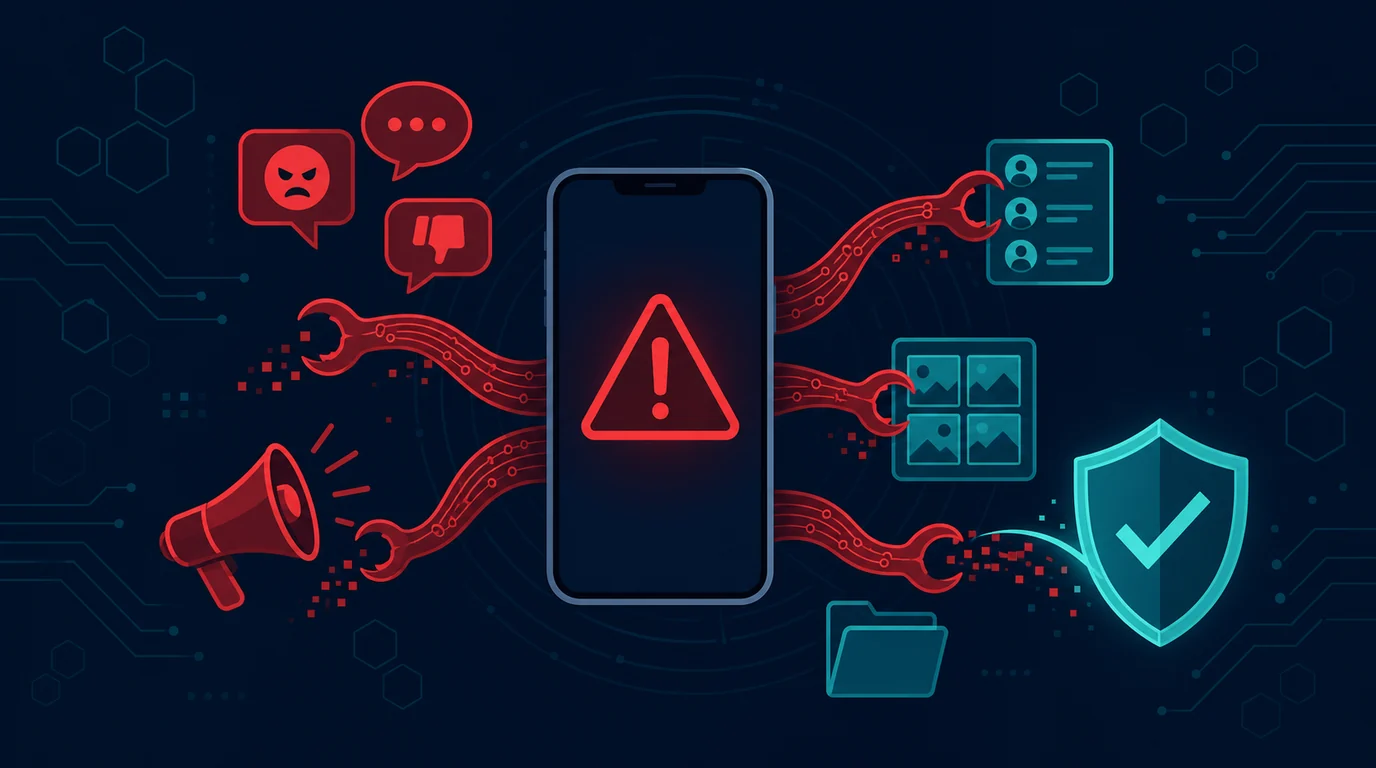
Ads appearing on the home screen or when opening an app can be annoying, but the problem can also be a sign of an app with excessive permissions, accidental site notifications, or adware. Many victims make things worse by installing cleaning APKs from other ads. Safer steps start from phone settings and official sources.
Not all ads mean the phone is infected. Some free applications do display ads according to their policies. However, pop-ups that appear outside the app, open the browser themselves, request accessibility permissions, or appear after certain installations are worth examining more closely.
This guide helps you differentiate ad sources, revoke unnecessary permissions, clear site notifications, and determine when a factory reset is necessary. Android menus may vary by brand and system version.
Initial steps before checking
Pop-up ads come from three different places: site notifications you once allowed, free apps that legitimately show ads, or adware installed without your knowledge. Each needs different handling, so identify the source first.
Notice when the ads appear. Ads showing only inside one app have a different origin than ads appearing on the home screen with nothing open.
How to check safely
1. Remember the last change
Note when pop-ups start appearing and what apps were recently installed. Changes after installing an application, updating it, or opening a particular site can provide clues to the source of the problem.
2. Check recent apps
Open the app list and sort by installation time if available. Delete apps you don't recognize or no longer need. Don't install new cleaning apps from pop-up ads.
3. Review permissions to appear on top of other apps
Overlay permission allows apps to appear on top of other screens. Check which apps have this permission and disable them if the app's functionality doesn't require it.
4. Check accessibility and notifications
Unknown apps should not have accessibility or notification reading access. Revoke suspicious permissions. This permission can be used to cover the screen or read the verification code.
5. Clear site notifications in the browser
In your browser settings, check which sites are allowed to send notifications. Block or delete unknown sites. Set pop-up and redirect blocking according to browser preferences.
6. Use Play Protect and update
Open Google Play Store and make sure security scanning is active. Update Android, browsers, and apps as updates can close gaps and fix known issues.
7. Don't click on ads to close them
Malicious ads often use fake close buttons. Use the back button, close the app from the recent apps screen, or restart the device if the screen becomes unusable.
8. Select factory reset as the final step
If pop-ups keep appearing, the app won't delete, or the permissions change on their own, back up important data and then consider a factory reset from the official menu. After reset, install apps one by one from official sources.
Example situations
After installing the wallpaper application from a social media link, Bimo saw advertisements appearing even when the main screen was open. He did not install an anti-virus application from the ad. It checks recent apps, revokes permission to appear on top of other apps, deletes the wallpaper app, then blocks some site notifications in the browser. Ads stop without needing to grant additional access to new apps.
Mistakes to avoid
Do not install cleaner apps advertised in the pop-ups themselves. That is the most common route adware takes in. Do not tap the close button on a full-screen ad either, since fake close buttons frequently trigger downloads instead. Use the back button or close the app from the recents list.
Short checklist
- I open the official site or application myself.
- I store necessary evidence without releasing sensitive data.
- I do not share PINs, passwords, OTPs or recovery codes.
- I check important accounts from trusted devices.
- I use more than one piece of evidence before making a decision.
- I contact the service provider through official channels if there is a financial or account risk.
- I updated the device and removed unnecessary access.
- I know when to ask for help from trusted people or parties.
Frequently asked questions
Do pop-ups always mean your cellphone has a virus?
No. Pop-ups can come from site or application notifications that display advertisements. However, out-of-app occurrences, excessive permissions, and sudden changes need to be checked.
Are ad blocking apps safe?
Choose only from official app stores and check the permissions requested. Don't install APKs that block ads or unsolicited messages.
What permissions most need to be checked?
Check permissions to appear on top of other apps, accessibility, notification access, device administrator, and ability to install other apps.
When is a factory reset necessary?
Consider if suspicious apps cannot be removed, pop-ups continue to appear after cleaning, or there are signs of account compromise. Back up important data and use official procedures.
Helpful follow-up checks
If ads persist after removing suspicious apps, check these three places.
- Display-over-other-apps permission. Any app holding overlay permission can draw ads on any screen, including the home screen.
- Site notifications in the browser. Open site settings in Chrome and block every domain you do not recognize in the notifications list.
- Android safe mode. Safe mode disables third-party apps. If the ads stop there, an installed app is the cause.
Sources and further reading
Editorial note: This article is educational in nature. Service procedures, device menus, and platform policies are subject to change. Use official channels for handling specific cases.