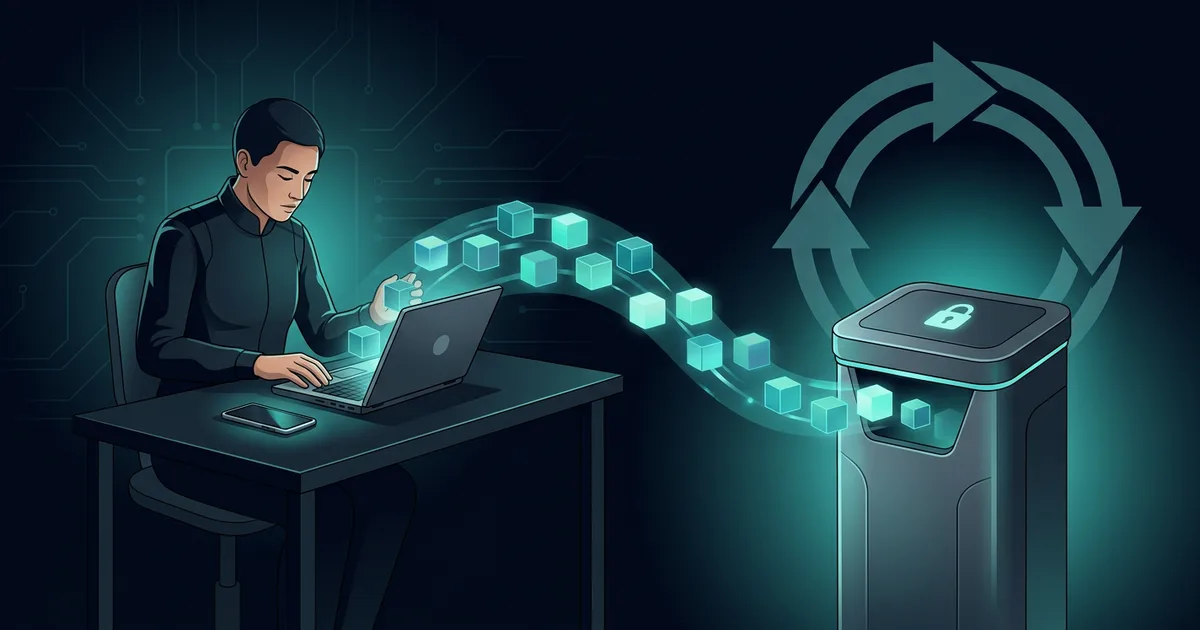
Old phones, work laptops, family tablets and external hard drives often change hands after being replaced. Some are sold, given to relatives, traded in, serviced, stored in drawers, or taken to recycling places. Devices that are no longer used keep traces of life: emails, photos, work documents, contact numbers, login tokens, browser history, and application data.
Deleting a few photos and then doing a factory reset at the last minute won't necessarily solve all the risks. You need to make sure data is backed up, accounts are logged out, the device search feature is removed, additional storage is checked, and the device is no longer tied to your identity. This sequence protects the person receiving the device while preventing you from being locked out of your own account.
This guide uses general terms because the menus differ between Android, iPhone, Windows, macOS, and other devices. Always read the manufacturer's instructions for the model you are using. The principle remains the same: back up, disconnect the account, delete data via the official tool, then verify the results.
Determine the purpose of the device before deleting anything
The first decision is not the reset button, but rather where the device will go. If the device is sold or given to someone else, you need to wipe the data and remove the activation. If the device is to be serviced, the technician may only require limited access or service mode. If a device is damaged and is to be recycled, the condition of the storage media determines whether software deletion is sufficient or whether the media needs to be physically destroyed by a trusted party.
Make brief notes: device type, serial number if available, primary account connected, additional storage methods, and final destination of the device. This note is helpful if you need to track proof of delivery or check whether the device still appears in the accounts list. For work devices, check with the IT team before taking action. Office policies may regulate backup, remote wipe, or return of assets.
Don't hand over a device that's turned on and still logged into the account just because the buyer said they would reset it themselves. Once the device leaves your hands, you can't control what gets copied. Perform removal steps yourself from connections you trust.
Back up data, then open that backup
Back up data that you want to retain before resetting. Choose one or two locations that you understand, such as encrypted cloud storage, an external hard disk, or a new computer. Don't assume the backup process is complete just because a success message appears. Open some photos, documents, notes, and important files in a new location. Make sure the data is readable and the required accounts are still accessible.
The application list is also useful. Take note of authenticator apps, password managers, banking apps, health apps, and work apps that use device verification. Some apps associate codes or access with old phones. Move or back up the recovery code according to official instructions before wiping the device. Don't take a photo of the recovery code and leave it in the gallery of the phone you are selling.
For laptops, check frequently forgotten folders: Desktop, Downloads, Documents, Pictures, cloud sync folder, development projects, local email archives, and messaging application folders. For mobile, check gallery, downloads, voice recordings, files app, notes app, and messages folder. An installed memory card or USB drive is not part of the factory reset. Remove and check separately.
Sign out of accounts before resetting
Accounts that are still connected can be problematic for both you and the recipient of the device. On your phone, sign out of your primary account and disable tracking or activation lock features according to the manufacturer's instructions. On a computer, sign out of system accounts, browsers, cloud storage applications, messaging applications, and application stores. Remove the device from the trusted devices list in your email, password manager, or work account when you're finished moving data.
Activation lock protects against stolen devices, but can prevent legitimate buyers from using the device if you forget to remove it. Therefore, don't just delete the data. Check from another device to see if your old phone or laptop still appears as an active device in your account. If it still appears after reset, follow the official instructions to remove the association.
Browsers often store passwords, payment cards, and login sessions. Exit browser sync and delete local profiles before reset. If you use a password manager, deauthorize the old device from the security panel when finished. Don't delete your password manager account just because you sold one device. You need to disconnect the device, not remove the vault of the entire account.
Use deletion appropriate to the storage type
Modern cell phones and many laptops use encrypted storage by default. On encrypted devices, a factory reset from the official menu usually deletes the encryption key and user data, so old content cannot be unlocked through regular use. Still do it from the official system menu, not by deleting the folder manually. Manual deletion may leave behind app, cache, or account data.
Older computers with mechanical hard disks require different attention. Deleting files and emptying the Recycle Bin does not completely delete the physical contents. Use the operating system's provided drive reset and wipe features, or a trusted wipe tool according to the manufacturer's guidelines. If the drive is damaged, very old, or holds highly sensitive data, consider removing it and using a media destruction service that has clear procedures.
SSDs work differently than mechanical hard disks. Overwriting data multiple times is not always the right choice for SSDs and can shorten the life of the device. Look for the manufacturer's secure erase feature or the operating system's official reset procedure. If you are unsure of the storage type, consult the device documentation or ask an authorized technician for help. Avoid downloading removal tools from random sites, as the tools themselves can carry risks.
Check for small things that are often left behind
SIM cards, memory cards, USB dongles, access cards, and cases with sticky notes are often left unchecked. Remove all accessories before handing over the device. For SIM cards, move the number to a new device or deactivate it through your carrier. For memory cards, back them up and format them or keep them yourself if they contain personal data. Don't give a memory card as a bonus if you haven't checked all of its contents.
Remove payment methods from browsers and shopping apps. Disconnect the device from the authenticator app or make a proper move. Check hidden camera, recording, document scanner and gallery apps. Some apps save files in their own folders or sync to cloud accounts. You don't need to delete your data from the cloud if you want to keep using it, but you do need to make sure your old device can no longer open it.
If the device has been used by a child or family member, ask if there are other profiles that store data. Guest profiles, school accounts, or work accounts can be missed when only checking the main account. On a shared laptop, log in to each user profile and ensure that the account backup and logout processes have been carried out as required.
Reset, then perform a final check
Once the backup and accounts have finished checking, run a reset from the system settings. Select the option that deletes all user data and, when available, clears storage for device switching. Connect to power otherwise the process may take some time. Do not turn off the device in the middle of the process unless the official instructions state otherwise.
When the device turns back on, it should display the initial setup screen, not the screen showing your photos, email, or apps. Don't log in again with a personal account to "just check". The initial setup screen is sign enough. From other devices, look at the device list in your email account and manufacturer to make sure the old device has no access or activation keys left behind.
Remove old devices from trusted devices lists in password managers, email services, and work services. This step ensures that any session tokens that may remain are no longer trusted. Save proof of reset or handover if the device contains organizational data or will be processed by a recycling service.
Choose buyers, trade in, service or recycle carefully
Private sales give you control over the reset process, but also require a handover note. Don't meet alone in locations that make you feel unsafe. Do not hand over your device until payment has been verified in your app or account. Avoid showing the bank screen excessively when the buyer asks for proof of payment.
Trade-in and recycling programs can make handling the device easier, but read the terms. Find out whether they delete data, how they process damaged drives, and whether they provide a receipt. If the device won't turn on and retain sensitive data, don't rely on verbal promises that the data will be deleted. Consider retaining or destroying storage media according to your needs and applicable policies.
For servicing, create a temporary user account if the device must be turned in. Back up data and log out important accounts first. Do not give the master password to the technician. An authorized technician can provide instructions on service modes or diagnostic procedures that do not require full access to personal data.
Example situation: an old laptop still has email access
Bayu sold his old laptop after transferring the files to a new computer. He deleted the personal folder and handed the laptop to the buyer. A week later, he realized the browser was still syncing his profile. Shoppers who open a browser can see email addresses, bookmarks, and possibly unexpired login sessions.
Bayu changed the email password, logged out all sessions from the security panel, removed the laptop from the list of trusted devices, and revoked access to applications he didn't recognize. He contacted the buyer calmly and asked for the laptop to be reset. Those steps helped, but it would have been easier if Bayu had exited browser sync, revoked the device session, and then performed a system reset before the sale.
This story shows why data deletion isn't just a matter of files. Modern access often resides in session tokens, synchronized accounts, and device keys.
Mistakes to avoid
Don't rely on a regular wipe or quick format when the device is storing important data. Do not enter personal password after device reset just to check the display. Do not hand over a damaged device to an unknown party if the drive is still installed. Do not throw away paper containing the recovery code with the device. Do not delay removing the device from your account after the sale is complete.
Another mistake is creating a backup without testing the results. You can delete old data properly, but still lose photos or documents if the backup is incomplete. Take the time to open the sample files and make sure you can log in to important services from the new device.
Checklist before the device changes hands
- Determine the purpose of the device and check office policy if the device is work.
- Back up important files, then open some files to test the backup.
- Move the authenticator and store the recovery code safely.
- Sign out of system, email, browser, cloud, messaging and app store accounts.
- Disable tracking and remove activation lock according to manufacturer's instructions.
- Remove SIM, memory card, USB and other accessories.
- Perform an official reset or wipe according to the storage type.
- Make sure the initial setup screen appears without your account.
- Remove the device from the list of trusted devices on other accounts.
- Save proof of handover or destruction if necessary.
Frequently asked questions
Is factory reset enough for modern phones?
On modern phones that use encryption and are reset via the official menu, a factory reset usually wipes user data effectively for a normal device switch. Still log out of the account and deactivate the activation lock first. Also check the memory card as a reset may not delete it.
Can I sell a laptop with a damaged hard disk?
Yes, if you have assessed the risk of the data in it. If the hard disk cannot be safely erased, consider removing it and storing it or using a trusted media destruction service. Don't hand over a drive that still contains sensitive data just because the laptop won't turn on.
Why does the old device still appear in my account after reset?
A reset deletes local data, but the device list on a cloud account or manufacturer may be stored separately. Remove device from account panel after reset. If there is an activation lock, follow the manufacturer's official procedures to remove it.
Should I delete cloud backup before selling phone?
Not necessary if you still want to save the data. All you need to do is log out of the account on the old device and make sure the device is no longer trusted. Delete cloud data only if you no longer need it.
Separate work, family and personal data in the final check
The same device often contains more than one type of data. A personal laptop can be used to open work emails. Family phones can store children's school accounts. Older tablets can store shopping history, health records, or photos of other people. When backing up and registering an account, don't just search for your own name. Also look for other user profiles, shared folders, work accounts, and services that store data on behalf of a family or organization.
For work data, follow company regulations. Don't copy customer files or internal materials to a personal drive just so you have a backup before wiping the laptop. Ask the IT team to explain the correct way to return assets and transfer data. Note the date you turned in the device and who received it. This step protects you if questions later arise about access or data left behind.
For family devices, have each user check their profile before resetting. Your child may have game accounts, school work, or photos that haven't synced. Couples may use authenticator apps on shared devices. A quick joint check is better than restoring a device that has already been sold because there is data left behind.
If the device cannot turn on
A damaged device requires a different assessment because you may not be able to perform a regular reset. Don't immediately sell it as damaged along with the drive or internal storage that still holds data. Find out if the storage media is removable. Many laptops use ejectable SSDs, although some devices integrate them into the main board. The manufacturer's or authorized technician's documentation can explain this possibility.
If the media is removable, store it in a safe place until you determine whether it needs to be used again or destroyed. If the media is non-removable and the data is very sensitive, choose a repair or recycling provider that has deletion procedures and proof of processing. Ask concrete questions: who handled the device, whether the drive was tested, how the data was wiped, and what evidence was provided. A vague answer is a reason to look for another provider.
Do not attempt to disassemble the battery, drive, or components in a way that would endanger yourself. Damaged batteries can catch fire and electronics need to be processed properly. Data security and physical safety must go together.
Environmental benefits do not come at the expense of privacy
Recycling devices reduces electronic waste and allows components to be reused. Privacy still needs to be considered from the start. Select a recycling program that describes the flow of device receipt, data deletion, and battery processing. Save the receipt or proof of delivery. If the device is still usable, gifting it to a school or family can extend the life of the device after you complete the removal properly.
Old devices don't have to be trash or a risk. With a tidy account list and appropriate deletions, you can move the value of your devices without moving your digital life.
Make a note of the devices you no longer hold
After handover, keep a short list containing the device type, reset date, delivery date, and recipient party. This note is useful when the device still appears on your account or when you need to prove that a work asset has been returned. Don't enter your password or recovery code into the note. The goal is only to maintain traces of administration.
Review the device list on the primary account a few weeks later. If the old device is still listed or receiving notifications, revoke its access and check the account settings again. A short follow-up check closes gaps that may not be visible on reset day.
If you sell multiple devices a year, use the same checklist each time. A consistent sequence reduces the chance of a memory card, browser account, or trusted device being left behind simply because the process was rushed.
Sources and further reading
- NIST SP 800-88 Rev. 1: Media Sanitization
- CISA: Secure Our World
- Apple: Erase Your iPhone
- Google: Reset Your Android Device
Editorial note: Follow the manufacturer's documentation for your device model. For sensitive organizational, health, legal, or financial data, use media destruction procedures and providers that comply with your obligations.