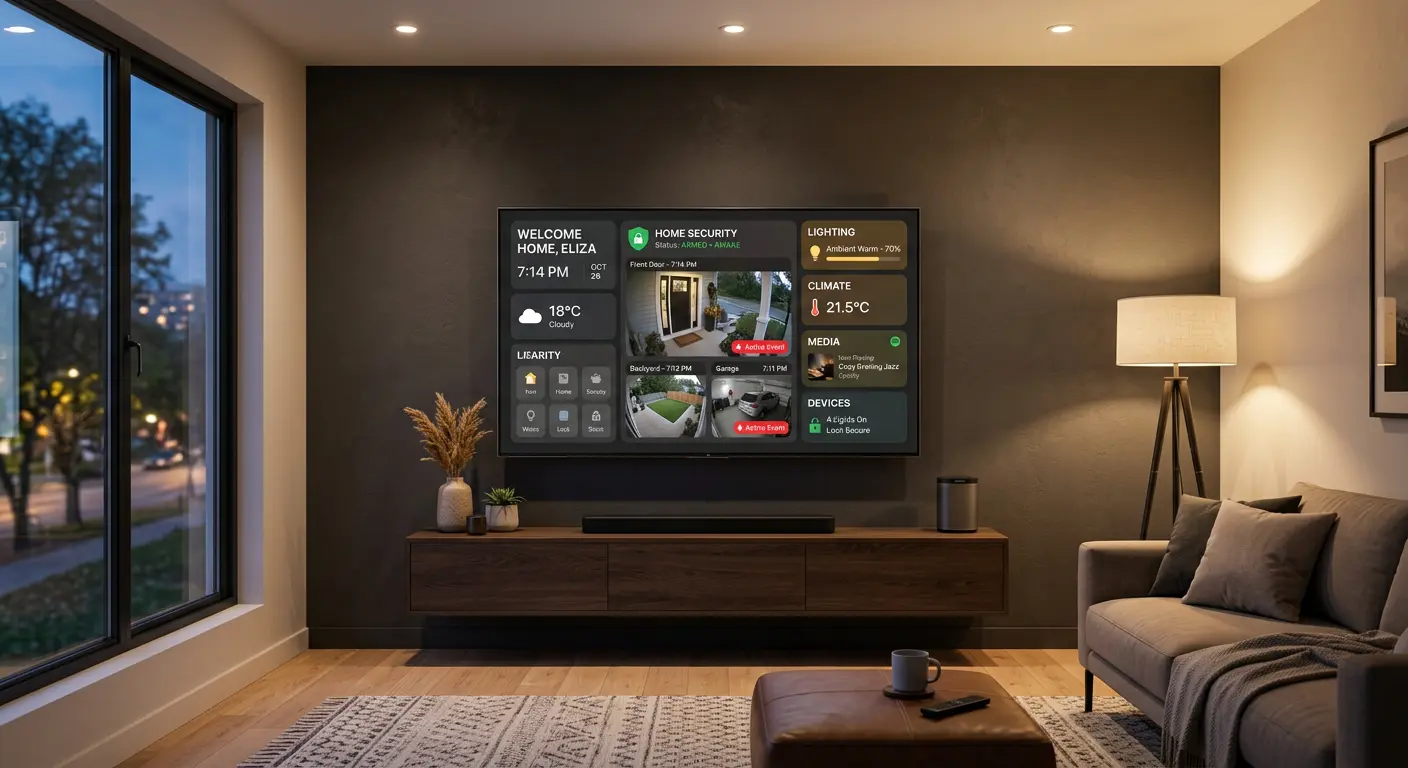
A modern smart TV is no longer a simple output display. It is a fully functional internet-connected computer. It runs a complex operating system, stores your payment credentials, logs your viewing habits, and connects to your local home network. Many models also contain physical cameras, microphones, and sensors.
Despite these capabilities, smart TVs and streaming sticks (such as Amazon Fire TV, Apple TV, Chromecast, Roku, and generic Android TV boxes) receive far less security attention than personal computers or mobile phones. Users rarely install security updates, audit application permissions, or monitor network telemetry on their televisions.
This oversight makes smart TVs attractive targets for privacy intrusion, advertising tracking, and network pivoting. This guide details the vulnerability profile of smart TVs and provides a comprehensive hardening manual to secure your streaming devices and protect your home network.
Technical Mechanism of Automatic Content Recognition (ACR)
To defend against viewing tracking, you must understand how Automatic Content Recognition (ACR) operates. ACR is not a passive logging of channel numbers. It is an active visual and acoustic analysis engine.
1. Acoustic Fingerprinting
If the TV utilizes acoustic ACR, the system processor continuously samples the audio output of the television at millisecond intervals. It converts these short audio samples into unique mathematical representations (hashes).
The television transmits these hashes over the network to the manufacturer's central database servers. The server compares your hashes against a vast library of commercial television shows, movies, video games, and advertisements. When a match occurs, the server identifies exactly what you watch in real time, even if you utilize an external media player or analog input.
2. Visual Frame Sampling
Visual ACR captures small, low-resolution pixel grids of your screen frames at regular intervals (e.g., 5 frames per second). It analyzes the color distribution and movement vectors of these grids, generating visual hashes.
Because this process operates directly on the display panel processor, it bypasses any encryption of your streaming services (like HDCP). It records everything displayed, including personal photos, home videos, or presentation files connected via HDMI.
This captured visual profile represents a deep invasion of your domestic environment, linking your physical space to automated advertising databases. You must actively block this tracking to preserve your household confidentiality.
Smart TVs as Botnet Nodes: The Mirai and Okiru Legacy
Smart TVs and generic Android boxes represent major targets for botnet recruitment. The security vulnerability of these devices stems from basic design flaws.
1. Default Hardcoded Credentials
Many inexpensive Android TV boxes ship with open Telnet or SSH ports enabled by default to facilitate factory testing. The manufacturer frequently leaves hardcoded root passwords (such as 123456, root, or admin) active in the final firmware.
2. Active Port Scanning and Exploitation
Botnets like Mirai and its variants (such as Okiru) scan the public internet and local LANs looking for active ports:
- Port 23 (Telnet)
- Port 22 (SSH)
- Port 5555 (ADB - Android Debug Bridge)
When the botnet finds an open port 5555 on an Android TV box, it uses standard ADB commands to connect without any password verification. The botnet script executes simple command sequences:
adb connect <target-ip>:5555
adb shell pm install -r malicious_payload.apk
adb shell monkey -p com.malicious.payload 1
This routine silently installs a remote access tool (RAT) or a DDoS script. The television becomes a zombie node, executing massive denial-of-service attacks against global targets while remaining completely functional for the viewer at home.
Why Smart TVs Present a Network Vulnerability
To secure a smart TV, you must understand how attackers, advertising networks, and device manufacturers exploit these devices.
1. The Stepping Stone (Network Pivoting)
If an attacker wants to compromise your personal computer or steal files from your local storage, they face strong firewalls and active endpoint security on your laptop. A smart TV, however, sits on the same local area network (LAN) but lacks security monitoring software.
An attacker can exploit an unpatched vulnerability in the television's web browser or operating system to gain initial access. Once inside the smart TV, they can scan your home network, perform man-in-the-middle attacks, or pivot to compromise your computers and smartphones.
2. Automatic Content Recognition (ACR) and Tracking
Smart TV manufacturers use a technology called Automatic Content Recognition (ACR). This software captures acoustic or visual fingerprints of whatever displays on your screen: cable television, streaming services, DVD playback, or video games.
The TV matches these fingerprints against a database to identify exactly what you watch, down to the second. The manufacturer packages this data alongside your IP address and device identifier and sells it to advertising agencies. This tracking occurs silently in the background of almost all modern smart TVs.
3. Sideloading Malicious Applications
Many users purchase Android TV boxes or Fire TV sticks to bypass subscription services. They "sideload" applications from unverified online repositories using APK files. These third-party applications often contain hidden malware, cryptocurrency miners, or infostealers.
Because the TV lacks a file scanner or antivirus, this malware runs unchecked, consuming processor cycles, overheating hardware, and transmitting local network data back to server command centers.
4. Hardware Exploitation (Cameras and Microphones)
High-end smart TVs include built-in cameras and microphones for gesture control, video conferencing, and voice searches. If an attacker gains administrative control of the television, they can activate these hardware sensors to spy on your household, record private conversations, or capture images of your living room.
Technical Comparison: Major Smart TV Operating Systems
Different brands run different platforms, each with distinct security controls and vulnerabilities.
| Operating System | Major Brands | Custom APK Sideloading | Privacy Customization | Update Frequency |
|---|---|---|---|---|
| Android TV / Google TV | Sony, Sharp, Hisense, Xiaomi | Yes (via APK files) | Moderate | Moderate |
| Tizen OS | Samsung | No | Low | Low |
| webOS | LG | No | Low | Low |
| Fire OS | Amazon (Fire TV) | Yes | Low | High |
| tvOS | Apple (Apple TV) | No | High | High |
| Roku OS | Roku | No | Moderate | High |
Hardening Manual: Step-by-Step Security Configurations
Follow these action protocols to secure your television and streaming peripherals.
Action 1: Isolate the TV on a Guest Network
The most effective network security measure is isolation. Do not allow your smart TV to sit on the same subnet as your primary devices.
- Log into your home router's administrative dashboard using a web browser (usually by entering
192.168.1.1or192.168.0.1). - Locate the Guest Network settings.
- Enable a dedicated 2.4GHz or 5GHz guest network.
- Set a strong, unique Wi-Fi password for this guest network.
- Ensure the setting "Allow guests to access local network" (or similar local sharing options) is disabled.
- Connect your smart TV, streaming sticks, and other smart home (IoT) devices exclusively to this isolated guest network.
If your television is compromised on the guest network, the attacker cannot reach your personal computers or local network storage devices (NAS) because the router blocks traffic between the guest network and the main LAN.
Action 2: Disable Automatic Content Recognition (ACR)
Turn off the active tracking systems integrated into your television software. The location of these settings varies by manufacturer:
For Samsung TVs (Tizen OS)
- Go to Settings > All Settings > General & Privacy.
- Select Terms & Privacy > Privacy Review.
- Locate Viewing Information Services (or Interactive Voice Services).
- Uncheck or disable these options to turn off ACR.
For LG TVs (webOS)
- Open the Settings menu.
- Navigate to All Settings > General > System > Additional Settings.
- Select Terms of Use or Privacy Policy.
- Disable Viewing Information, Voice Information, and Interest-Based Advertising.
For Sony and Hisense TVs (Google TV / Android TV)
- Go to Settings > Privacy > Usage & Diagnostics.
- Toggle Share usage & diagnostics to the Off position.
- Navigate to Account > Google Account > Personalization and turn off personalized suggestions.
For Amazon Fire TV
- Navigate to Settings > Preferences > Privacy Settings.
- Turn off Device Usage Data.
- Turn off Collect App Usage Data.
- Disable Interest-Based Ads.
Action 3: Secure Application Permissions and Disable Sideloading
If your device runs Android TV or Fire OS, protect the system from malicious application installations.
- Disable Unknown Sources: Go to Settings > Apps > Security & Restrictions (or Install unknown apps). Ensure all file managers and web browsers are disabled from installing unknown applications. Only download software from the official Google Play Store or Amazon Appstore.
- Review Permissions: Go to Settings > Apps > Special App Access (or Permissions). Inspect which applications have access to your Microphone, Location, and Storage. Revoke permission for any application that does not strictly require it (e.g., a simple video player does not need microphone or location access).
- Disable Developer Options: If you previously enabled developer mode (ADB debugging) to configure the device, go to Settings > System > Developer Options and turn ADB debugging and Developer options to Off. Leaving ADB active allows anyone on your network to execute command-line instructions on your television.
Action 4: Physical Protections for Cameras and Microphones
Software switches can fail or be bypassed by administrative exploits. Use physical barriers to secure hardware sensors.
- The Camera Cover: If your TV has a built-in camera, place a sliding webcam cover or a piece of opaque black tape over the lens. Only expose the lens when actively participating in a video call.
- Mute the Microphone physically: Some smart TVs and smart speakers have a physical hardware switch on the back or bottom of the casing that disconnects the power line to the internal microphone. Locate this switch and toggle it to the mute position.
- Remote Control Voice button: Avoid using voice remotes that remain constantly active ("always listening"). If your remote requires you to physically hold down a microphone button to speak, use it with caution, and do not speak sensitive details aloud near the controller.
Action 5: Set Profile PINs and Purchase Locks
Protect your payment profiles from unauthorized access by family members or guests.
- Open your streaming portal (e.g., Netflix, Prime Video, Disney+) on a computer.
- Go to Account Settings and locate the Parental Controls or Profile Lock section.
- Set a four-digit PIN code required to open your profile.
- On your television's application store settings (Google Play / Amazon Store), go to Settings > Purchase Authentication and select Require password or PIN for all purchases. This prevents accidental or unauthorized billing transactions on your registered credit card.
Action Plan: Steps for a TV Security Incident
If your television behaves strangely (e.g., opens random websites, displays pop-up ransom notes, or runs slow), execute this response plan:
Step 1: Disconnect Network Access
Unplug the Ethernet cable immediately, or go to the Wi-Fi settings panel and select Forget Network. This isolates the television, stopping the malware from sending data to remote command servers or attacking other local devices.
Step 2: Perform a Factory Reset
Navigate to the system menu:
- Google TV: Go to Settings > System > About > Reset > Factory Reset.
- Samsung: Go to Settings > Support > Self Diagnosis > Reset.
- LG: Go to Settings > General > System > Reset to Initial Settings.
A factory reset completely erases the storage partition, deleting sideloaded applications, cached tokens, and any installed malware.
Step 3: Revoke Stored Credentials
Using a secure computer or phone, log into your Netflix, YouTube, Amazon, and other streaming accounts. Go to Security Settings, view authorized devices, and click Sign out of all devices or remove the smart TV session. Change the passwords for those profiles.
A Self-Audit for Smart TV Security
Perform this evaluation twice a year to maintain a secure home environment:
- Network Isolation check: Try to connect your phone to the TV screen using local cast features. If your phone cannot find the TV, the television sits successfully on an isolated guest network.
- Firmware Update check: Open the system settings and click Check for software updates. Install any pending updates immediately.
- Inactive App audit: Go to the application list and delete any service or game you have not used in the past three months. Fewer applications mean a smaller attack surface.
- Sensor verification: Verify that your webcam cover remains in place and that developer options remain disabled.
Frequently Asked Questions
Can a smart TV get a virus?
Yes. Modern smart TVs run complex operating systems like Android, which can run malicious code. Ransomware, adware, and cryptocurrency miners have been discovered running on smart TVs, usually after users sideloaded unverified applications from unofficial web repositories.
What happens if I do not connect my smart TV to the internet?
If you do not connect your TV to the internet, it becomes a simple monitor. This is the most secure setup. You can use a dedicated external device like an Apple TV or Roku, which receives regular, robust security updates, and connect it to your TV via an HDMI cable instead of using the TV's built-in smart platform.
Is it safe to enter my credit card details on a smart TV?
It is relatively safe on official app stores like Google Play or Apple App Store, provided you enable purchase authentication. However, do not save credit card details inside unverified third-party video apps or web browsers on the television itself.
Can an attacker watch me through my smart TV camera?
If the television is compromised by administrative-level malware, yes. Attackers can remotely activate the camera and microphone to monitor your living space without triggering the camera's active LED indicator. Use a physical cover over the lens to eliminate this risk.
Why is guest network isolation so important?
Because generic smart home devices (IoT) lack advanced built-in firewalls and security suites. If a hacker exploits a vulnerability in a smart plug or smart TV, network isolation prevents them from accessing your private computers, laptops, and data storage devices connected to your main home network.
Sources and References
- CISA: Secure Your Home Network and Smart Devices
- FBI Oregon: Technical Advisory on Smart TV Security and Privacy
- NIST: Securing the Internet of Things (IoT) Device Lifecycle
Editorial Note: This article serves educational purposes. Menus, software structures, and setting locations vary depending on your television model, region, and firmware version. Consult your manufacturer's official user guide for current and specific configuration paths. Keep your home router firmware updated to maintain network-level defense.