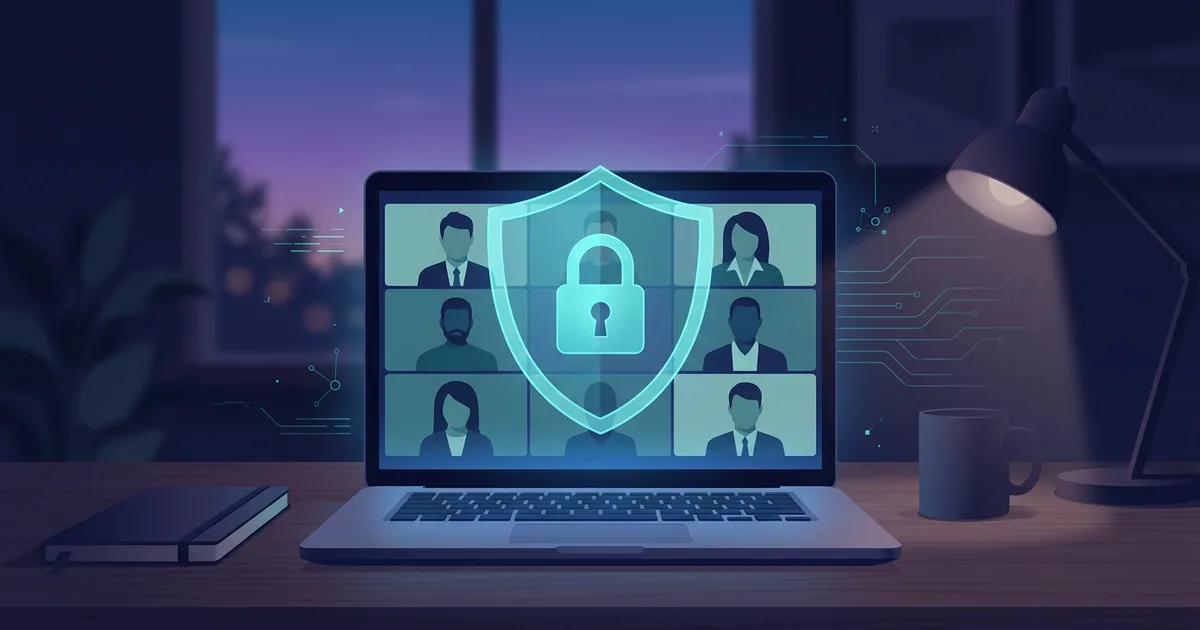
Video meetings bring work, class, and family to the same screen. A single link can connect participants from multiple locations within seconds. That convenience also means invites, participant names, chats, shared screens, recordings, and home backgrounds can spread more widely than you might think.
Video meeting security doesn't require complicated technical terms. Most problems can be prevented by decisions before the meeting starts: who receives the link, who can log in, who can share the screen, whether the meeting is recorded, and where the recording is saved. These settings need to be adjusted to the type of meeting. Family conversations don't carry the same risks as discussing contracts or student grades.
This article helps organizers and participants create proportional habits. The goal is not to cover all features, but to ensure that each feature is used for a clear reason.
Treat the meeting link as an invitation, not a general announcement
The meeting link often contains an access code or takes anyone to a login page. When a link is placed on a public account, large group, or forwardable document, you lose control of the participant list. For small or sensitive meetings, send invitations to participants via calendar, email, or closed groups. Avoid including active links in social media posts.
Use the meeting ID and access code generated by the platform when available. For open events, create a special meeting that does not use a private room or regular office meeting room. Don't use the same private meeting link for multiple activities for months. If the link spreads, strangers may try to log in again at the next meeting.
Check the participant list before sharing important information. The waiting room feature can give organizers the opportunity to accept participants one at a time or all at once after their names have been checked. For classes or team meetings, determine who watches participants enter if the organizer needs to present material. Don't rely on the display name alone as the name can be changed.
Set participant roles before the meeting takes place
Everyone does not need to have the same rights. The host or co-host manages participants and settings. Presenters can share the screen. Participants simply look, talk, or use chat as needed. Limiting roles is not a sign of lack of trust. This is a way to reduce errors that can occur when multiple people have control buttons.
Set screen sharing to only the specified host or presenter, especially for large meetings. If participants need to show material, the host can grant temporary permission. This setting prevents irrelevant screens, personal documents, or distracting content from appearing unexpectedly. Consider turning off annotations and file transfer if those features are not used.
Use a co-host for meetings with multiple participants. One person can focus on the material, while another person monitors the waiting room, chat, incoming participants, and distractions. Also set rules of thumb at the start of the meeting: use a recognizable name, keep the microphone on when speaking, don't hand out invitations, and don't record without permission.
Manage recordings as data, not keepsakes
Recordings are useful for participants who are unable to attend, training, documentation of decisions, or evidence of the process. Recordings can also store voices, faces, screens, chats, participant lists, and confidential information that appears accidentally. Before you hit the record button, decide whether the recording is really necessary, who should have access to it, how long it will be kept, and how participants will be notified.
Notify participants before the recording begins. Many platforms display record markers, but verbal or written notification is still helpful. Do not record discussions that do not need to be documented. For meetings that contain sensitive information, consider creating a summary of decisions without saving the entire video.
Save recordings in a folder with limited access. Don't send links that anyone can open if the material is only for a specific team. Check sharing settings, link expiration, and download permissions. Delete records according to agreed retention schedule. Recording folders left open for years are often the source of accidental leaks.
If your organization uses a separate storage service, ensure record access rights follow team membership. Remove people who are no longer working on the project. For children's classes or activities, consider the institution's rules and parental permission before recording or sharing video.
Prepare your screen and space before sharing
Screen sharing can speed up explanations, but full screen often shows more than you planned. Message notifications, browser tabs, private documents, other meeting titles, and download folders can appear in the corner of the screen. Before a meeting, close irrelevant applications, activate do not disturb mode, and open only the document to be presented.
Select single window or single tab sharing if the platform supports it. Sharing the entire screen is only necessary if you switch between apps. If you have to share the full screen, move personal files off the desktop and make sure there are no sensitive notifications. Do a test run with colleagues for an important meeting so you can see what it really looks like to attendees.
The background of the camera also provides information. Family photos, addresses on packages, chalkboards, access cards, or windows showing locations can appear unnoticed. Choose a simple position, use a virtual background if appropriate, or use the blur feature. Virtual settings do not replace the habit of examining the environment, as camera errors or movement can reveal parts of the room.
Secure the account used to log into the platform
Video meeting accounts are usually connected to email, calendar, recording storage, and contact lists. If someone takes over the account, they can create fake invitations, view the schedule, download recordings, or log in as a host. Use unique passwords, enable two-factor authentication, and check logged-in devices periodically.
Log in to the platform via the app or an address you type yourself. Scammers sometimes send fake meeting invitations that lead to fake login pages. If someone asks you to install a "meeting update" from an email attachment or enter your password on a strange page, close the page. Open the official application and check whether the invitation is indeed in your calendar.
For organizations, use company-provided work accounts and identity management. Don't share a host account with multiple people. When team members move roles or leave, remove their access from managed accounts, records, shared calendars, and meeting rooms.
Handle interruptions or uninvited participants
Disruptions in meetings can include unfamiliar participants, chat containing links, distracting sounds, or attempts to share the screen. Hosts need to act quickly without prolonging the interaction. Remove or remove uninvited participants, turn off chat or screen sharing if necessary, then lock the meeting once the expected participants have entered. Keep brief notes in case an incident needs to be reported.
Do not ask all participants to write down personal data to prove identity. Use invite lists, waiting rooms, or other familiar communication channels. If the meeting discusses sensitive information and there are foreign participants, stop the discussion until identities and arrangements are checked. It's better to reschedule than reveal information to the wrong person.
After an interruption, change the link or access code for the next meeting. Check if the invitation was ever forwarded to a large group or public account. Evaluate settings that allow interference, then make appropriate changes. Don't blame participants without evidence. Focus on distribution channels and platform permissions.
Family and school meetings also need rules
Families often find video meetings safe because the participants know each other. But links can be forwarded, screenshots can be saved, and children can press buttons without understanding the consequences. For family calls, avoid announcing the link in public spaces, ask children to use first names only when there are participants outside the family, and do not record without consent.
For classes or study groups, teachers can create simple rules: students log in with agreed-upon names, participants don't share links, chat is used for lesson-related questions, and recording is only done according to school policy. Parents need to know what apps their children are using and who they can turn to for help if someone is being disruptive.
Don't ask your child to show you their room, house location, or personal documents via camera. Give them the option to turn off the camera if the connection is poor or the space in the house is uncomfortable. Good digital security also respects participants' personal boundaries.
Example situation: training recordings are open to everyone
A small team recorded internal training for furloughed members to watch. The host saves the recording in a cloud folder with a "anyone with the link can view" link because it feels fast. A few months later, the link is inserted into a project document that is shared with partners. The recording contains a dashboard display, participant names, and an explanation of internal procedures.
The problem is not with the recording feature, but rather with access settings that have never been reviewed. The team then moves the recordings to a special folder, restricts access to project members, disables downloads, and sets a deletion time. For new training, they create written summaries when full videos are not needed.
Habits that support participant privacy
Send a short agenda so participants know the context before joining. With an agenda, you can decide who really needs to attend and whether topics need to be split into smaller sessions. Reduce the list of participants in meetings that discuss customer data, health, finances, or personal matters.
Use context-appropriate display names. Full names may be required for work meetings, but not always necessary for community events. Don't ask participants to display phone numbers or addresses in chat. If it is necessary to collect data, use official forms with notification of purpose and access.
When the meeting is over, end the meeting for all participants, not just leaving the host. Check chats, recordings, digital whiteboards, and shared files. Delete temporary material that doesn't need to be saved. This closing habit is often forgotten even though it is just as important as the initial setup.
Checklist for organizers
- Create meeting links according to the type of event and do not use private rooms for open events.
- Send invitations to the right participants via controlled channels.
- Enable waiting room or attendee approval features for meetings that are not open.
- Limit screen sharing, chat, annotations, and file transfers as needed.
- Designate a co-host for large meetings.
- Notify participants if the meeting is being recorded and explain the purpose and access.
- Share only necessary windows and turn off notifications before presenting.
- Lock the meeting or remove foreign participants after the participant list has been checked.
- Store recordings in a location with limited access and delete them on a schedule.
- End the meeting for all participants and review remaining materials.
Frequently asked questions
Do I always have to use a meeting password?
Use entry controls appropriate to the risk of the meeting. Passwords, waiting rooms, authenticated accounts, or calendar invitations can provide layers of protection. For open meetings, choose settings that still allow authorized participants to join without opening your private room.
Can I record a meeting without notifying participants?
Organizational policies and local laws may govern recording. As a privacy-respecting practice, notify participants before the recording begins and explain the purpose and access. Record only if there is a clear reason.
What should I do if a meeting invitation looks suspicious?
Don't press links or enter passwords. Check the calendar, contact inviters through channels you already know, and open the platform from the official app. If the invitation turns out to be fake, report it to the security team or email provider according to procedures.
Are virtual backgrounds enough to protect home privacy?
Virtual settings help, but are not perfect. Check the space, camera and visible materials before joining. Use blur or position the camera facing a simple wall if you don't want the background of the house to be visible.
Customize settings with four types of meetings
Personal or family conversations
Use links shared only with invited people. Check the camera background and do not record without approval. If children participate, adults need to help them understand that links, chat and screenshots should not be forwarded carelessly. Small meetings usually don't require complex setup, but they still need protected accounts and recognized attendees.
Regular team meetings
Send invitations via your organization's calendar, use work accounts, and limit recordings to what needs to be documented. Hosts can arrange co-hosts for alternating schedules. Review the meeting room regularly when new members are added or members leave the team. If the meeting topic becomes sensitive, move the discussion to a session with fewer participants.
Training or class
Create login, chat, and screen sharing rules before the activity begins. Provide a path for participants to ask questions without having to share personal data in front of everyone. Teachers or facilitators need to know how to remove participants, deactivate chat, and contact the person in charge if there is a disruption. Training records need to have a clear purpose, access and deletion date.
Open event or webinar
Use dedicated rooms and links, not private meeting rooms. Restrict participants from speaking or sharing their screen by default. Have a moderator available for questions and interruptions. Don't include inside information, contact lists, or licensed materials into events where many people can participate. Authorized participants still need to obtain clear entry information, but control rights must remain with the organizer.
Create a habit five minutes before you start
Five minutes before the meeting, the host can check the meeting title, speaker list, participant settings, screen sharing permissions, chat, recordings, and storage location. Presenters can close private tabs, activate do not disturb mode, and test the microphone and camera. Participants can update apps from official sources, wear headphones when in shared spaces, and ensure display names are contextual.
This quick check prevents mistakes that seem small but are difficult to recall. A notification that appears when the screen is shared can reveal the conversation. Auto-enabled recordings can save discussions before participants are notified. The wrong link can send people to spaces they weren't intended for. Habits before starting reduce these incidents without making the meeting feel overwhelming.
Create a habit two minutes after finishing
When the meeting ends, the host needs to make sure all participants have left and the recording stops. Review whether chats, whiteboards, or temporary files need to be saved. Move the recording to the correct folder, set access permissions, and give it a name that doesn't reveal sensitive topics in public preview. If there are uninvited participants or links are shared, note the incident and change the settings for the next session.
Participants can close the app, check whether the screen or camera has stopped sharing, and then lock the device when they leave. For important discussions, record decisions and tasks without saving the entire conversation. Concise notes are often more useful than long ones that are difficult to find and risk being opened by the wrong person.
Consider accessibility and security together
Good security shouldn't deter participants with older devices, slow connections, or accessibility needs. Give participants the option of logging in via phone or chat if video is not possible. Send materials before the meeting so they don't have to request full screen access. If you require authentication, explain the steps in easy-to-understand language and provide an official helpline.
Clear rules help participants act safely. Explain who can help if they receive a suspicious invitation, forget their password, or see an unfamiliar participant. Don't tell them to send the password via chat to solve the problem. Secure support is part of good meeting design.
Participants' trust grows when the organizer explains the rules briefly and then enforces them consistently. It will be easier for them to report when they see fake invitations or foreign participants, because they know who is responsible and what will happen after the report is made.
One rule that everyone understands is more effective than a long list that is never read. Choose context-appropriate settings, then give participants a simple way to ask for help when something seems unusual.
This habit keeps meetings useful without revealing unnecessary information.
Sources and further reading
- CISA: Secure Our World
- NIST: Cybersecurity Framework
- FTC: Protecting Personal Information
- Zoom Trust Center
Editorial note: Menu settings differ on each platform. Check the official documentation of the video meeting service your organization or school uses before implementing the policy.