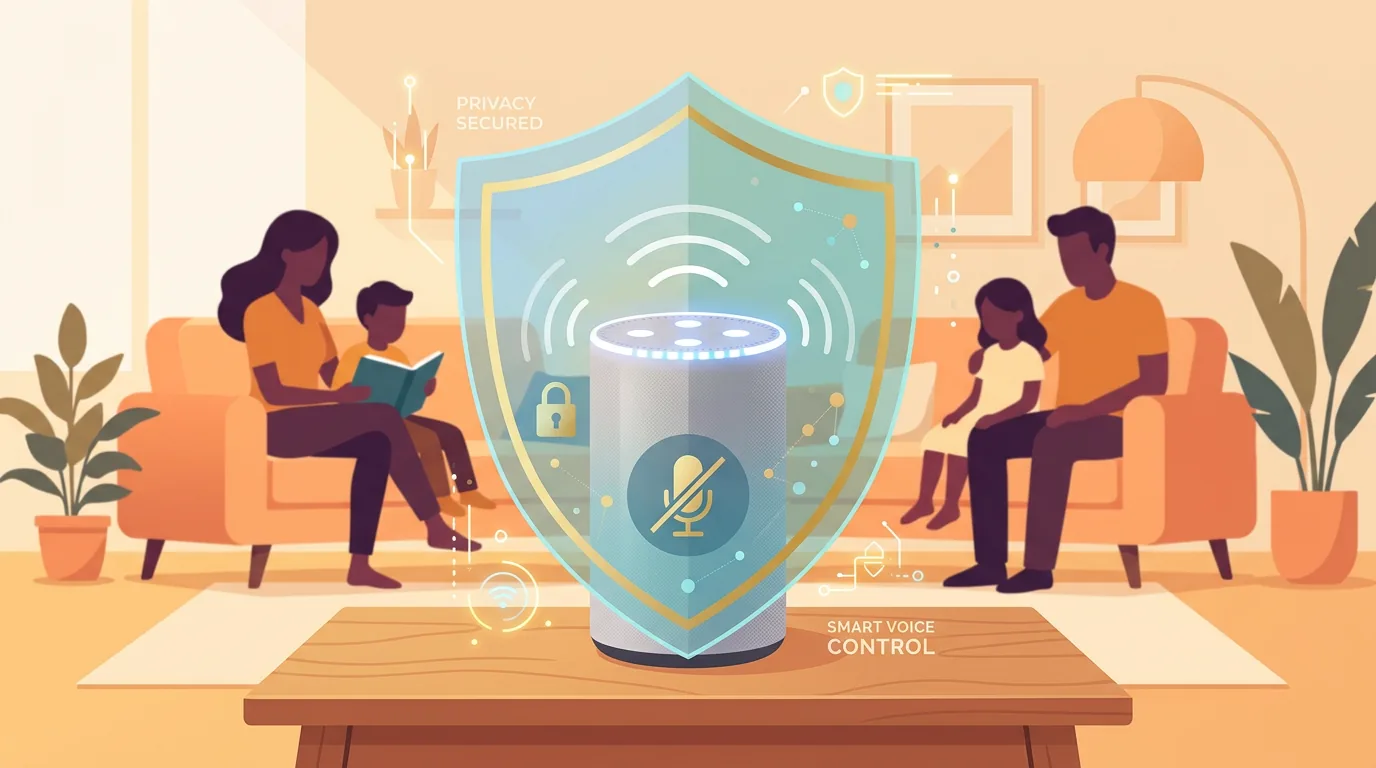
You ask Google to set a timer for noodles. You ask Alexa to play a kids song. You ask Siri to turn off the living room light. The speaker answers fast. The mic stays on and waits for the next wake word.
That convenience trades a slice of privacy. The speaker needs an open mic to hear the wake word. The speaker sends audio to the cloud to understand your request. The cloud saves a transcript and often an audio clip. You can keep the convenience and trim the trail. This guide shows you what each assistant keeps, where you delete it, and how you set the device for a home with parents, kids, and guests.
What the speaker does step by step
A smart speaker runs a small local model that watches for the wake word. For Alexa the model listens for Alexa, for Google it listens for Hey Google, for Siri it listens for Hey Siri or Siri. The local model runs on the device and discards most audio that does not match the wake word.
When the model thinks it heard the wake word, the device records a short buffer, adds the next few seconds after the wake word, and sends that clip to the cloud. The cloud runs speech-to-text, finds intent, and sends back the answer. The cloud logs the clip, the transcript, time, and device ID. The app shows that entry in your history.
Two edge cases change the amount of data kept.
False wake. The local model can mistake a TV line or a child phrase for the wake word. The device then sends audio it should not. You see a history entry that looks like random TV chatter. The cloud keeps it until you or an auto-delete rule removes it.
Follow-up listening. Some devices open the mic for 8 to 10 seconds after the answer to catch a follow-up. During that window the device can capture a second question without a wake word. That second question also goes to the cloud.
Human review, past and present. Amazon and Google once used human reviewers to check a small fraction of clips to improve models. Under current policies in 2026, both providers allow you to opt out of human review, and Apple uses on-device processing for many Siri requests with differential privacy for the rest. Defaults still allow some sampling unless you change them.
What each ecosystem keeps and where you find it
You control privacy at the account and at the device. Know the path for each.
Alexa (Amazon Echo, Echo Show)
Alexa saves voice history as audio plus transcript. You view and delete entries at alexa.amazon.com > Settings > Privacy > Review Voice History. You also manage at the Alexa app > More > Settings > Alexa Privacy.
Alexa keeps:
- Audio clips for each request, unless you turn off saving.
- Transcripts linked to your Amazon account.
- Device events such as timers, smart home commands, and skill use.
- Voice profile enrollment data if you set up Alexa Voice ID.
Amazon offers auto-delete after 3 months, 18 months, or never. Amazon also offers an option to not save recordings at all, but that disables voice ID and some personalization.
Google Assistant (Nest Mini, Nest Hub, Android phones)
Google saves Assistant activity under your Google Account. Open myactivity.google.com > Other activity > Assistant or Assistant > Settings > You > Assistant activity. You also manage at Google Home app > Settings > Privacy.
Google keeps:
- Audio clips if you enabled Voice and Audio Activity.
- Transcripts for most Assistant requests even when you disable audio saving.
- Device and location context for home control commands.
- Voice Match model if you enrolled Voice Match.
Google offers auto-delete for Web & App Activity and for Assistant data, with choices 3 months, 18 months, 36 months.
Siri (HomePod, HomePod mini, iPhone, iPad)
Apple saves Siri history differently. On HomePod with iOS 17 and later, many requests process on device when they control home accessories. When Siri needs the cloud, Apple sends a randomized identifier, not your Apple ID. Siri audio retention is short by default, and Apple does not keep a browsable audio history in the same way Amazon and Google do. You manage at iPhone Settings > Siri > Siri & Dictation History > Delete. HomePod inherits the Siri setting from the owner iPhone.
Apple offers no opt-in for human review of Siri clips under recent policy; Apple asks for explicit opt-in if it needs samples.
What the assistant learns about your home beyond voice
Voice clips are only one data type. The speaker platform also sees:
- Device graph. The speaker knows which lights, plugs, cameras, and TVs you link. A command like turn off bedroom light tells the cloud your room names.
- Routine and schedule. Routines like good night at 22:00 or wake kids at 06:30 reveal household patterns.
- Media taste. Music and video requests build a taste profile linked to your account or household.
- Guest voices. Guests who speak to the speaker create entries linked to the primary account, even though the guest never saw a privacy prompt.
- Location context. A weather query contains city or street. A command to navigate uses address.
You limit that trail with controls that sit near the data.
Ten steps you take to keep help and cut retention
You do not need to unplug the speaker. You set the device to help where you want and to forget where you do not.
1. Start with physical mute for private moments
Every speaker ships with a mic mute button that cuts power to the mic array. The button lights red. Use the mute during private talks, during homework calls with teachers, during guest stays. Treat the mute as a door lock you use at night. You press one button, you get full silence, no software setting needed.
2. Turn on auto-delete for voice history at the shortest window
At Alexa, set Alexa Privacy > Manage Your Alexa Data > Automatically delete recordings > after 3 months. At Google, set My Activity > Auto-delete > 3 months for Assistant and for Web & App Activity. For iPhone Siri, delete history monthly with the Delete Siri History button. Auto-delete gives you recourse without hand-deleting each week.
3. Turn off voice saving where you can, keep transcripts where you need them
At Alexa, enable Do not save recordings under Manage Your Alexa Data. Alexa still keeps transcripts for app function but discards audio. At Google, pause Voice and Audio Activity under Data & Privacy. Google still keeps transcripts, but it drops the audio clip. For kids rooms, prefer this dropped-audio mode.
4. Build voice profiles only for the people who need personal results
Voice Match and Voice ID let the speaker call you by name and fetch your calendar. Enroll only parents who need calendar access. Do not enroll kids under 13, and do not enroll guests. Fewer enrolled voices mean fewer biometric templates stored and fewer personalized logs linked to individuals.
5. Set the speaker for a household, not a single person
In Google Home, create a home structure with each parent as home member, with the correct address. In Alexa, create an Amazon Household only if you trust that sharing, otherwise keep one primary account and use voice profiles. Household structures decide who can add devices and who can review history. A single-owner setup often hides activity from the second parent, which blocks review.
6. Audit skills, actions, and home connections every quarter
Open Alexa > Skills & Games > Your Skills. Remove any skill you used once for a campaign. Open Google Home > Automations > Household routines. Delete routines you no longer need. Open Home > Settings > Works with Google. Unlink vendors you left. Each skill or link can read device events and can keep its own log beyond the provider.
7. Move sensitive requests to your phone, not the shared speaker
A shared speaker links history to the house, not to one person. A request like what is the result for my blood test or call the bank belongs on your phone with screen lock. Teach family to use the phone assistant for health, finance, or school admin, and use the living room speaker for timers, lights, music, and weather.
8. Use guest mode and closed purchase settings
At Alexa, turn on Amazon Kids for kids speakers or enable voice purchasing PIN. At Google, set Purchase controls > Require voice match or turn off shopping. Enable Guest Mode at Google for visitors so guest queries do not save to your history. Guests get help without adding to your profile.
9. Place and name the speaker with privacy in mind
Do not place the speaker in a bedroom where private talk happens or near a TV that triggers false wakes. Place the speaker at the kitchen bench or living shelf. Name rooms generically. Use light 1 instead of bedroom Siti. Generic names leak less about who lives where if the device log ever leaks.
10. Review the history with your family once a month for five minutes
Open the history list and scroll the last 20 entries. You spot false wakes, you spot kid requests that reveal school names, you spot a skill that logged at odd hours. Delete the entries you do not need. That five-minute check teaches kids how the device works and shows them you manage the data.
How you check what the speaker heard this week
Do this once on each platform you own.
Alexa: Open Alexa app > More > Settings > Alexa Privacy > Review Voice History. Filter by date, device, and profile. Play one clip. Note the transcript and the skill that handled the request. Delete one entry and observe how the transcript disappears.
Google: Open myactivity.google.com > Filter by product > Assistant. Play one clip if audio saving is on. Note the transcript line under Details. Check Google Home > Privacy > Home activity for device events.
Siri HomePod: Open iPhone Settings > Siri & Search > Siri & Dictation History. Note the last delete date. On HomePod, check Home app > Home Settings > Siri History is tied to owner.
You learn two things fast. First, how many entries your family creates per day. Second, which requests carry extra context you did not expect.
When a sensitive disclosure happens
You ask a medical question on the living room speaker by habit. Or a guest says a credit card number aloud and the speaker catches it. Act quickly.
- Mute the speaker.
- Open the history list for that day. Find the clip or transcript.
- Delete that single entry, then clear the assistant cache at the phone if the assistant stored a transcript there.
- If you spoke a password, bank number, or one-time code, change that credential at its source. A stored clip is a copy you can delete, but you treat disclosure as you would a note left on a table.
- If a child asked a sensitive question you want to keep private, delete that entry and talk with the child about using a personal device for that topic next time.
- For health or legal questions, consider using browsing with private mode on your phone and not the shared speaker going forward.
You do not need to delete the whole history to fix a single disclosure. Delete the single item, then tighten the controls so the class of disclosure does not recur.
Special case for kids and for Indonesian homes with helpers
Kids explore with voice. They ask random questions, they try to call contacts, they try to buy items by voice. Helpers and guests also use the speaker during the day. Two extra steps help.
- Put a kids speaker in Kids mode where available. Alexa Kids filters content, blocks voice purchase, and keeps a separate kids history with parental controls. Google Kids profile limits personalization.
- Give helpers a clear rule. The living speaker is for timers, lights, and music. Personal requests go to personal phones. That rule protects both the helper and the household.
Check local device support. Nest Mini and Nest Hub are common in Indonesia, Alexa is less common but growing, HomePod is rarer. Xiaomi Smart Speaker with Google Assistant follows Google rules. Bardi smart devices linked through Google Home inherit Google Home privacy, so your Bardi switch log sits with Google.
Common myths that waste time and facts that help
Myth: The speaker records all day like a bug. No. The speaker buffers locally and discards audio that does not match the wake model. False wakes happen, but the device does not stream all day to the cloud. Network monitoring tests in 2023 to 2025 showed spikes only after wake word.
Myth: Mute is fake and the mic still hears. On major speakers the mute button cuts mic power at hardware. The red light indicates the mic rail is off. Tests that measure power draw confirm the mic path down.
Myth: Deleting a clip hides it from the provider forever instantly. Providers keep deleted data for a short retention to handle legal holds and to clear backups. Deletion removes the entry from your view and from active training quickly, but backups expire on a schedule.
Fact: The most common privacy spill at homes is not a hacker. It is a house member or guest who reviews history on the app and sees queries from another member. Household members often forget the history is shared under the primary account.
A setup that works for a Jakarta family apartment
You place a Nest Mini on the kitchen shelf, away from the TV. You enable Voice Match for two parents, you skip voice match for kids. You set auto-delete to 3 months. You pause Voice and Audio Activity so Google keeps transcripts but drops audio clips. You mute while guests stay overnight. You unlink three old Bardi skills you tested last year.
At the bedroom you use no speaker. At the kids room you use a small speaker with Kids mode and purchase blocked. You review history for five minutes on Sunday. You delete a few false wakes and one music request that tagged the wrong location.
You keep timers, lights, and music on voice, and you move bank, health, and school admin to phone. That split gives you speed where voice helps and privacy where voice risks.
Checklist you run tonight in 10 minutes
- You press mute and unmute to see the red light path.
- You open the history list for the last 7 days and count entries.
- You set auto-delete to 3 months.
- You pause Voice and Audio Activity or enable Do not save recordings.
- You check which voice profiles are enrolled and remove guests or kids.
- You audit skills and home links and remove what you no longer use.
- You set purchase PIN or block voice purchase.
- You set guest mode where available.
- You choose a new spot for the speaker away from the TV.
- You set a calendar reminder to review history monthly.
Sources and where you verify further
- Amazon Alexa Privacy Help pages on Review Voice History and auto-delete
- Google My Activity Help on Assistant data and Voice and Audio Activity
- Apple Platform Security Guide on Siri on-device processing and randomization
- Mozilla Foundation privacy reviews of smart speakers 2023 to 2025
- University network studies on wake word false positives and traffic spikes
- Electronic Frontier Foundation guide on smart home device hardening
You keep the speaker for what it does best, timed tasks and home control, and you move the private talk to a device you alone control. A few toggles plus a monthly scroll keep your home history short and your family aware of what stays and what goes.