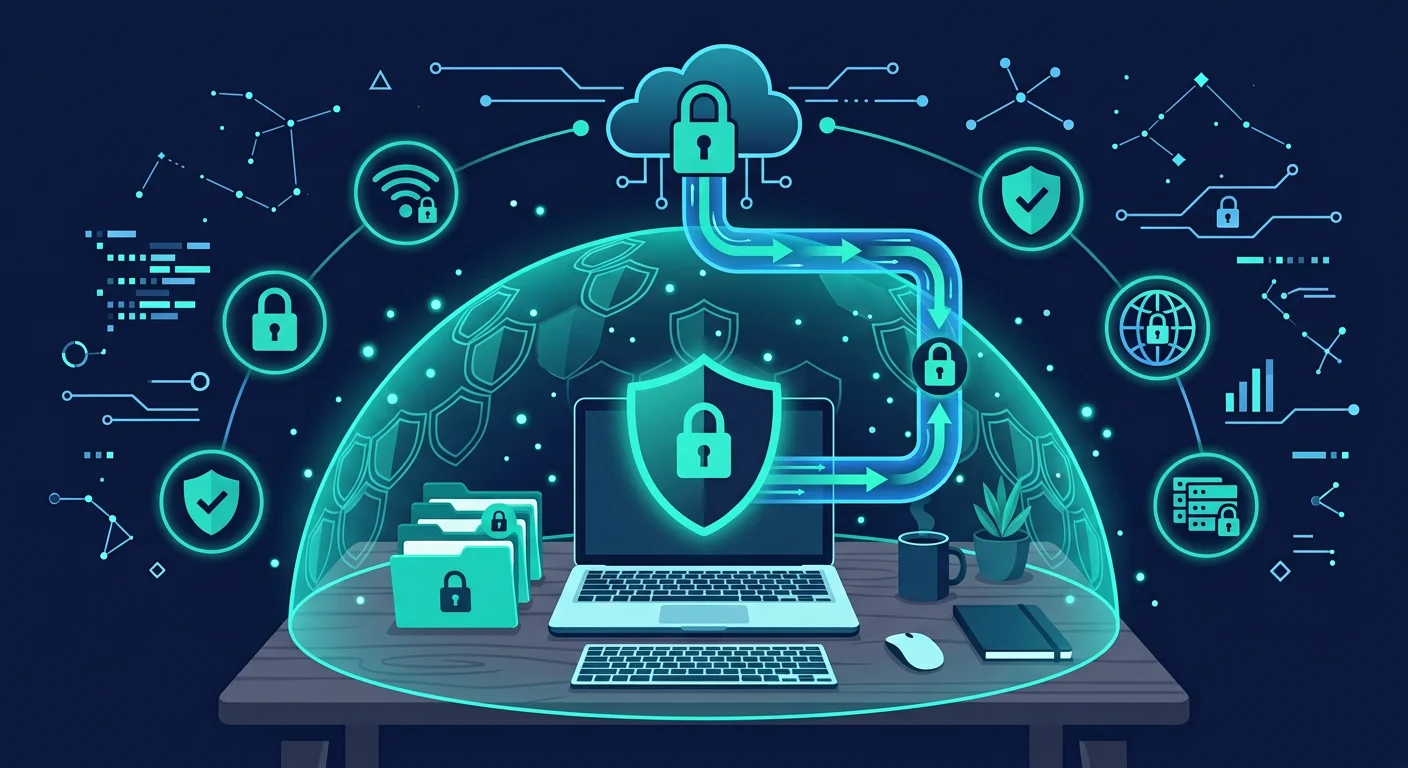
Working from home (WFH) has become the norm for millions of workers. Work laptops connect to home WiFi, company files are stored on personal devices, confidential meetings happen in living rooms where family members can overhear. The boundary between the secure office environment and the relaxed home environment blurs. At the office, IT teams manage firewalls, segmented networks, and physical controls. At home, most of that protection disappears. Work data security during WFH depends on the habits you build yourself, plus the tools available.
Why WFH has a different risk profile
Several factors make WFH more vulnerable than working at the office:
- Home networks are shared by the entire family, including children playing online games and IoT devices
- Personal devices may be used for work tasks due to limited office equipment
- Physical environment is uncontrolled: screens visible to delivery people, meeting audio overheard by neighbors
- IT support is remote and cannot respond as quickly as when you are in the office
10 steps to secure work data when WFH
1. Separate work and personal devices
Use a dedicated laptop or computer for work. Do not install personal applications on work devices, and do not open work email on personal devices. This separation prevents malware from personal activities spreading to work data, and vice versa.
2. Secure your home WiFi
Your home WiFi is now your work network. Ensure:
- WiFi password is strong and not the factory default
- WPA2 or WPA3 encryption is active
- Router firmware is updated
- Guest network is available for visitors or IoT devices Change the default router password if never done. Routers with default credentials can be accessed by anyone within signal range.
3. Use your company VPN to access internal systems
Your company VPN encrypts your connection to office infrastructure. Always enable the VPN before accessing internal systems, file servers, or work applications. Do not disable the VPN to "speed up" the connection when handling sensitive data.
4. Lock your screen every time you step away
At home, you might feel safe leaving your laptop open. But family members, guests, or delivery people entering could see sensitive information on screen. Build the habit of locking your screen (Windows + L or Command + Control + Q) every time you stand up from your desk, even briefly.
5. Be careful with virtual meetings in public spaces
Online meetings from cafes or coworking spaces mean people nearby can hear conversations or see your screen. For meetings discussing sensitive information:
- Use headphones to prevent audio leakage
- Position your screen facing a wall
- Use a screen privacy filter if available
- Consider whether the location is appropriate for that discussion
6. Do not store work data on personal cloud
Company files should remain on approved infrastructure: company Google Drive, SharePoint, or official collaboration platforms. Do not copy work data to personal Dropbox, personal Google Drive, or unencrypted USB drives.
7. Update devices and applications regularly
Operating system, application, and antivirus updates patch security vulnerabilities. Enable automatic updates for all work devices. Do not delay updates because you are "busy": unpatched vulnerabilities are easy targets for malware.
8. Handle physical documents carefully
Printed documents containing sensitive information should not be left on desks. Store them in locked locations or destroy with a paper shredder when no longer needed. Handwritten meeting notes also contain information that needs protection.
9. Verify unusual requests through a second channel
If a colleague or supervisor sends an unusual request via email or chat (fund transfers, credential sharing, sending client data), verify through phone or video call. Colleague accounts can be hacked and used to deceive you.
10. Report security incidents immediately
If you click a suspicious link, discover a missing device, or suspect unauthorized access to work accounts, report to IT immediately. Report speed determines how much impact can be limited. Do not delay for fear of being blamed: IT teams prefer early reports over incidents that have already spread.
Example: work laptop used by a child for gaming
An employee let their child use the work laptop to play online games over the weekend. The game included a mod that carried malware. The malware infected the laptop and gained access to the company VPN network that was still connected. IT detected suspicious activity two days later, but sensitive data had already been extracted. A simple rule, work devices for work only, would have broken this attack chain.
Common WFH worker mistakes
- Assuming "my home is safe." Home physical security differs from the office. Guests, service workers, or family members can access devices without your knowledge.
- Using home WiFi without hardening. A child downloading random files on the same network can bring malware that spreads to your work laptop.
- Delaying updates. Postponed updates accumulate into broad security gaps.
Frequently asked questions
Can I use a mobile hotspot for WFH?
If your company provides a mobile hotspot, this is safer than home WiFi because the network is isolated. But ensure the hotspot is protected with a strong password.
What if I don't have a separate workspace?
Use screen privacy filters, headphones, and schedule sensitive meetings when the house is quiet. A desk position facing a wall helps prevent screen visibility from windows or doors.
Do I need additional antivirus on work devices?
If your company provides managed antivirus, do not install another that could cause conflicts. If not, discuss with IT about recommended solutions.
Sources and further reading
Editorial note: This article provides general guidance. Follow your company's information security policy as the primary reference, and consult with IT for specific configurations.